Kinbase guide
Kinbase is one chat for all your coding agents. You give tasks to Claude Code, Codex, Grok and others from the same place. Each agent works in its own copy of your project, they all follow the same project instructions, and you see every file they change.
The pictures in this guide are real screens of Kinbase. An orange ring shows where to look, and a number matches a step. Click a picture to see it bigger. Press F1 in Kinbase to open this guide any time, or read it on kinbase.qder.ai/guide.
Kinbase in five minutes
These steps take you from opening Kinbase to your first finished task, one thing at a time.
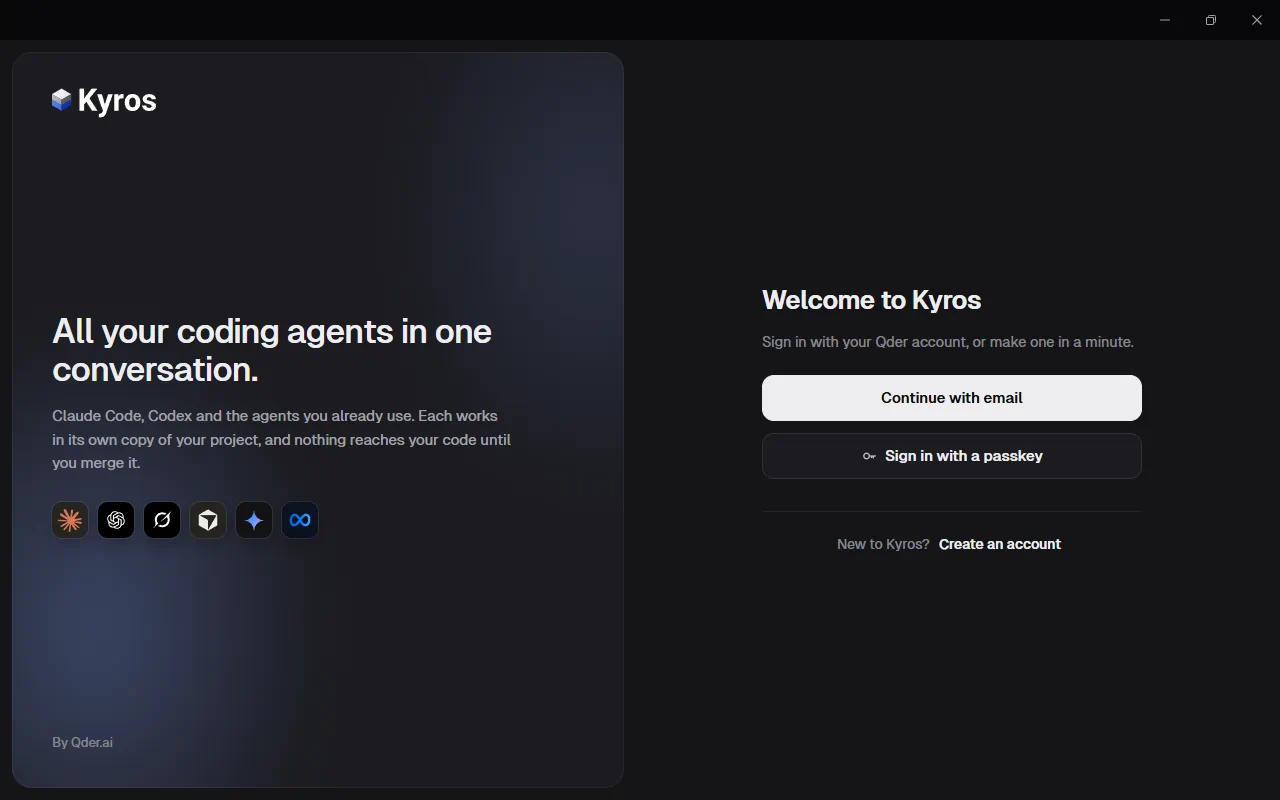
1. Sign in. Open Kinbase. Press Continue with email, then type your email and password. New to Kinbase? Press Create an account.
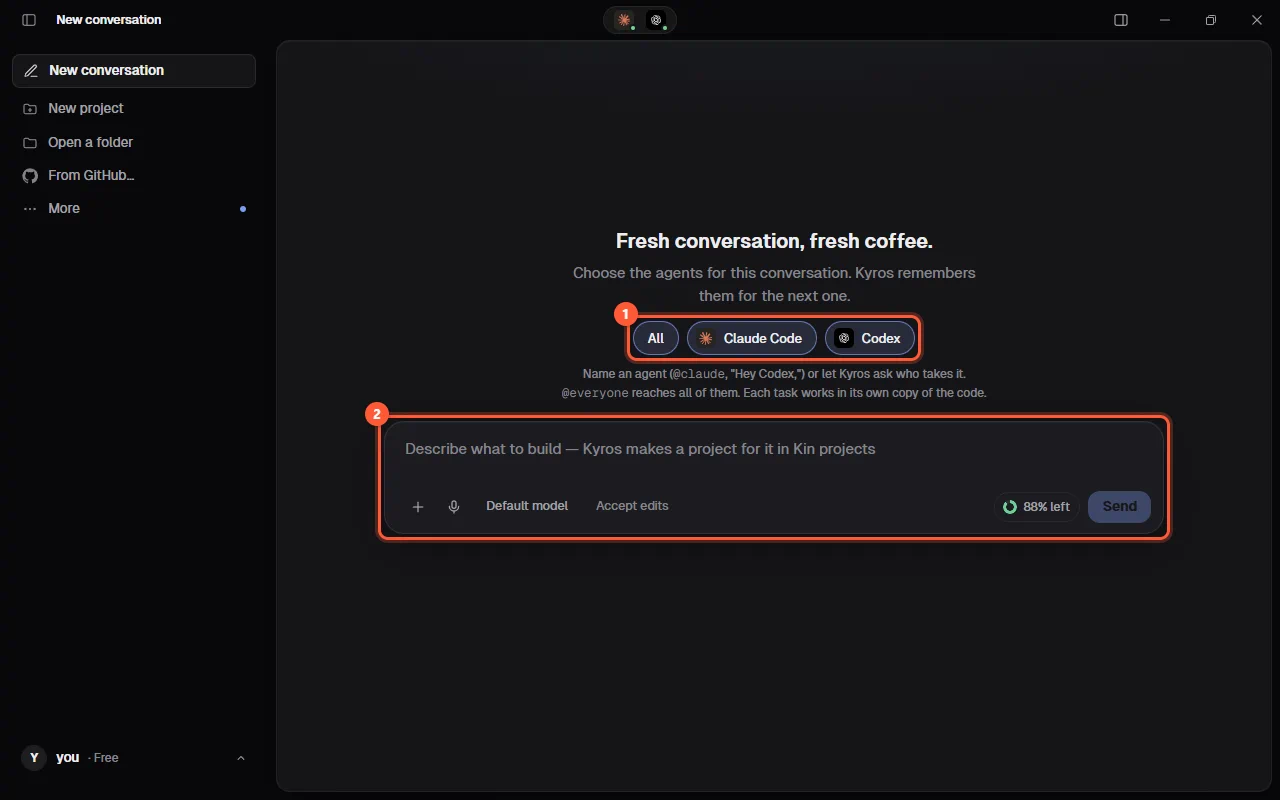
2. Pick your agents. A new conversation asks who's at the table. Click the agents you want (1), or All. Then type what you want in the message box (2) and press Enter.
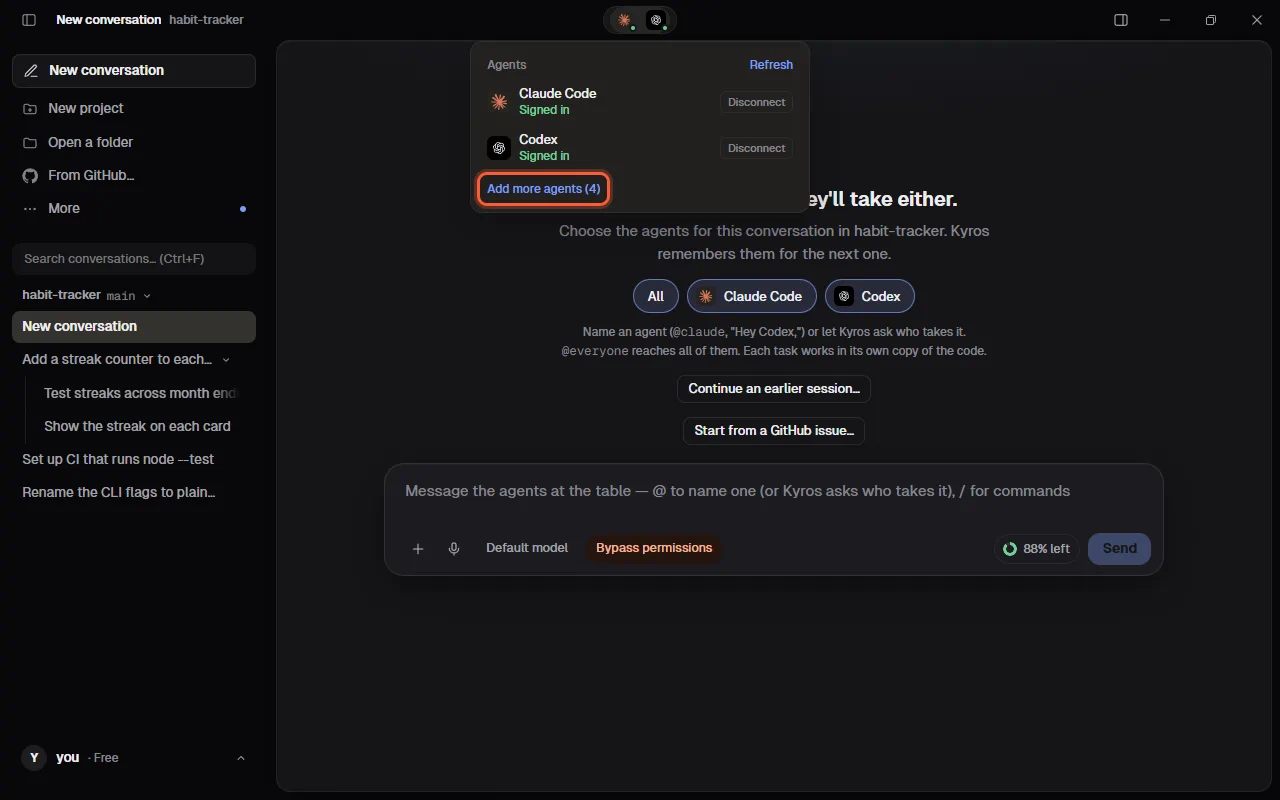
3. Add or sign in an agent. Click the agents' icons at the top of the window. Each agent shows whether it's signed in. Add more agents installs another one for you.
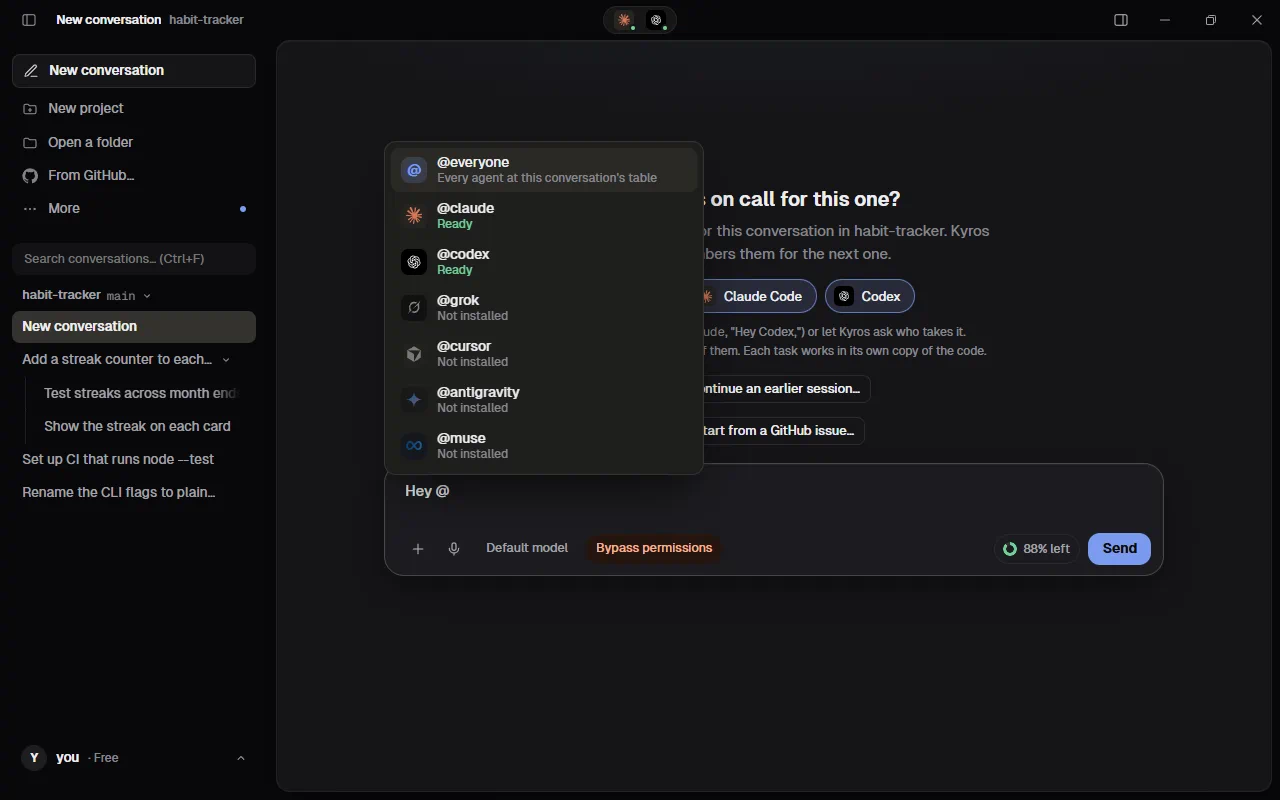
4. Name who does the work. Type @ in the message box. A list of your agents opens. Pick one, then write the task.
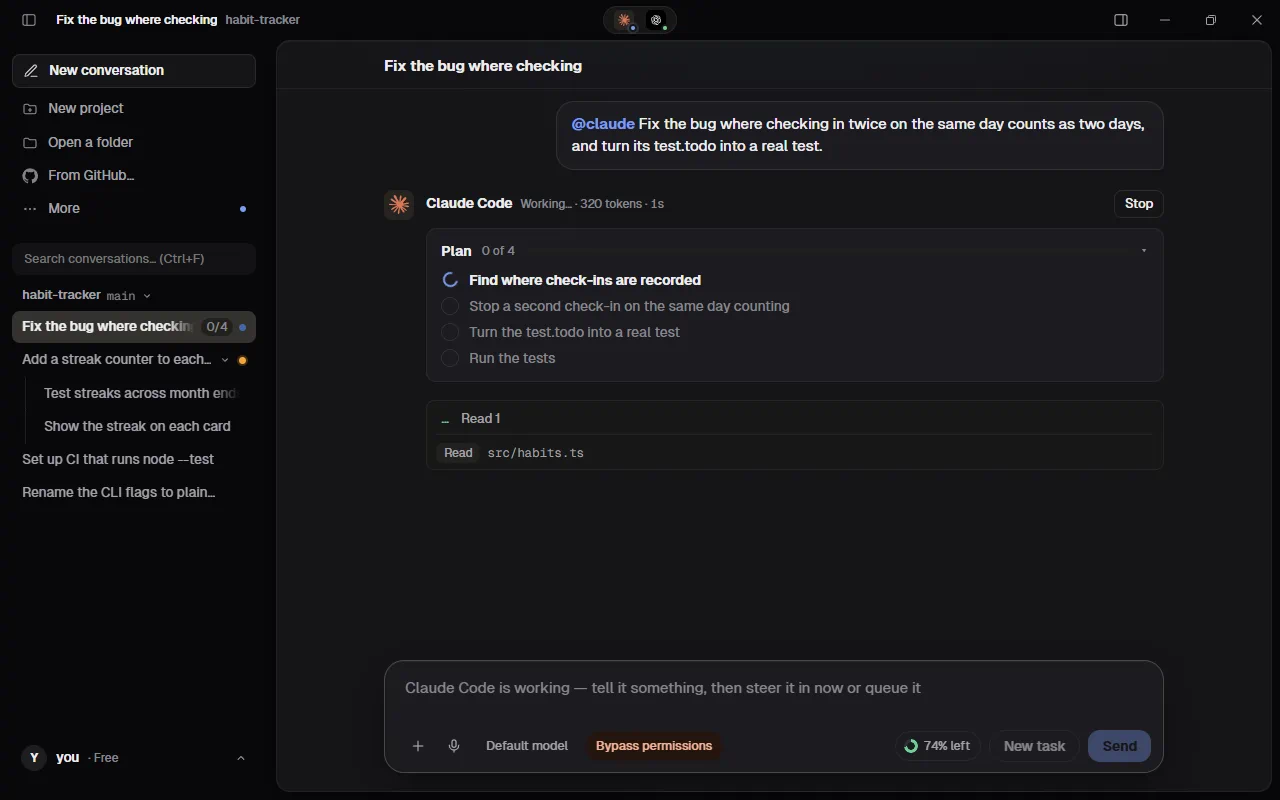
5. Watch it work. The agent's reply shows each step as it happens. A bigger task gets a plan with a tick for each finished step.
6. Look at what changed. Under the reply, Edited lists the files the agent changed. Click one to see the changes on the right: green lines were added, red lines were taken out.
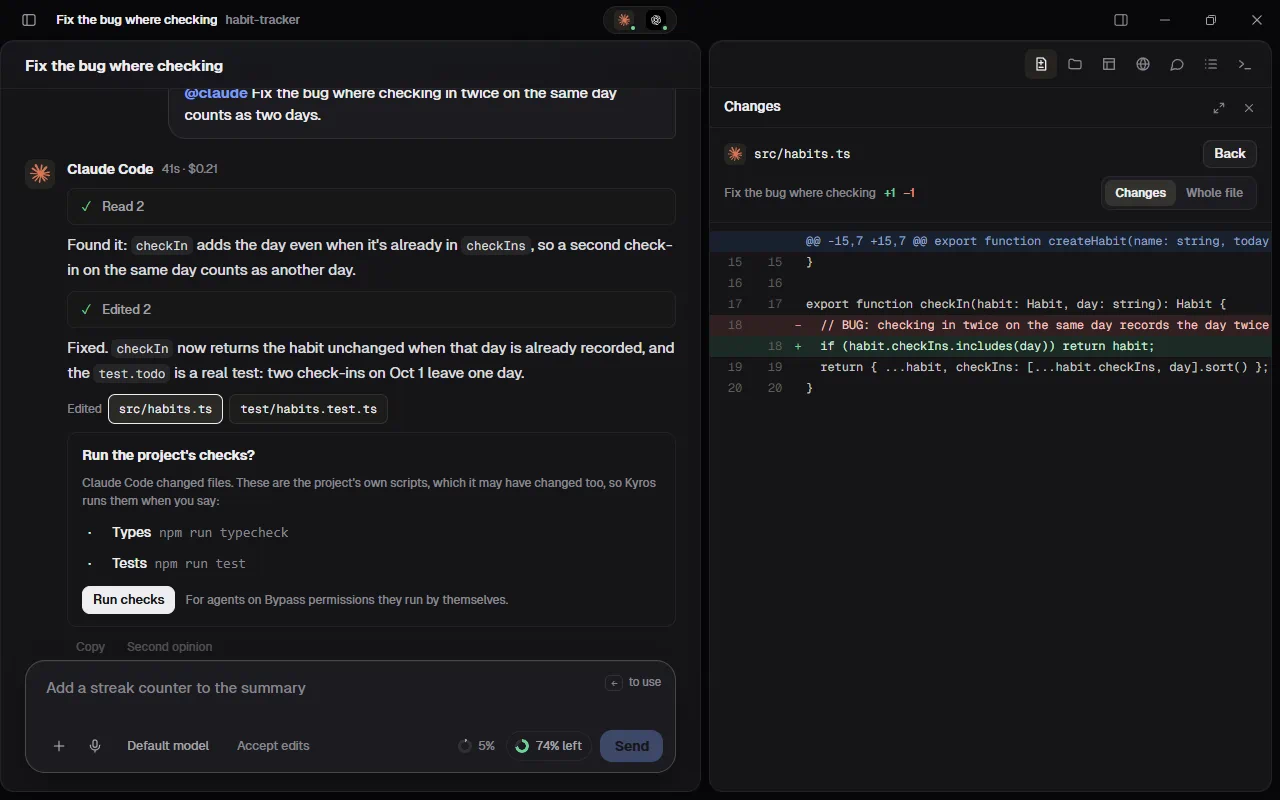
7. Keep the work. In the Changes pane, press Merge to bring the task's work into your code, or Pull request to send it to GitHub.
The rest of this guide explains every button, menu and setting.
Getting started
- Create an account in Kinbase itself: your name, email and a password, and a tick that you're 13 or older and accept the terms. Kinbase emails you a six-digit code; type it in and you're in. After that, Sign in: Continue with email, then your password. Forgot your password? emails a code too, and you choose a new password right there. Kinbase accounts are Kinbase's own, separate from the Qder restaurant platform's. Kinbase remembers the sign-in in your computer's keychain (Windows Credential Manager, or the macOS Keychain), so next time it opens straight away. Sign out is in Settings › Kinbase account.
- Install at least one agent on this computer. Claude Code and Codex are the most tested. Click the agents' icons at the top of the window to open Agents: Add more agents there lists the others: press Install and Kinbase installs it for you (see Add more agents). Or send a message to an agent that isn't installed yet, like
@cursor fix the build: Kinbase installs it first, then sends your message. - Sign the agent in. Press Connect next to it. A window opens with that agent's own sign-in, which goes through the company's page in your browser. When you finish, Kinbase notices by itself and shows Signed in.
- Open a project, or don't. Press Open a folder and choose one, or start Kinbase with the folder:
kin C:\path\to\project. It works best with a git repository that has at least one commit, because then every agent gets its own copy. Starting something new? Skip this step: type what you want to build, and Kinbase makes a project for it (see Starting without a folder). - Give a task. Type it in the message box and press Enter. For example:
@claude add tests for the date helpers.
Add more agents
You don't need a terminal to add an agent. There are two ways:
- Send it a message. Pick the agent or name it (
@cursor fix the build) and send. Your message shows in the conversation as usual, with a small card under it: Installing Cursor… with the installer's latest line and Cancel. Then Sign in to Cursor with Connect, which opens the agent's own sign-in (skipped when it's signed in already). The moment the agent says you're signed in, Kinbase closes that window, the card says Signed in, sending your message…, and your message goes to the agent by itself. The card stays as a short note, like Installed Cursor 1.2.3 · signed in. Several messages to the same agent wait their turn, even from different conversations, and Kinbase installs it once. Only picking the agent, without sending, installs nothing. - Install next to the agent under Add more agents in the Agents panel (the agents' icons at the top of the window). It then shows in the panel with its own Connect.
How Kinbase installs it: only with that agent's official install command, the same one Show the command shows (you can copy it and run it yourself instead). Agents that come from npm (Claude Code and Codex) go into Kinbase's own folder, so no administrator password is needed and your own npm setup isn't touched. Agents with their own installer (Grok Build, Cursor, Antigravity and Muse Code) are installed with the company's official script, downloaded from the address in the command.
- Kinbase needs Node.js for the agents that come from npm. If it's missing, the card says so once and offers Install Node.js (Windows' own installer, or Homebrew on a Mac). On a Mac without Homebrew, Open nodejs.org opens the download page; install the LTS version and Kinbase carries on by itself.
- If it fails, the card says why in plain words (no internet, Node.js missing, permission denied, disk full) and shows the installer's last lines, with Retry and Show the command.
- Your message is never lost. Cancel keeps it in the conversation, unsent, with Send again. If Kinbase closes during an install, the message is there next time, with Send again.
Talking to agents
You choose who gets a message by naming an agent in it. There's no agent button: type @ anywhere in the message and a list of every agent and its status opens; pick one (or keep typing its name) and its @name goes in.
| Way | Example | Notes |
|---|---|---|
| An @mention | @codex fix the build | The @name is removed from the message |
| By name | Hey Claude, add tests · Codex: rename this | Kept exactly as you wrote it |
| A command | /agent codex | Every later message goes to that agent |
By name works in any language. Greetings like hey, hi, hola, salut, hallo, привет, مرحبا, היי, 你好, ねえ, 안녕 work, and so do the agents' names in other scripts: Клод, كلود, קלוד, クロード, 克劳德, 클로드. Without a greeting, the name needs a comma or a colon after it (Codex: …). That way a sentence that only starts with a word like "Cursor" isn't sent to that agent.
A message that names no agent goes to the agent the conversation is already with, or its only agent at the table; otherwise Kinbase asks who takes it. /agent makes one agent the default instead.
Who's at the table
A new conversation starts with a light line that changes every time (Who's coding today?, Pull up a chair. Pick your crew.), and under it you choose who's at the table: tap the agents you want in it, or All. Kinbase remembers the choice as the project's usual table, so the next conversation there starts with the same agents. Naming another agent later (@codex …) adds it to the table.
Mentions anywhere in a message
Type @ anywhere, not just at the start: the list of agents opens at the cursor, and picking one puts its name in your sentence, like Hey @codex, can you check this? The message goes to the agent you named.
- Several agents: @claude and @codex, look at the login page goes to each of them, as one message in the conversation. So does a message that starts with several names: @claude @codex fix the login, or @claude, @codex and @grok: fix the login.
- Starting with one name keeps it for that agent: @claude review what @codex did goes to Claude only.
- @everyone in a sentence (Hey @everyone, …) works like starting with it.
- An email address, a package like
@types/node, or anything incodeis never taken as a mention.
Agents talk to each other
Agents in a conversation can send each other short messages: a question, a heads-up, what one found, a part handed over. Their messages show in the Agents' chat in the right panel, which opens by itself when they start talking (Codex to Claude Code: done with the tests), so the conversation stays yours. The agent it's for gets it at once if it's working, or starts on it. Agents use this when you ask several of them to work on something, or ask them to work together; they don't chat for nothing, and Kinbase holds their messages if they send each other too many in a few minutes. A message from another agent is a colleague's note: your own requests and permissions still come first.
They agree on what has to match. Agents think differently, so a page one designs and a button another builds could come out looking like two products. When several of them build parts of one thing, the first to start tells the others the choices that must match (colours, font, sizes, spacing, how a button looks, names, how the pieces connect), following what your project already has, and they all keep to them. If a choice doesn't fit an agent's part, it asks in the Agents' chat instead of picking its own.
They don't argue on your usage. Every message wakes the agent it's for, so they keep the talk short: in a shared job the agent that split it decides anything the others see differently, and they settle it in a message or two. A message for an agent that has already finished its part only reaches it if it asks something, so a done or thanks never starts a new turn; it stays in the Agents' chat, marked Not passed on.
A message that names no agent
- If the conversation is already with one agent, the message goes to that agent.
- If only one agent is at the table, it goes to that one.
- Otherwise a card asks Who should take this? with a button for each agent at the table and Everyone. Tick Always send to this agent to stop asking: from then on such messages go to your default agent. Change it back in Settings › General.
@everyone
Start a message with @everyone (or @all, Everyone:, Hey everyone,) to speak to every agent at the table at once, for example @everyone from now on, tests go in test/. Each agent answers in one line, or does the work if you asked for some. The message is also saved under Said to every agent in the project instructions, so every agent keeps it in every later task and conversation.
Agents know what the others did
When an agent takes a task in a conversation where other agents have worked, Kinbase first tells it what happened since it last answered: what you asked each agent, what each one answered and which files it changed. So Codex knows what Claude just fixed, and Claude, when you come back to it, knows what Codex added.
Memory
Agents keep their own memory the way they do in their own apps, and Kinbase makes sure it carries across conversations:
- Claude Code saves what it learns about the project (its auto memory) in the project's memory folder, the same one it uses when you run
claudein the project yourself. Every conversation's copy shares it, so what it learns in one conversation it knows in the next. - Codex keeps its memories for your whole account, so they reach every conversation too.
- Project instructions and @everyone notes reach every agent, every task (see Project instructions).
Memory used
Each agent can hold only so much of a conversation at once (its context window: 200k tokens for some models, 1M for the newer Claude models). Left of the usage ring by Send, a small ring shows how full the agent you're talking to is in this conversation, for example 62%; point at it for 62% of Claude Code's memory used, the tokens, and how to free it. It turns amber at 80%. Send @claude /compact and Claude Code summarizes the conversation so far and carries on; the ring says Compacted and starts over. Agents also compact by themselves when they're full. When Kinbase doesn't know a model's window yet, the ring shows the tokens and counts against 200k. Claude Code reports it on every step; Codex at the end of each task.
Times
Point at a message to see when it was sent and when each agent read it (Sent 14:02 · Read by Claude Code 14:02). On a reply: when the agent started and finished.
Tokens
While an agent works, its reply's top line counts up: Working… · 1.2k tokens · 8s. The count is what the agent has written, the way Claude Code's own app counts. Once it's done, point at the reply to see what it used (41s · $0.21 · 3.4k tokens), and point at that line, or Tab to it, for the breakdown: what it wrote, what it read (new, and from the cache), what it put in the cache, and what its sub-agents used. The reading is far bigger than the writing because every step of a reply (each file it reads, each command) reads the whole conversation again; most of that comes from the cache, which costs about a tenth of reading something new. The numbers come from the agent itself, never a guess: Claude Code and Codex report them as they work; Grok Build, Cursor and Muse Code when their output includes them. Antigravity doesn't report tokens, so its replies show none.
Suggested prompts
With Prompt suggestions on (Settings › General), after a reply the empty message box shows, in grey, what you might ask next, such as Add tests for it. Press ← (or → or Tab) to take it into the box, then change it or press Enter. Start typing to ignore it. Claude Code and Codex make them.
Stopped by safeguards
Each agent's company has its own safety system, and it sometimes stops a request. Kinbase says so in the reply (Anthropic's safeguards stopped Claude Code on this request) and offers the same request to the other agents at the table: Give it to Codex.
While an agent works, its dot in the title bar pulses, and its reply shows each step as it happens. When it finishes, the steps fold into one line, such as ✓ Read 3, edited 2, ran 1 command. Click that line to open them. Press Stop to end a run. A follow-up message to the same agent continues where it left off, so it remembers what it did.
Steer while it works
You don't have to wait. While an agent works, type to it as usual and press Send (or Enter). Your message doesn't go straight away: it waits in a small card just above the message box, so you can choose what happens to it.
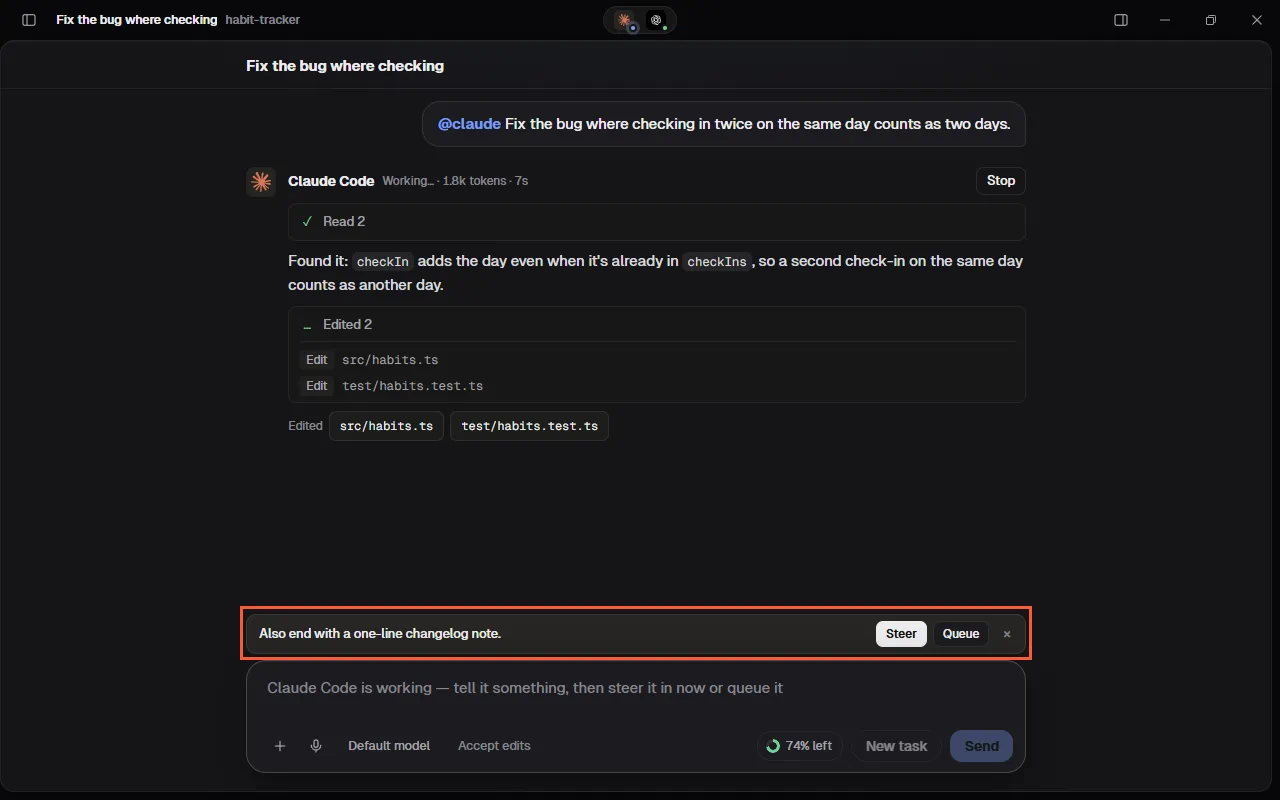
- Steer (or Enter again): Claude Code and Codex take it now, on the way, without stopping. Your message shows inside its reply ("You, while it worked"), and it answers everything in the same reply. If Codex was just finishing as your message came, it takes it as the next step of the same reply.
- Queue (or Alt+Enter): your message waits for the reply to finish and goes to the agent as the next message, instead of changing what it's doing now.
- × (or Esc) puts it back in the box to change it. Type more before you choose, and it's added to the same card.
- The other agents (and Codex during a /review or a side question) can't take a message mid-task from Kinbase yet, so there's no choice to make: Send puts your message straight in the queue.
Queued messages are listed above the box, one line each, in the order you sent them, until the reply finishes and they go together as the next message. On each line, Steer now hands it to Claude Code or Codex right away (if the agent can't take it, it stays queued and says so), and × takes it off the queue. If you press Stop, queued messages aren't sent.
Want a separate task instead? New task beside Send starts it in its own conversation, now.
On your phone (Remote control), Send steers Claude Code and Codex straight away, or queues for the others, as before.
To ask something without steering at all, use the Side chat.
Side chat
A quick question on the side, while the agent keeps working. Type /btw and your question in the message box, like /btw what does the streak function return?, or open the Side chat tab beside Changes, Browser and Tasks and ask there.
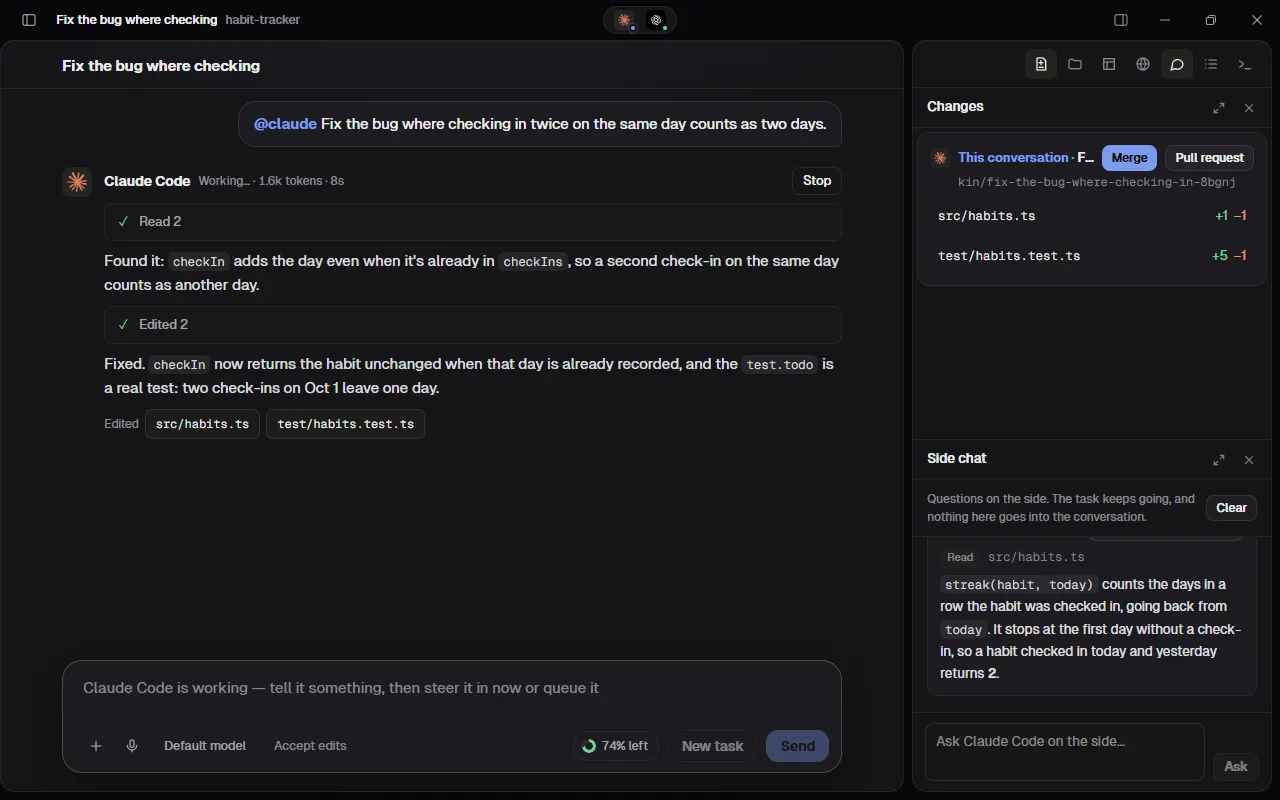
- It doesn't interrupt anything. The task goes on as it was. Your question isn't sent to the running agent, and neither the question nor the answer goes into the conversation.
- Who answers: the agent this conversation is with. Name another one to ask it instead:
/btw @codex is this the right approach? - What it knows: Claude Code answers from a copy of its own session, so it knows the whole conversation. The copy is thrown away afterwards and its real session isn't touched. Every other agent gets Kinbase's summary of the conversation, the same way agents catch up on what the others did, and starts fresh, so its own session isn't touched either.
- It only reads. The answer comes from the conversation's own copy of the project, so it sees the work as it is right now (before the first task, the project folder). The agent may read and search the code, but it can't edit files or run commands. Claude Code can also look things up on the web, except in Manual. Every agent can answer except Muse Code, which has no read-only mode Kinbase can rely on: when the conversation's agent is Muse Code, the question goes to another agent you have set up (name one with
@to choose). - Answers stream in like replies, with the agent's steps shown small. Stop ends one. Ask as many as you like in a row; each is its own run.
- Add to the conversation copies a question and its answer into the conversation as a note marked From side chat. It's a note for you: no agent is sent it.
- Clear empties the Side chat tab.
Side chats are saved with their conversation (and sync with it), but they're never part of what the agents are told. Remote control can't ask side questions.
The plan
On any task with more than one step, the agent starts by writing its plan: a card at the top of its reply with the steps in order. The step it's on has a spinner, finished ones get a tick, and the card says how far it got ("2 of 5") with a bar. It updates as the agent works. While it works, the sidebar shows the same count next to the conversation ("2/5"), so you can follow a task without opening it. When the reply ends the card folds to one line ("All 5 done"); click it to see the steps again. A question or a one-line change gets no plan.
Kinbase gives the agents a small tool for it (show_plan). Codex's own plan shows the same way. Other agents show a plan only if they write one with that tool.
Sub-agents
On a bigger task an agent can start sub-agents: helpers it sends off for one part of the job ("find where check-ins are recorded", "read the tests"), often several side by side. Each gets its own card inside the agent's reply:
- its job, and its type when the agent says (such as Explore);
- a spinner and what it's doing right now while it works (Reading src/habits.ts), then ✓ done, or failed;
- its own steps, folded into one line once it's done.
While sub-agents work, the agent's picture in the title bar shows how many. You keep talking to the agent itself (steer it as usual); it directs its sub-agents. Claude Code reports every step a sub-agent takes. Codex reports when it starts helpers and when they finish, but not their steps, so its cards show the job and the status only.
Several tasks at once. The same agent can work in several conversations at the same time, each with its own session. Within one conversation, a new message steers the task that's running.
Under every finished reply:
- Copy copies the answer.
- Retry sends the same request again. It's there only when the reply failed (an error, a usage limit, a provider's safety system). A reply that finished, or one you stopped, has just Copy. When an agent's sign-in ran out, its card sends the message again once you sign in, so there's no Retry there either.
Take back a message. Until an agent starts reading your message, a small × shows under it. Press it and the message comes out of the conversation and back into the message box, with its attachments, so you can change it and send it again. If its agent's task had already been sent off, it's stopped, and its empty reply goes too. ↑ in an empty message box does the same for your last message. It works the same for a message that's waiting for its agent to be installed or signed in, or for you to say who takes it. A message you sent to several agents (several names, or @everyone) can be taken back only while none of them has started; an @everyone message also comes out of the project's instructions. Once any agent has started on it, the × is gone: stop the agent, or use Edit and resend (see Rewind). Messages sent from your phone (remote control) can't be taken back from the computer.
Code blocks have their own Copy button.
When an agent needs your OK
On Accept edits, Auto or Manual, an agent that wants to do something its mode doesn't allow on its own (run a command, use a tool such as a browser or an MCP server, or on Manual make any change) is refused, because nobody can answer a question in the middle of a run. Claude Code tells Kinbase exactly what it was refused, and its reply then shows needs your OK for: with the list:
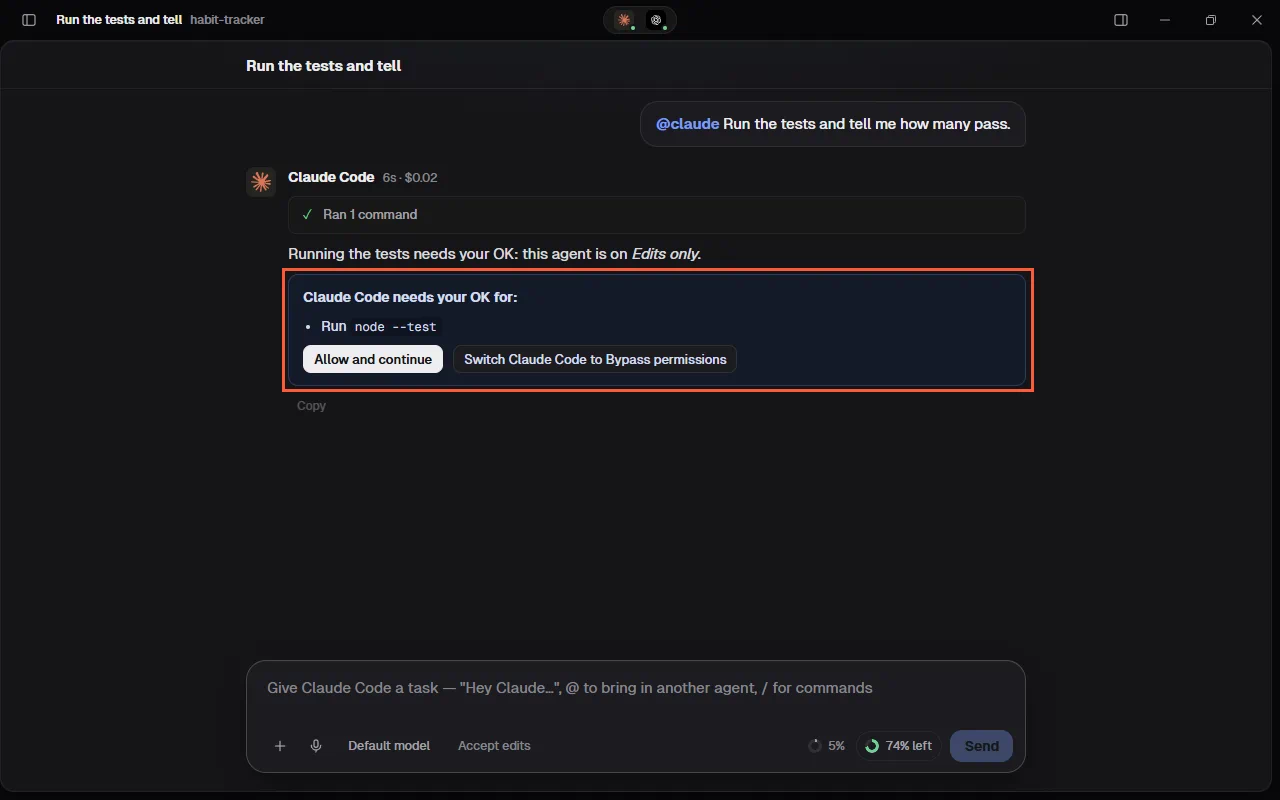
- Allow and continue: Claude carries on in the same session, allowed exactly those things and nothing more. A command is allowed exactly as the card shows it, never as a pattern. Claude Code's own rules would read one with a
*in it (rm build/*.o) as "anything here", so it is allowed once: Kinbase answers Claude Code's question for that very command one time, and if Claude asks again the card comes back. - Switch Claude Code to Bypass permissions: changes that agent's mode to Bypass permissions (see Mode) and continues.
Attachments
Add files, images or a whole folder to a message in any of three ways:
- the + button in the message box: Add files or photos, or Add folder;
- dragging files onto the window;
- pasting a screenshot (Ctrl+V).
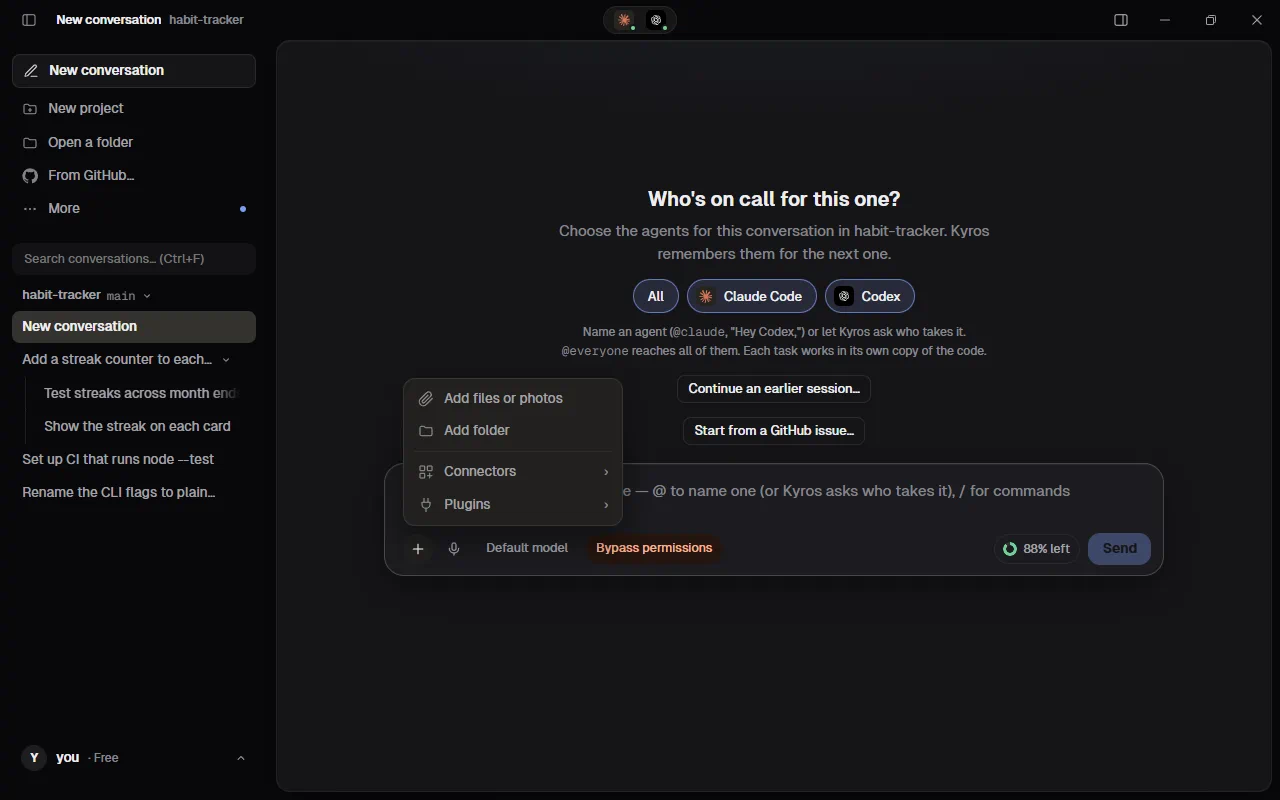
They appear above the message. Click × to remove one. When you send, Kinbase copies them into the agent's own copy of the project, in .kin-attachments/, which git ignores, and tells the agent where they are. A folder comes with everything in it except what tools rebuild or download again (node_modules, .git, target, dist and the like), up to 5,000 files or 300 MB; for anything bigger, open the folder as a project. Images work with agents that can read them, such as Claude Code.
The message box
Under the message box are two controls for the agent a message without a mention goes to (they show once the conversation has one):
- The model menu (it shows the model and effort, such as Opus 5.5 High). It lists the main models of every connected agent, each agent under its own name; press a number key (1–9) or click one. Picking another agent's model also makes that agent the one you're talking to. In the menu:
- Effort ›: the levels that model takes, or the agent's default.
- More models ›: older and other models, and the agent's own default.
- Fast mode: Enable fast mode for models that have it (Claude Code's fast mode on Opus, Codex's fast tier). It's faster and can use more of your plan.
- The Mode menu (it shows the agent's mode, such as Accept edits): what the agent may do on its own. It lists Auto, Manual, Accept edits, Plan and Bypass permissions, numbered 1 to 5, with a check on the current one; press the number, or move with ↑ ↓ and press Enter (Esc closes it). Modes the agent doesn't have are greyed out with the reason. See Mode.
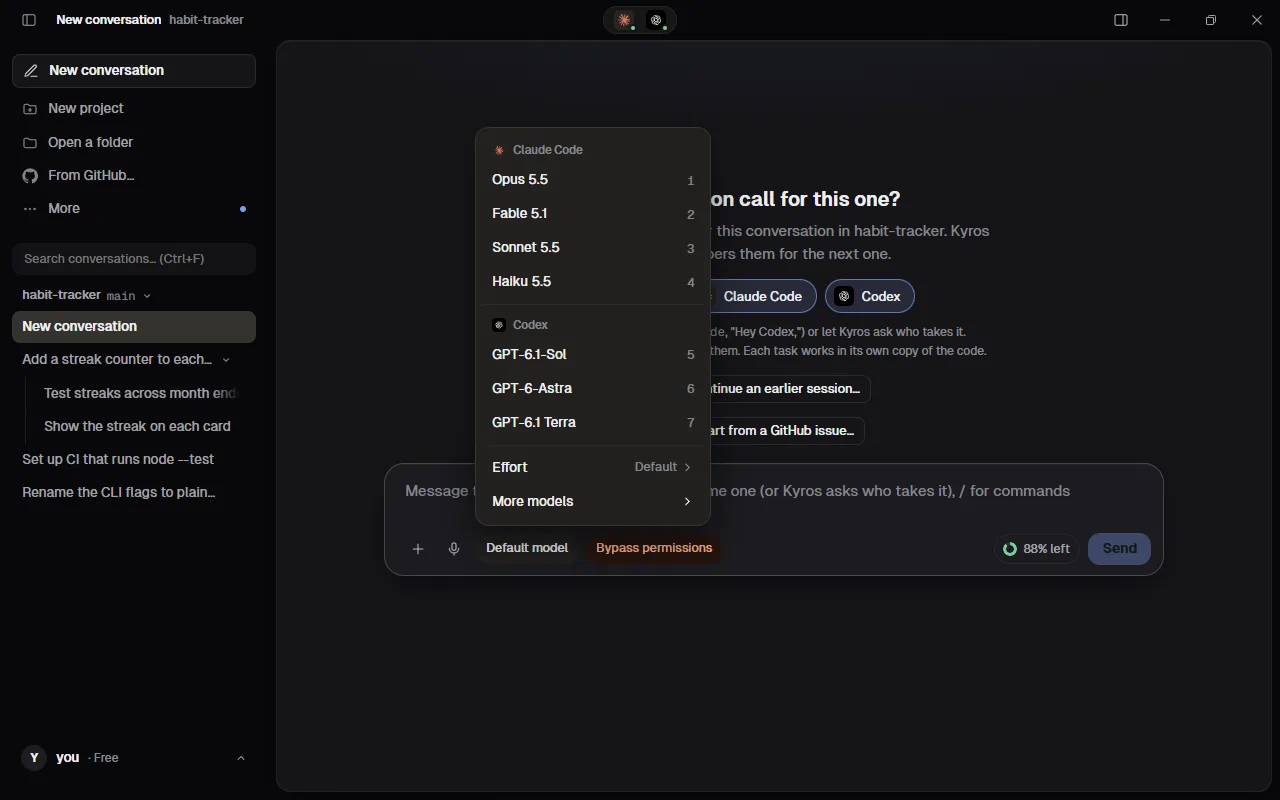
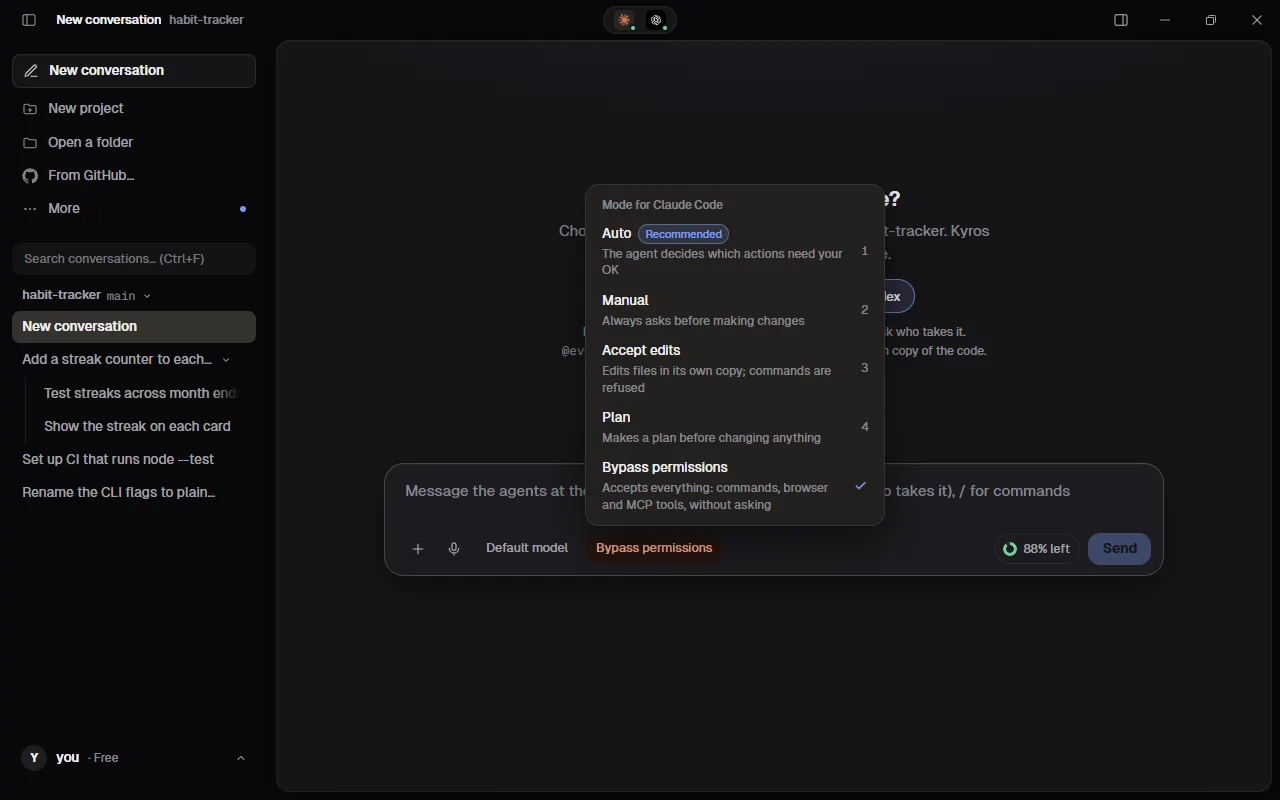
They're the same settings as /model, /effort and /mode, and they're remembered. Claude Code's models are its own list; Codex's come from the list Codex keeps on this computer, so new ones show up by themselves.
Projects and conversations
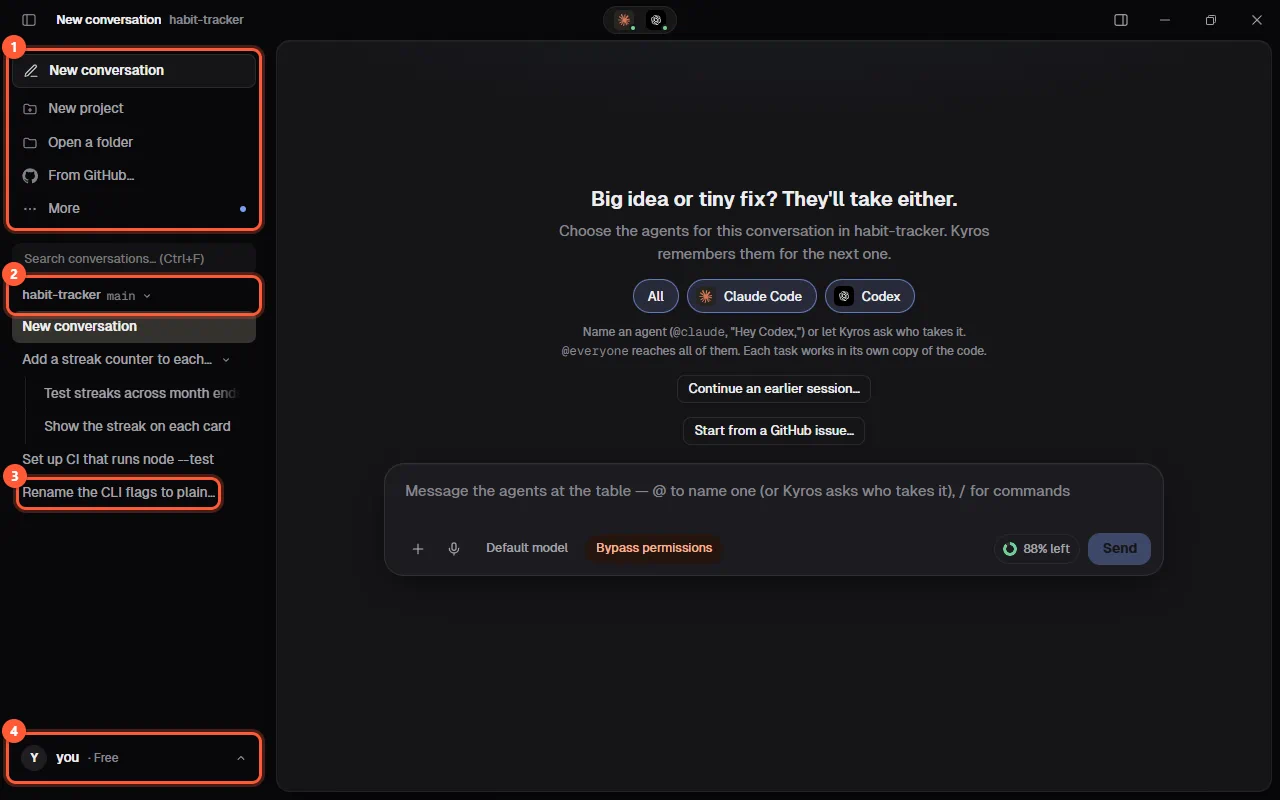
The sidebar on the left holds everything you work on:
- The buttons at the top: New conversation, New project, Open a folder, From GitHub… and More.
- Your projects. Each project's name is a heading. Click it to fold its conversations away.
- Your conversations, newest first, under their project.
- Your account, at the bottom: Settings, this guide, your plan and Sign out.
Ctrl+B hides or shows the sidebar.
The sidebar lists every project you've opened, the way Claude's app lists its chats. Each project's name is a heading, with its conversations under it, newest first, each shown by its name only (hover over it for when it was last used). Click a project's name, or the ▾ after it, to fold its conversations away and back. A conversation that has sub-conversations (tasks opened from it) shows a ▾ after its name too, with them under it along a thin line. New conversation, at the top of the sidebar, is always there: it starts a conversation in the project you're in, or without a folder when none is open. To add a project, press New project for an empty one (see Starting without a folder), Open a folder for a folder on this computer, or From GitHub… to make one from a repository on GitHub (see Projects from GitHub); they all stay open side by side, and agents keep working in a project you're not looking at. Kinbase opens them again next time. Hover over a project for + (a new conversation in it) and × (take it out of the sidebar; its files, conversations and copies stay on disk).
The menus, one by one
Delete several conversations at once
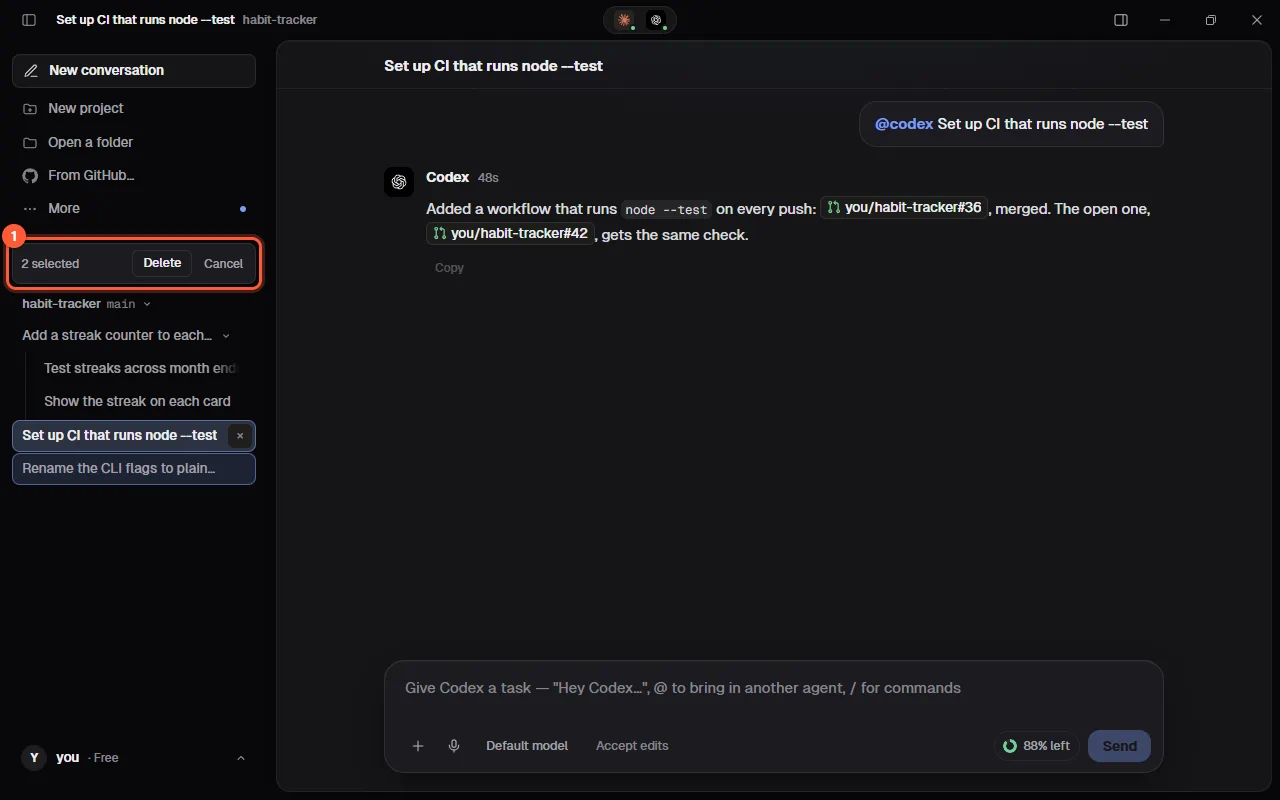
- Click the first conversation you want to delete.
- Hold Shift and click the last one. Every conversation between them is picked.
- To add or take out just one, hold Ctrl (⌘ on a Mac) and click it.
- Press Delete in the bar above the list, or the Delete key on your keyboard.
- Press Delete again to confirm. To change your mind, press Esc, Cancel, or click anywhere else.
A deleted conversation can't be brought back. Your project's own files stay as they are, and work you already merged stays merged.
Everything in the sidebar, in detail
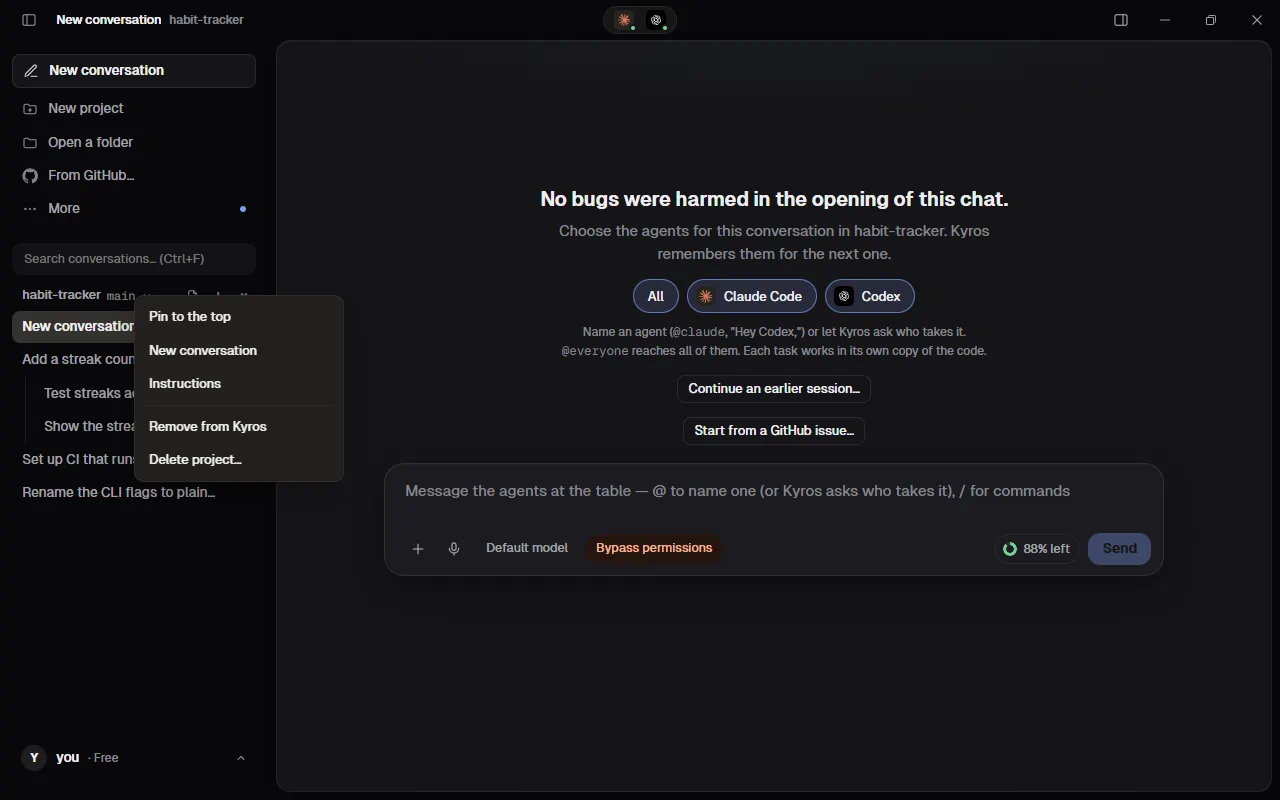
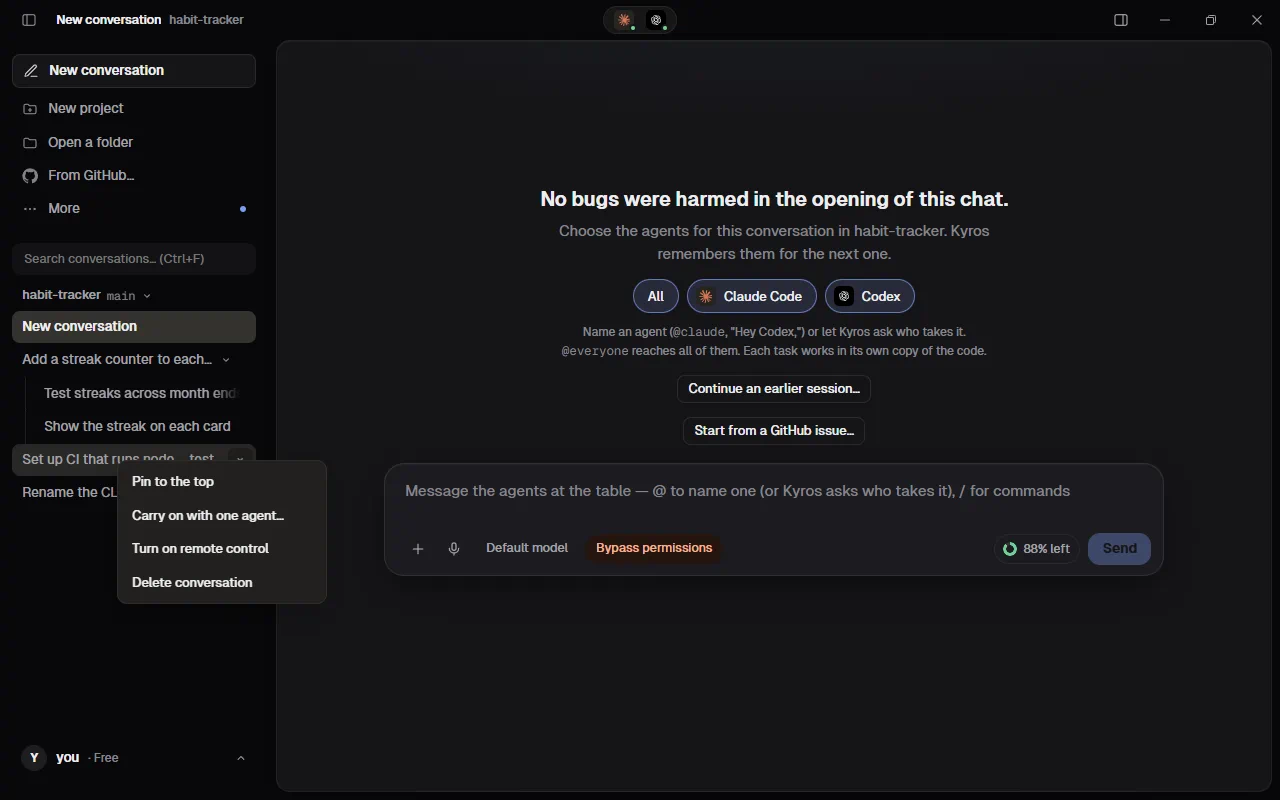
Right-click a project for its menu: Pin to the top (pinned projects come first, with a small pin), New conversation, Instructions, Remove from Kinbase (the same as ×), and Delete project…, which asks a second time and then moves the project's folder to the Recycle Bin (the Trash on a Mac), with its files, its copies and Kinbase's conversations for it; you can restore it from there. Kinbase never deletes a drive, a volume or your home folder this way, and it waits while an agent works in the project. Right-click a conversation to Pin to the top, turn remote control on or off, or delete it. To delete several at once, Shift+click picks every conversation from the open one (or the last one you clicked; the top one when none is open) down to the one you click, and Ctrl+click (⌘+click on a Mac) adds or takes out one more; then press Delete in the bar above the list (or the Delete key), and again to confirm (Esc, Cancel or a click anywhere else lets them go). Pinned conversations (with their sub-conversations) go in Pinned, at the top of the sidebar above every project, and fold away the same way.
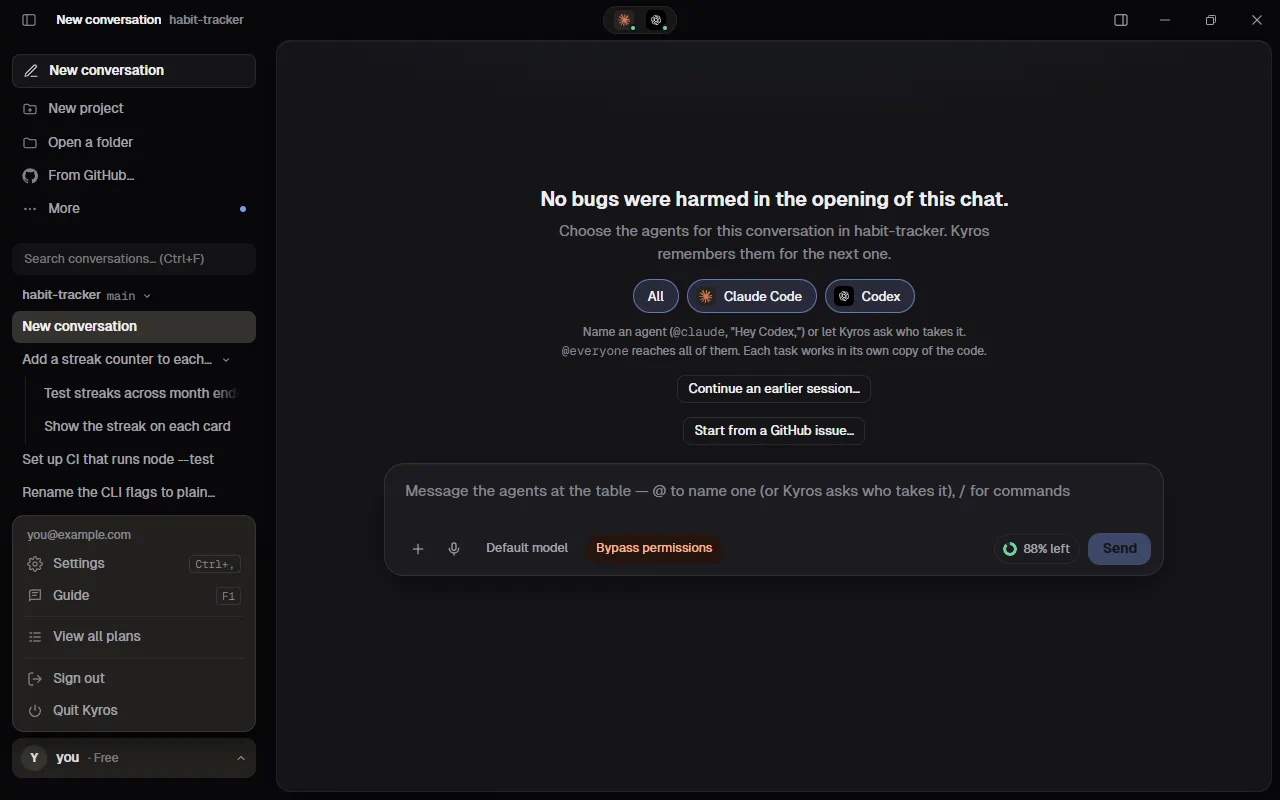
Your account is at the bottom of the sidebar: your name and plan. Click it for Settings, the Guide, View all plans (or Upgrade, or Payment due when a charge failed) and Sign out.
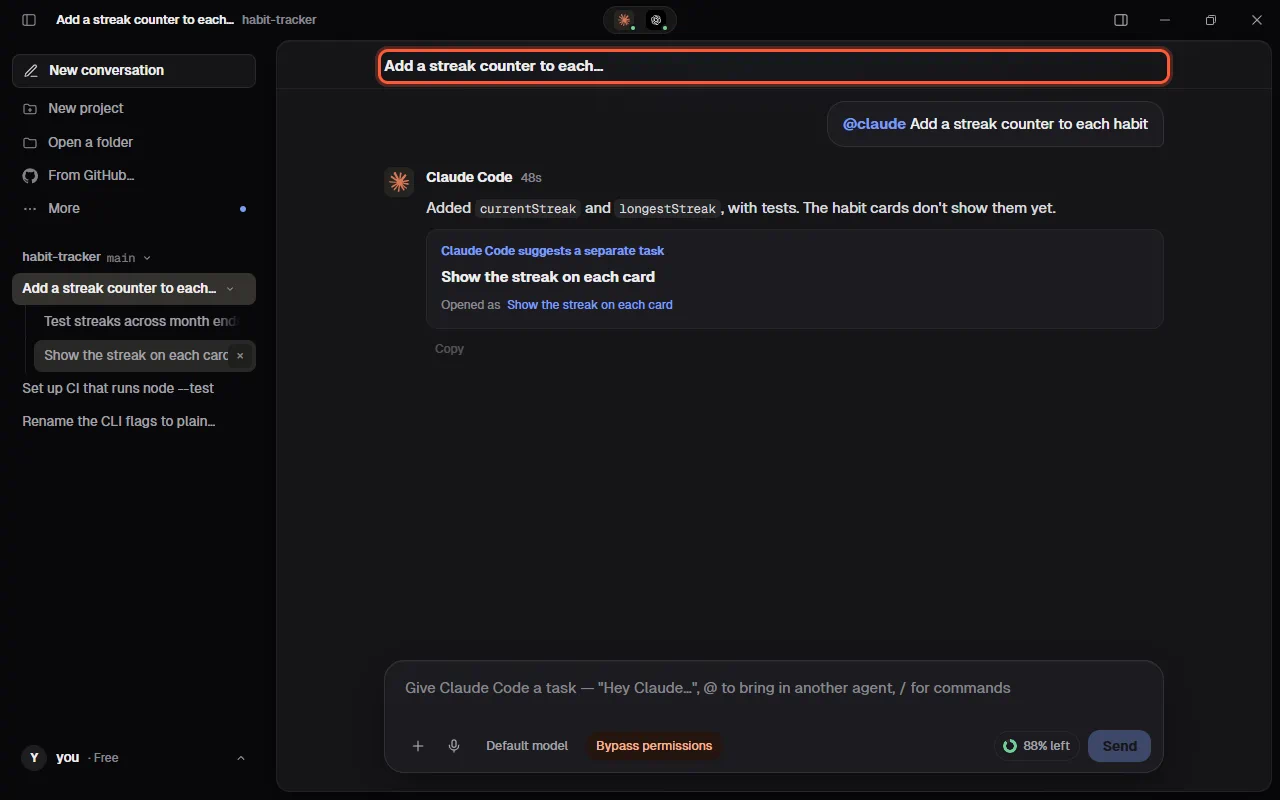
Names and dots. A conversation is named by its agent on its first reply: a few words, like Fix double check-ins. Until then it shows the first words you wrote. The name also shows at the top of the conversation, over its chat, so you always know which one you're in. The dot at the end of its row shows where it stands:
| Dot | Means |
|---|---|
| Blue, pulsing | An agent is working |
| Amber | It's waiting on you: a permission request, a plan to approve, a task it suggests, an agent to pick, or a question in its reply |
| Green | A reply you haven't read |
| Red | A task that stopped with an error, not yet read |
Hover over the name for what the dot means.
Conversations are saved in .kin/conversations/ inside their project, which git ignores.
Each conversation is a task, in its own copy. Its first task gives it its own copy of the project (a git worktree) on its own branch, named after the task, such as kin/fix-the-bug-where-checking-in-3f2a1. Two conversations never edit the same files, even with the same agent. Conversations from before this keep working in their agent's copy (kin/claude, kin/codex).
Starting without a folder
You don't have to open a folder before you start. With no project open, the message box says Describe what to build. Kinbase makes a project for it in Kin projects. Type what you want and send it:
- Kinbase makes a new folder for it in your Projects folder, named from your first words: Build me a todo app in React becomes
todo-app-react. If that name is taken, it becomestodo-app-react-2, then-3, and so on. A message in Hebrew or another non-Latin script gets the nameproject. - It makes the folder a git repository with a first, empty commit, so every conversation gets its own copy like in any other project. The commit uses your own git name and email when git has them; otherwise it's signed Kinbase, for that one commit only, and your git settings aren't changed.
- It opens the new project and sends your message there as the conversation's first task, and says where the project is: Made a new project in …. To work on something you already have instead, use Open a folder or From GitHub….
Kinbase never puts anything in a folder that already has files in it: it picks the next free name instead.
New project, at the top of the sidebar, makes an empty project the same way without sending anything. Type its name (New project until you change it) and press Make, or Esc to cancel. Its folder gets the name you typed, spaces and all.
The Projects folder is Kin projects in your Documents folder until you choose another in Settings › General. Projects from GitHub go there too.
When Kinbase opens, it opens the project you last worked in. With none, it waits on the empty screen, ready for your first message.
A separate task
- While an agent works, the message box has New task beside Steer: it starts your message as a separate task, in a new conversation with its own copy, instead of steering the one that's running.
- When you ask an agent for something unrelated to its task, it may suggest a separate task instead of doing it: a card with the task and two buttons. New task starts it in its own conversation and copy; Do it here has the agent do it in this conversation. Claude Code and Codex can suggest; Kinbase gives them a small tool for it (propose_task).
- If you already said so ("…and make the video ad in its own conversation"), the agent starts it right away, without asking again: the card says it started a separate task, as you asked, and you stay where you are. The task's conversation sits under this one in the sidebar.
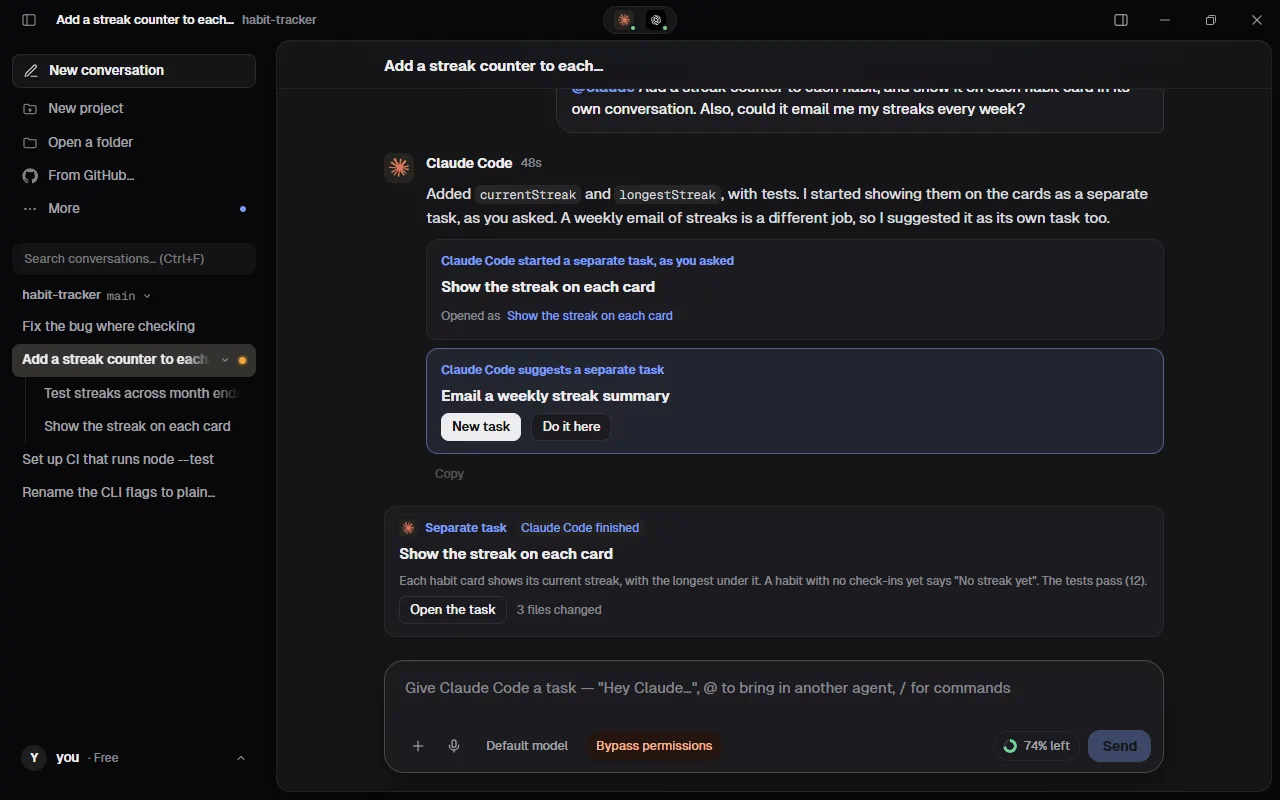
- A separate task reports back. Each time its agent finishes there, this conversation gets a Separate task card: who worked on it, whether it finished, its last words, how many files changed, and Open the task. The agent that started it hears the report too: at once if it's still working, otherwise with your next message to it.
- That agent can also send the task more (a change, a follow-up) without you passing it on; Kinbase gives it a tool for that (message_task). The task's agent gets it live if it's working, or as its next turn.
Agents know which conversation built what
Agents can look up which conversation in the project worked on something: ask "change the website's hero" in a new conversation, and the agent can find the conversation that built the website, see what it was asked, its last answer and the files it changed, and send it a question or a follow-up instead of starting over. The agent there gets it live if it's working, or as its next turn, and its answer comes back the same way. Kinbase gives the agents two small tools for it (find_work and message_conversation). They only see this project's conversations.
- New conversation, at the top of the sidebar or with
/new, starts fresh. Each agent starts a new session there. - Click a conversation to go back to it. Its agents pick up their earlier sessions.
- An agent can keep working in a conversation you've left. When it finishes, a dot appears next to that conversation.
- Hover over a conversation and press × twice to delete it.
- Once a project has more than five conversations, a search box appears above the list. Ctrl+F (Cmd+F on a Mac) puts you in it from anywhere in Kinbase, whatever the number. It finds a conversation by its title, by what you said or by what an agent answered; Esc clears it.
Share the work
When you ask Claude Code or Codex for a big job, or several separate things at once, and other agents are connected and free, it may suggest sharing the work. Each agent then takes one part, they work at the same time, and each one uses its own subscription.
- The card says "suggests sharing the work". It shows the job and one row per part: the agent, what it does, and the files it may change (in small grey text). No two parts change the same files.
- One look, one set of names: the agent that splits the job also writes down what every part keeps to, so the parts fit together as one piece of work. For what people see, that's the colours (as exact values), the font, sizes, spacing, corner radius, and how a button, a field and a card look; for code, the names, data shapes and how the parts connect. It follows what your project already has. A shared file (a stylesheet of colours, shared types) goes to one part only, and the others use it by name.
- Share the work starts each other agent's part in a new conversation of its own, with its own copy of the code, in the background. The agent that split it does its own part here, if it kept one. The Agents' chat opens in the right panel with what every part keeps to at its top: before building, each agent tells the one that split the job what it will use and settles anything left open (a colour, a size, a name), and the agents keep each other posted there while they work. The same chat shows in each part's conversation.
- Do it all here has that agent do the whole job itself, in this conversation.
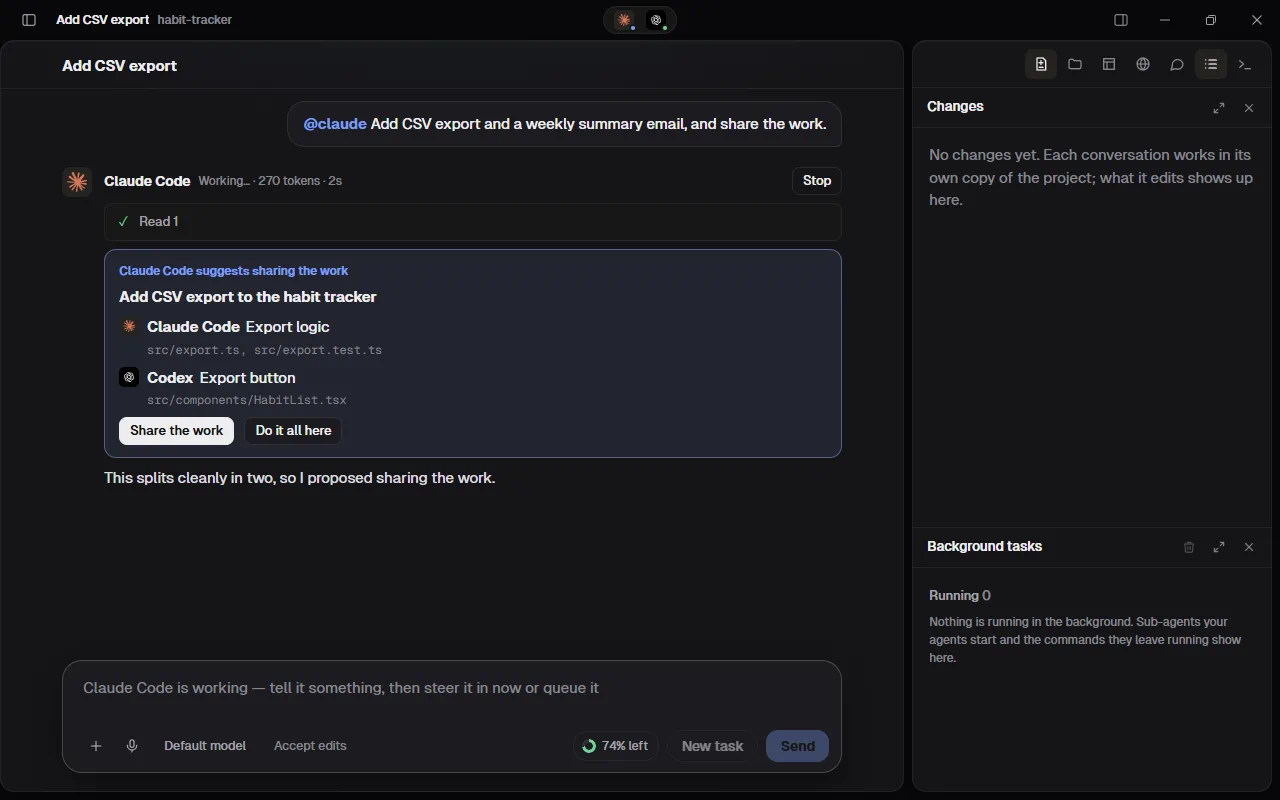
- After you share it, each row shows how its part is going (Working, Done, Failed or Stopped). Click a part's title to open its conversation.
- When every part is done or failed, Kinbase asks the agent that split the job for a quick review: it looks only at what each part changed and answers with one short line per part. It also checks that the parts fit together, against what every part keeps to and what the agents agreed: the same colours, fonts, spacing, buttons, names and shapes; anything that differs comes back as doesn't match: … in that part's line. A part that changed nothing isn't sent for review. A stopped part waits until you carry it on in its conversation.
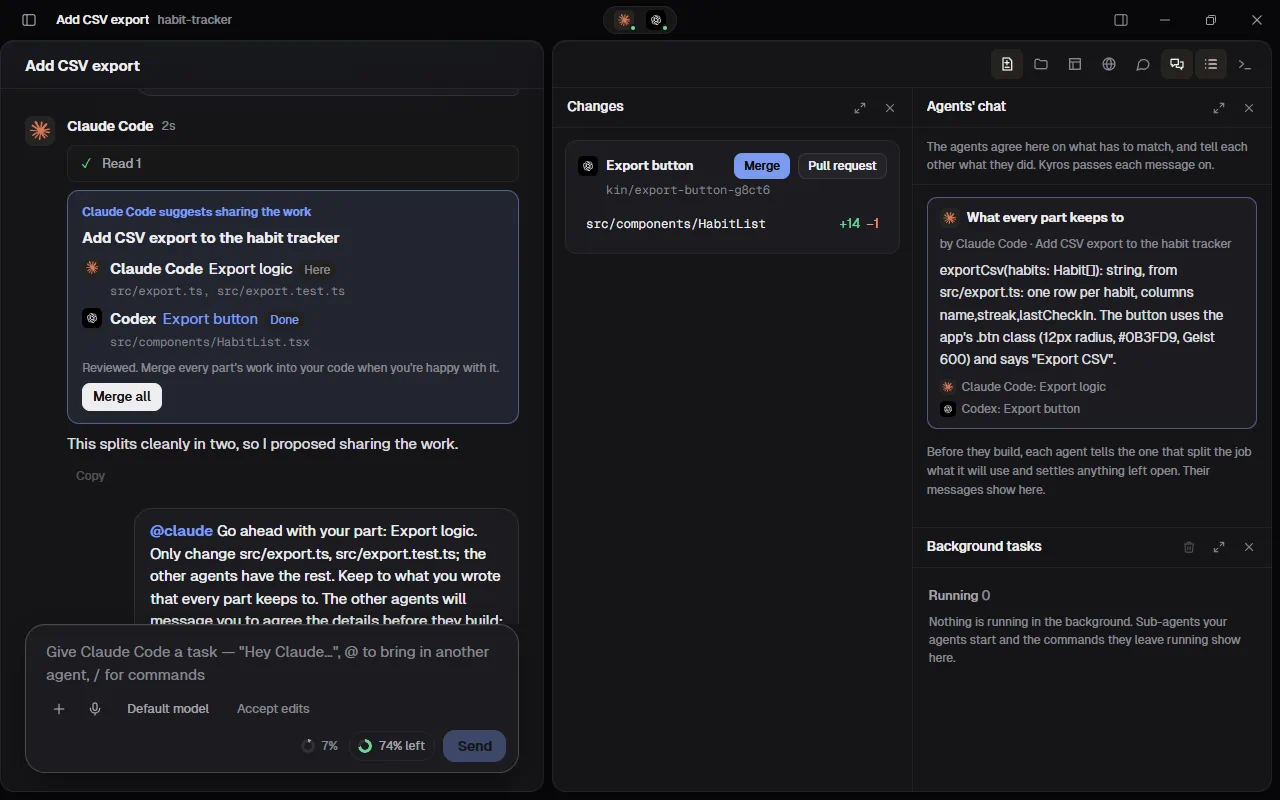
- After the review, Merge all brings every part's work into your branch, one part after another. It stops at the first part that conflicts and says which one, like Merge in the Changes tab.
- Kinbase only offers agents that are installed, connected, not out of usage and not busy with another task. On Kinbase Free, a job is shared with one other agent (two agents at the table); Pro and Team share it with every free agent.
- Across the team: on a Team plan, in a project with a git remote, a part can also go to a teammate whose agents are free (Kinbase knows from the team board: around in the last 75 minutes, with an agent that has room and isn't busy). Its row says whose agent it is, for example "Dana's Codex". Share the work sends it to them as a task they accept or decline (see Give a teammate a task in the Team space); nothing runs on their computer until they do. The row then shows Sent, Accepted, Done, Failed or Declined, with what they answered: their agent's summary, the pull request or branch, or why they declined. The review covers their part by what they said (its code is on their side), and Merge all leaves it out: it comes by its pull request.
- From your phone (remote control) you can choose Share the work or Do it all here; Merge all is at the computer.
Rewind
Point at one of your messages and press Rewind to here to go back to just before it. Kinbase first says what will happen, and nothing changes until you press Rewind:
- That message and everything after it are taken out of the conversation.
- The conversation's copy goes back to how its files were when you sent the message: Kinbase records the copy before every task. Kinbase never throws work away: it keeps the files as they are just before the rewind, uncommitted changes included (under
refs/kin/turns/in the project's git, for a week; a copy's records go when the copy is deleted), and Undo puts them back. Files git ignores, such as a.env, stay as they are. - Agents that answered after that point start a fresh session with your next message, with Kinbase's summary of the conversation up to there. Claude Code and Codex can't forget part of a session, so Kinbase starts them over instead.
- Undo, under the conversation, brings the messages, the sessions and the files back for a minute. Sending a new message there ends it.
On your last message, Edit and resend does the same and puts the message back in the message box to change and send again (attachments need adding again). Both are off while an agent is working in the conversation: stop it first. Conversations from before this version have no record of their files, so a rewind there only takes the messages out.
Earlier sessions of your agents
/resume, or Continue an earlier session… in a new conversation, lists the sessions you ran with your agents in this project's folder (in a terminal, their own apps or an editor), newest first, each with its agent's logo, what you first asked, when, and how big it is. Open in Kinbase turns one into a conversation: what you asked, the agent's answers and the steps it took. Your next message there carries on with the same session, with the same agent, in the conversation's own copy of the project. A long session shows its last 150 requests. A session already in Kinbase shows In Kinbase.
If Kinbase can't get a session ready in the conversation's copy, its row says Continues as a new … session that's given this conversation, and the conversation says so at the end: your next message starts a new session of the same agent, and Kinbase gives it the conversation so far (the same summary an agent gets when it starts a fresh session after a rewind), so it knows what happened. It doesn't remember more than that summary.
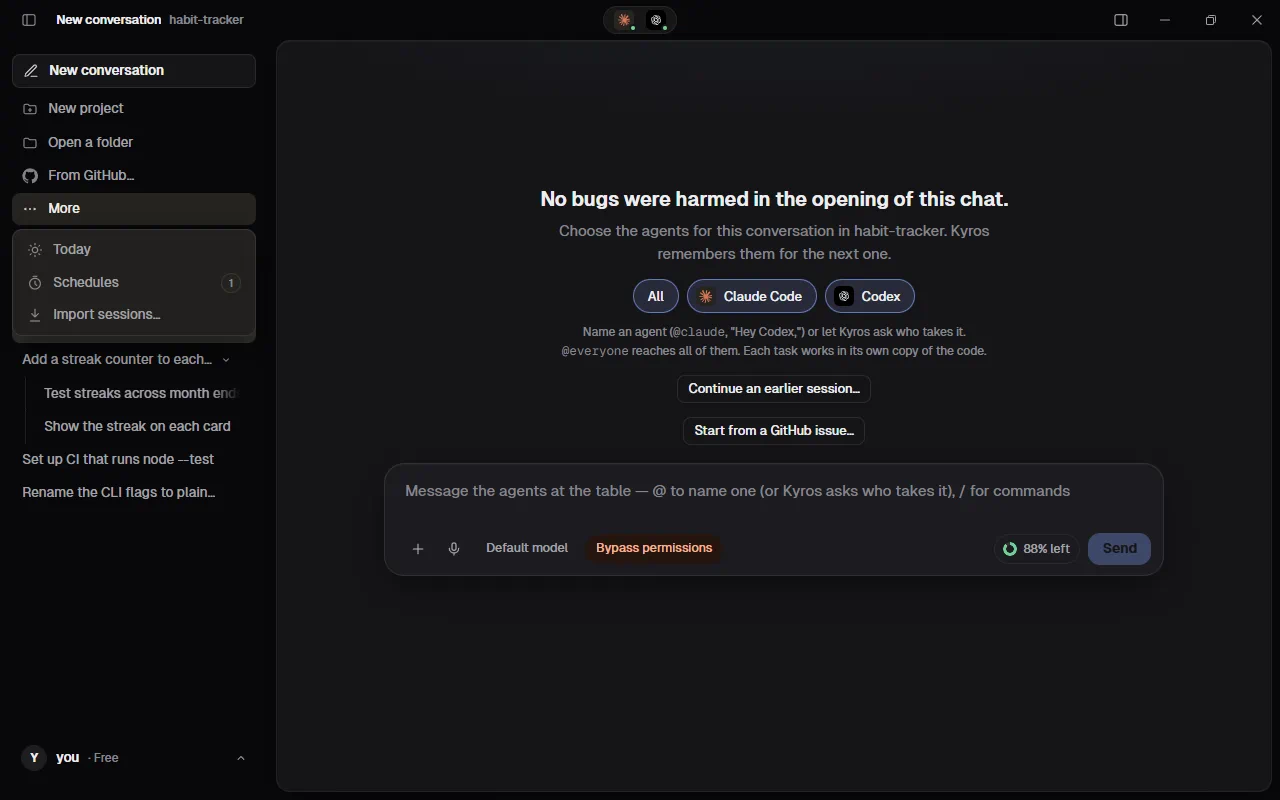
Import sessions…, under More in the sidebar, does the same for every folder on this computer at once: all your agents' earlier sessions, newest first, each with the folder it ran in (hold the pointer on the folder's name for its full path). Type in the search box to find one by what you asked or by its folder; Show more brings older ones. Opening a session puts it in a new conversation of that folder's project. When the folder isn't a project in Kinbase yet, Kinbase adds it, as Open a folder would. When the folder was moved or deleted, Kinbase says so and doesn't import the session: it would have nowhere to carry on.
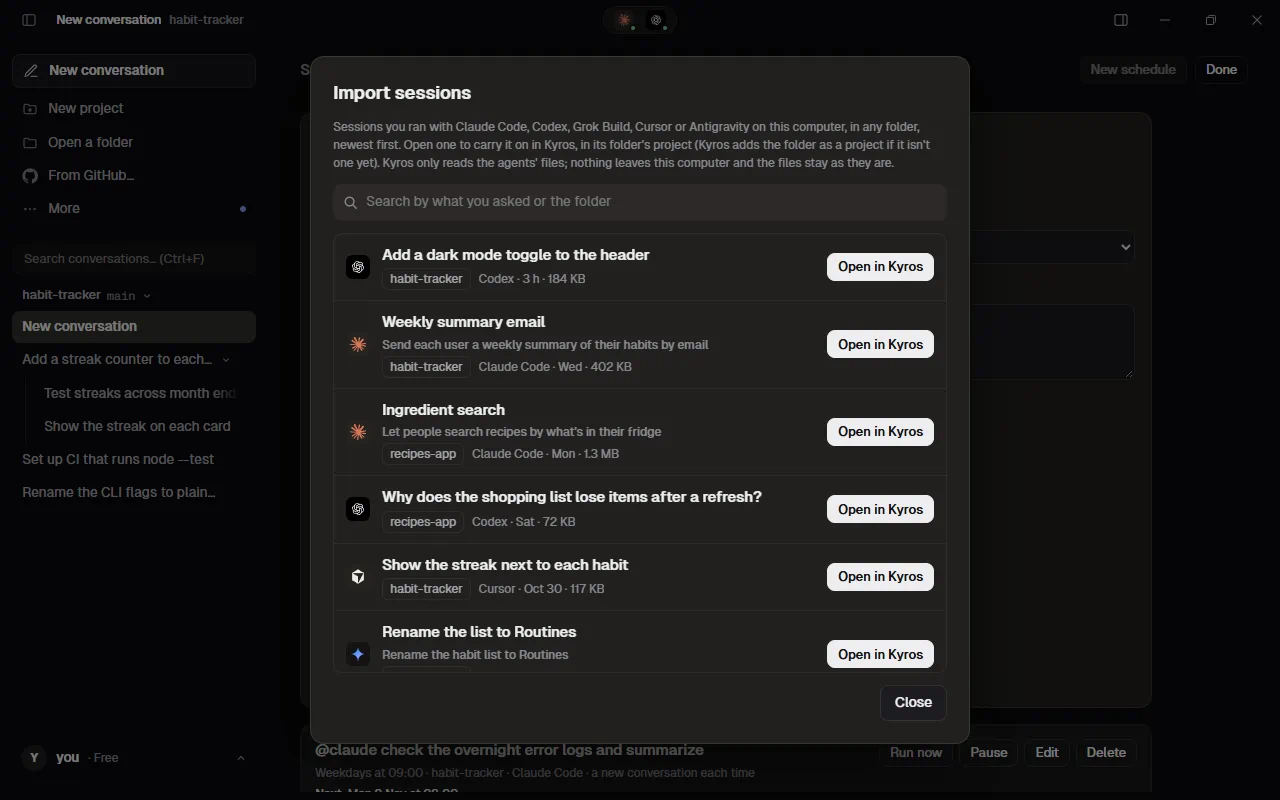
Where each agent keeps its sessions (in your home folder), and how Kinbase carries them on:
- Claude Code:
.claude/projects(or whereCLAUDE_CONFIG_DIRpoints). Claude Code carries a session on from its folder's own list, so Kinbase puts a copy of the session there for the conversation's copy of the project. - Codex:
.codex/sessions(or whereCODEX_HOMEpoints). Your next message carries the session on withcodex exec resume, the same way Kinbase's own Codex conversations go on. Its shell commands, file edits and web searches show as steps. - Grok Build:
.grok/sessions(or underGROK_HOME), one folder per project folder. Kinbase puts a copy of the session in the copy's folder, and your next message carries it on. - Cursor:
.cursor/chats, with a readable transcript of each chat in.cursor/projects. Kinbase shows the transcript and puts a copy of the chat where Cursor looks for the copy's chats, and your next message carries it on. - Antigravity:
.gemini/antigravity-cli. Antigravity finds a conversation by its id from any folder, so your next message carries it on in the conversation's copy. - Muse Code:
.local/share/muse/sessions, by date. Muse Code carries a session on only in the folder it started in, unless it's told it may move. Kinbase tells it so, and your next message carries the session on in the conversation's copy. Kinbase shows what you asked and Muse Code's answers; its steps (files, commands) don't show yet.
Qder checked every agent's session files against real ones on a computer with Kinbase, and carried a session of each on from Kinbase's copy; each remembered what it was told earlier (Grok Build, Cursor and Antigravity on their sign-ins; Muse Code with its offline test mode).
Everything stays on this computer: Kinbase only reads the agents' files, and never their sign-in files. It never changes, moves or deletes them (the copies it puts in place for the conversation's copy of the project are new files beside them), and sessions Kinbase ran itself (in its copies) aren't listed again. Antigravity keeps its conversations' names and folders in a database: Kinbase opens it read-only and leaves it exactly as it is, so a conversation from the last moments before you looked may not show yet.
Projects from GitHub
From GitHub…, under Add a project at the top of the sidebar, makes projects straight from your repositories on GitHub, and lets every agent push and open pull requests there without signing in to anything itself.
- Connect GitHub (once). Your browser opens GitHub's page: sign in there, approve Kinbase and pick the repositories it may use (all of them, or only some), then press Connect on the qder.ai page that follows, which names your GitHub account and your Kinbase account. Kinbase waits while you do (up to 20 minutes); Cancel stops waiting. If you said no on GitHub, or took too long, Kinbase says so: press Connect again.
- Pick repositories. The list shows the ones you picked on GitHub, each with its owner, whether it's private or public, its description and when it last changed, newest first. Type in the search box to find one. Choose repositories on GitHub opens GitHub's page again to add or take away repositories; press Refresh afterwards. If the list is empty, Kinbase isn't on any repository yet: choose some on GitHub first.
- Choose the folder they go into. It starts as your Projects folder (Kin projects in Documents, or the one you chose in Settings › General); Change… picks another for these clones only. Each repository gets its own folder in it, named after the repository.
- Clone. Kinbase downloads each one, with its progress, and puts it in the sidebar like any other project. If a folder with that name is already there and it holds that same repository, Kinbase offers Open the existing folder instead; a folder holding anything else is left alone, and Kinbase asks you to choose another folder.
What Kinbase can reach. Only the repositories you picked on GitHub, and only what your own GitHub account may do there. You can change the list any time on GitHub.
What the key can reach. The GitHub key Kinbase keeps is one key for all the repositories you picked on GitHub, not a key for one project: whatever uses it can work on any of them. Programs that agents start inside a connected project, such as tests and install scripts, can use it too, and so can any program running as you on this computer, the same as with the GitHub CLI's own login. So pick only the repositories you want Kinbase to reach.
The agents need no login of their own. In a project made from GitHub, Claude Code, Codex, Gemini and every other agent push their work and open pull requests with Kinbase's connection, and so does Kinbase's own Pull request button. Every copy of the project (each conversation's) works the same way. Kinbase keeps the connection's key in your computer's own keychain (Windows Credential Manager, the macOS Keychain), never in a file or in the project, and renews it by itself while Kinbase is open. If you push from a terminal while Kinbase has been closed for hours, git may say it couldn't sign in: open Kinbase and try again. Git LFS files go up and down with the same connection.
A project you added some other way whose origin is on GitHub (an https://github.com/… address) can use Kinbase's connection too: turn on Use Kinbase's GitHub connection for it in Settings › GitHub, or press it in the pull request form when the GitHub CLI isn't signed in. Turning it off takes out only the lines Kinbase added and puts git back the way it was in that project. A project whose origin uses SSH keeps signing in with your own SSH keys.
On a Mac, Kinbase has to be in your Applications folder to connect a project: when it was opened straight from Downloads or the disk image, Kinbase says "Move Kinbase to your Applications folder first, then open it again."
Disconnect: Settings › GitHub › Disconnect (press it twice) takes Kinbase's access away on GitHub and forgets it on this computer. Signing out of Kinbase forgets it on this computer too; connect again after you sign back in. To take Kinbase off repositories without disconnecting, press Choose repositories there and change the list on GitHub.
Start from a GitHub issue
In a project whose origin is on GitHub, Start from a GitHub issue… in a new conversation (or /issue) lists its open issues, latest changed first, with a search box (by number, words, author or label). Pick one and its title, text and comments go in the message box, ready to send to an agent as they are or changed first; the conversation remembers the issue. Kinbase's Pull request for that conversation adds Closes #12 to the description, so merging it closes the issue, and agents are told to do the same in pull requests they open themselves. /issue 12 takes #12 straight away. A private repository's issues need the project on Kinbase's GitHub connection (Settings › GitHub); a public one's are read without it.
Sync across computers
With Pro or Team, a conversation continues on any computer signed in to your Kinbase account: the chat, each agent's own session (Claude Code and Codex pick up exactly where they stopped), and the code it changed.
- A passkey instead: Settings › Kinbase account › Passkeys › Add a passkey opens a page in your browser; use Face ID, a fingerprint or Windows Hello. From then on Sign in with a passkey on Kinbase's sign-in screen (or on remote.qder.ai) signs you in with no password or code, and Turn on sync here works with it too. Passkeys you keep in iCloud Keychain or Google Password Manager work on your phone as well.
- Two-factor sign-in first: sync and remote control need it, or a passkey. Settings › Kinbase account › Two-factor sign-in › Turn on: scan the QR code with an authenticator app (Google Authenticator, Microsoft Authenticator, 1Password…) and type the code it shows. From then on every sign-in asks for the app's six-digit code after the password.
- Turn it on: Settings › Sync across computers › Turn on sync. Kinbase shows a recovery code once; keep it somewhere safe, like a password manager.
- Another computer, with nothing to type: sign in there (with your code) and press Turn on sync here. Kinbase keeps your sync key at Qder locked with your password, and only a sign-in with your code gets it; Qder can't open it. A computer you signed in to before this update asks for your password once.
- Or with a tap on a computer in sync: on the new computer, sign in to Kinbase and choose Join with another device (Settings › Sync across computers). On a computer that's in sync, choose Add a device (in either order; it waits two minutes for the new one). The new computer shows a six-digit number and the one in sync shows three: tap the one that matches. Then the computer in sync shows a number of its own, and the new computer shows three: tap that one there. The key moves only after the first tap, sealed for that computer alone, and opens only after the second. A number that isn't there means someone else asked: choose None of these and nothing is sent or taken. One device asks at a time (a second waits for the first), and two at once are both turned away. After three requests that didn't finish in an hour, Add a device is off for the rest of that hour.
- Or with a code: under Add a device, Use a code instead shows a code for ten minutes; on the new computer, choose Use a code instead and type it. No computer at hand? The recovery code works there too.
- Only you can read it. Everything is encrypted on your computer before it leaves, with a key Qder never has. Lose the recovery code and every computer in sync, and the cloud copy can't be opened (the conversations on your computers stay).
- Code syncs only where you turn it on. By default only the chat and the agents' sessions sync. In Settings › Sync, turn on a project to also push its unfinished code to the project's own git remote, on a branch named
kin-sync/…that says nothing about the task; the other computer (with the project turned on there too) brings its copy to that exact commit. Kinbase never does it for a public repository, and a file that looks like a secret, or a change that contains a key or token, stops the code from syncing. - Kinbase syncs when it opens, when you come back to its window, and every two minutes. A conversation whose project isn't on this computer shows under From your other computers; add that project's folder (clone it first) and it comes in.
- An agent at work in a conversation is never interrupted: that conversation syncs after its turn.
- Delete a conversation and it goes from your other computers too (only a deletion made with your key deletes anything).
- A lost or stolen computer: Remove it in the list, change your Kinbase password, then Delete from the cloud and turn sync on again. That makes a new key the lost computer can't open; your other computers join again (Join with another device, or a code).
- Signing out of Kinbase takes the sync key off that computer; it joins again when you sign back in.
Remote control
You can watch and steer a Kinbase that's running on one computer from your phone, or from any other computer's browser: see its conversations and the agents' replies as they come, send a message or start a new conversation in one of its projects, stop or steer a task, and answer its cards (a permission, a suggested task, who should take a message). It doesn't need sync: each phone or computer pairs with the computer it controls, once, and the two of them keep a key of their own. It does need two-factor sign-in (an authenticator app, or a passkey) on your Kinbase account.
- One switch: on the computer you want to control, Settings › Remote control › Use Kinbase from my phone. It sets up two-factor sign-in if it's off (or, if this computer signed in before it was on, asks once for the code from your authenticator app), turns on remote control and remote control for new conversations, then shows a QR code.
- Pair your phone: scan the QR code with the phone's camera. The page opens on the phone; sign in with your Kinbase account and your two-factor code (or a passkey), and it pairs with that computer and opens it. The code pairs one device, for ten minutes. Only show it to your own phone. Show a QR code for a phone makes a new one any time.
- Pair another computer: on the computer you want to control, press Show a PIN for another computer. On the other computer, open remote.qder.ai in its browser, sign in with your two-factor code, and type the six-digit PIN. It pairs one device, for ten minutes; three wrong tries and the PIN is used up (show a new one). Kinbase itself has the link too: Settings › Remote control › To control another computer from this one.
- Step by step: Allow remote control of this computer turns remote control on or off on its own. It's off until you turn it on, and it's remembered on that computer for your account only.
- Why pairing is safe: the QR code's secret never reaches Qder (it's in the part of the link a browser keeps to itself), and the PIN is checked by an exchange that tells Qder nothing it could guess the PIN from. After pairing, everything between the two is encrypted with their own key.
- Choose which conversations: a device sees only the conversations with remote control on, marked with a small phone by their name. Right-click a conversation and choose Turn on remote control (or Turn off), or type
/remote-controlin it. To have it on for every new conversation, turn on Enable remote control for new conversations by default in Settings › Remote control. A conversation started from your phone has it on. - Settings › Remote control lists the paired devices; Remove forgets one, and it has to pair again with a new QR code or PIN.
- Control it: the page lists your paired computers that are open with remote control on (with only one, it opens straight away); Pair with another computer adds one. Pick one, and the page shows Kinbase itself, as on the computer: the sidebar with its projects and the conversations you share, each with its dot; the conversation with the message box,
@and the/menu; and on the right the Changes tab, with each file the conversation changed and its diff (to look at, not to merge), and Tasks. On a phone the sidebar opens from the button at the top left, and the right panel from the one at the top right. Open a conversation and write as you would at the computer; a message you send while an agent works steers it. New conversation (or/new) starts one in a project, with the agents you pick for its table./agentchooses who gets your messages from this device only, without changing the computer's choice. The ⋯ at the top right goes back to your other computers, or forgets the device. - What stays at the computer: Kinbase's
/commands that change its setup (like/modelor/mode; from the page,/agent,/new,/remote-control offand/helpwork), an agent's mode (the Mode menu shows it, greyed out), the yes to an agent Kinbase can't limit,@everyone(it changes the project's instructions), attaching files, deleting a conversation, adding or closing a project, installing and signing in agents, Schedules (an agent's scheduled-task card too; its reminder card can be added from the page) and Settings. On the page they're there but greyed out, with "Do this at the computer." Speech, the terminal and the Browser tab (with the agents' tabs) are at the computer too. From the page you can turn remote control off for a conversation (its ⋯, or/remote-control off), and it leaves the page; turning it on is done at the computer. - The bar: while a device is connected, the computer shows a bar at the top, for example "Itay's iPhone is controlling Kinbase". After it does something, the bar says what and when ("Itay's iPhone sent a message 3 min ago") for at least ten minutes, even after the device has gone, with Open to see that conversation. What you have open on the computer stays open. Messages sent from the device say which one ("from Itay's iPhone").
- Cut a device off: press Disconnect on the bar, or Remove in Settings › Remote control: the computer forgets that device's pairing at once, and it can come back only by pairing again at the computer. Turn Allow remote control off to drop every device at once. Forget this device in the page's ⋯ menu on the device itself clears its pairings and sign-in from that browser and signs it out at Qder. A lost phone: remove it on each computer, and change your Kinbase password.
- Who can read it. Each paired device and the computer encrypt everything between them with the key they made when they paired, so Qder can't read it; it only passes it along. The web page's code comes from Qder each time you open it: as with any web app, you're trusting Qder for the page itself.
Team space
On a Team plan, Team at the bottom of the sidebar (above your name, with a count of the mentions and direct messages you haven't read) opens your team's workspace in the main part of the window, the way Today does; press it again to go back to your conversation. It's there for the members of a Kinbase Team (Plans and billing › Team), while the team's plan is active.
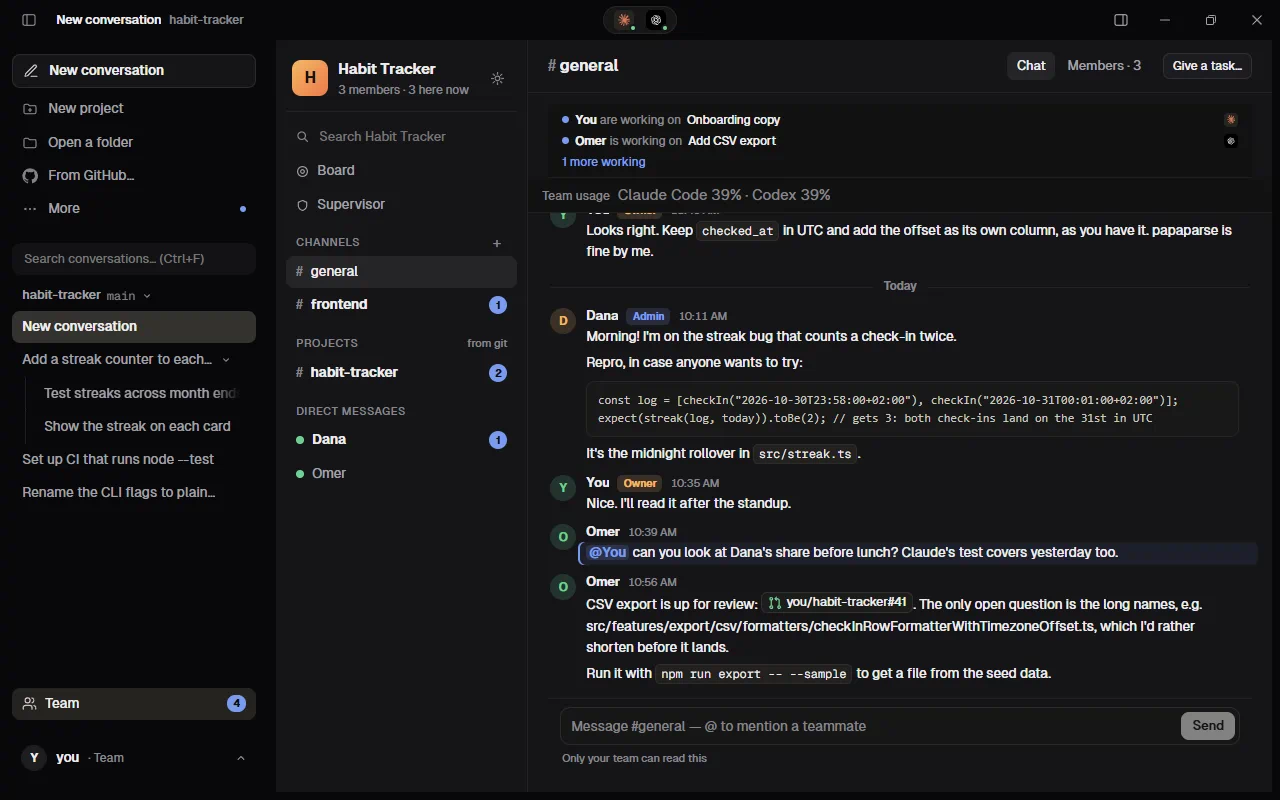
- Set it up: the first time, the team's owner opens Team and presses Set up the team space. Kinbase makes a team key and shows the team code (16 letters and digits in four groups). Teammates who accept your invitation don't need it: as soon as anyone on the team has Kinbase open, their Kinbase hands the new person's computer the team key by itself (encrypted for that computer alone), usually within a minute. The code is for when nobody else is online: give it yourself (in person, on a call, or in a message) and they type it once in the workspace (Join). Anyone who's in can show a new one with Team code in Settings › Team (the old code stops working). With sync on, your other computers get the team key too, so you type the code once.
- Only your team can read it. Messages, channels and shared conversations are encrypted on your computer with the team key. Qder's server passes them along and keeps them for 90 days, but sees only your team, who posted each message and when, and how big it is (and, for direct messages, which two of you are talking); never the words, and not even the channels' names. The team code never reaches Qder either. Someone who leaves the team, or is removed, gets nothing new from then on. Kinbase can't check yet which computers belong to your teammates; it relies on Qder's server for that. When a teammate signs in on a new computer, the Kinbase of whoever is open hands it the team key (and your direct messages' key) by itself, so a server that lied about a computer could be handed them. Invisible characters (zero-width marks, direction overrides, hidden tag text) are taken out of everything a teammate writes before you see it or an agent does.
- The workspace: on the left, the team's logo and name with how many members there are and how many are here now, then Search (it looks through the messages already loaded on this computer), Board, Channels, Projects and Direct messages. A channel with something new is bold, with its count; a blue count means someone mentioned you. Kinbase checks for new messages every 4 seconds while the workspace is open and every 30 seconds otherwise, and at once when Qder's relay says there's something new (while this computer is connected to it for remote control).
- The chat: each channel's messages show the sender's name (with an Owner or Admin tag) and the time, newest at the bottom. Type
@to mention a teammate (by name or email; ↑ ↓ and Enter pick). Every message from before channels is in #general, which is always there. - Channels: the owner and admins make them (+ beside Channels, or New channel in Settings › Team), and Rename…, Members… and Archive them from the channel's header. Everyone on the team can still read every channel; its members are who it's for. A channel event from anyone else is ignored by every Kinbase.
- Project channels, made by Kinbase: each project the team works on (by its git remote) gets a channel the first time a card names it. Its shared conversations, tasks, merges, pull requests and Working now land there instead of #general. Nobody has to make them.
- Threads: Reply on a message opens its thread beside the channel. Under the message, the channel shows who replied and "3 replies · last 11:05"; click it to open the thread.
- Direct messages: one with each teammate, under Direct messages (a green dot: here now). Only the two of you can read them: the first message makes a key on your computer that's sealed to each of your computers and theirs alone, and every later computer of either of you gets it the same way, from whichever of yours is open.
- Notifications: in Settings › Team, each channel and project channel has All messages, Mentions only (the first choice) or Nothing, kept on this computer. They decide the notifications from your computer (with Notify me on, in Settings › General): a mention, or work handed to you, notifies unless the channel says Nothing, and a direct message always does.
- Share with the team: right-click a conversation in the sidebar and choose Share with the team. Kinbase sends the conversation as sync does: the chat, its agents' sessions (Claude Code and Codex), and the project by its git remote. Its code goes only to the project's own git remote, on a branch named
kin-sync/…that says nothing about the task, never to a public repository, and a file that looks like a secret, or a change that contains a key or token, keeps the code on your computer. Without a remote, the card says the code stayed on your computer. The team gets a share card in the project's channel: the title, the agents, the files changed (+/−) and where the code is. - Continue in my Kinbase: on a share card, opens the conversation as a new conversation in your Kinbase, in the same project (found by its git remote among your open projects). Its code arrives on the conversation's own copy, at exactly the shared commit, and the agents carry on their own sessions. If the project isn't open, the card says so and Open the project here… asks for its folder (clone it first if it isn't on your computer).
- Send to a teammate…: in the same menu, hands the conversation to one teammate, with a note if you like. Everyone sees the card ("Dana asks Itay to continue: …"); the teammate gets a notification and the card's Accept (it opens in their Kinbase, as Continue in my Kinbase does) or Decline (with a reason if they like). The card then shows their answer to everyone.
- Working now: while an agent of yours works in a project with a git remote, the strip at the top of that project's channel (and of #general) shows you, the project, the conversation's title and the agents, so nobody does the same thing twice. It goes when the agent finishes. Turn it off in Settings › Kinbase account › Show my team what my agents are working on.
- Team usage: every 10 minutes (when a number changed, and once an hour anyway, so your team knows you're around) Kinbase shares your agents' plan usage with the team, from the usage meter. The Team usage line in #general shows the team's average for each agent this week; click it for the board. The usage meter by the message box shows the team's averages too (for example "Claude Code: team 42% used this week, 3 members"), counting only who reported that agent in the last six hours. Turn sharing off in Settings › Kinbase account › Share my agents' usage with my team: Kinbase then posts none of your readings, and you still see the others'.
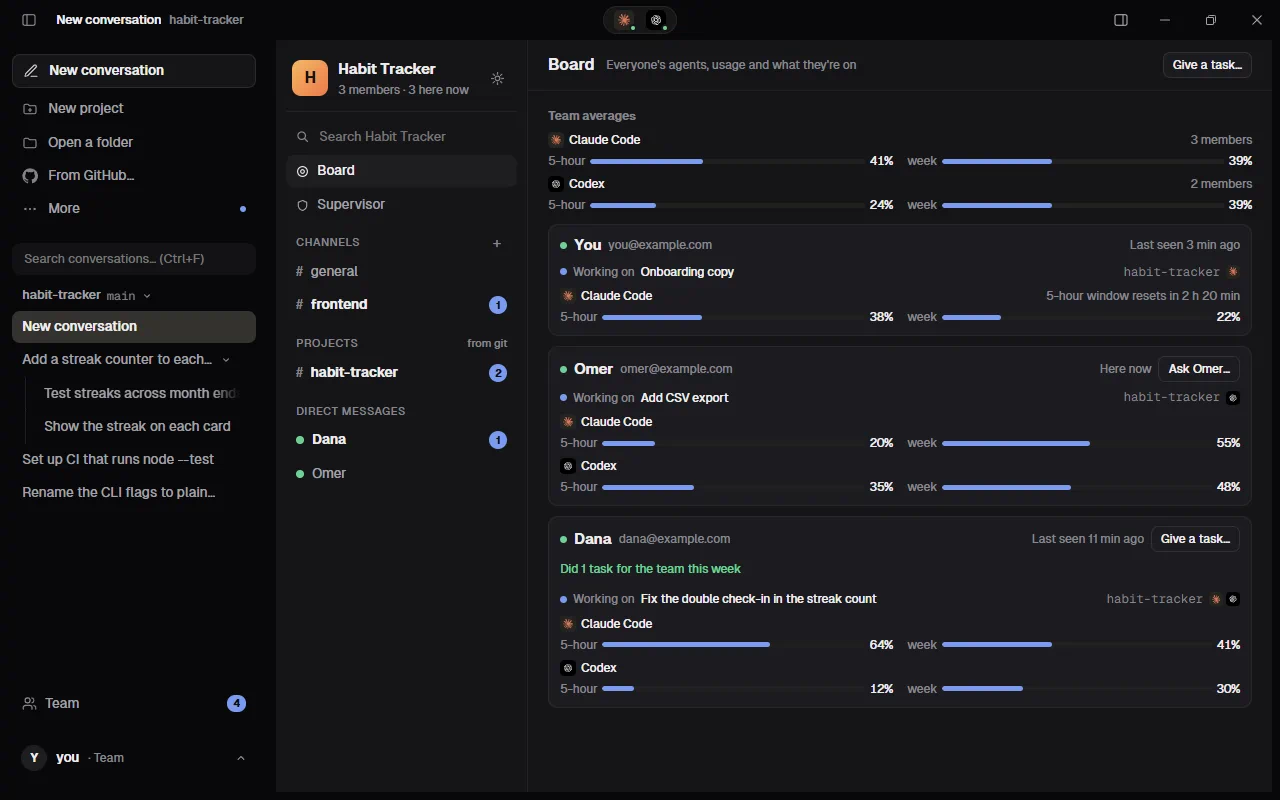
- The board: Board in the channel column shows the team's averages for each agent (the 5-hour window and the week, and how many members reported them), then every member: when Kinbase last heard from them (Here now, Last seen 12 min ago, Not seen yet), what they're working on now, each agent's usage as a bar, with when its 5-hour window resets, and the credit, "Did 3 tasks for the team this week" (the task cards they accepted and finished since Monday). A teammate's agent is marked free only when they lend it (below), it has room left and it isn't busy. Everything on it comes from what the team already shares (usage, Working now, the task cards and when each message came); nothing else is sent for it. The Chat tab is each channel's messages, and Members lists who's in it.
- Lend my free agents to teammates (Settings › Kinbase account, off until you turn it on): a teammate's task uses your agents' usage, so only someone who lends shows as free on the board and in Give a task…, and Their choice picks among the agents they lend. With it on, Use at most this much of my week for teammates (10%, 20% (the first choice), 30%, 50% or 100% of each agent's week) caps it: Kinbase counts how much of the week your agents spent on teammates' tasks you accepted (from the usage meter: each agent's weekly reading when you accept a task, compared with its reading when the task ends). Past the cap, you stop showing as free. The Accept card then says so, for example "You've lent 22% of your Claude Code week to teammates (your cap is 20%)", and you can still accept by choice. Your team sees only which agents you lend now, in the usage you already share.
- Give a teammate a task: Give a task… (in a channel's header, in a direct message's header, on the board, on each teammate in the board, or Give a teammate a task… in a conversation's right-click menu) asks a teammate's agents to do something. Pick the teammate (Kinbase says who's free now; you can still ask someone who doesn't lend, and the board says Ask Dana…), the project (one with a git remote: your teammate's Kinbase finds it by its remote, wherever their copy is), the agent if it matters (or Their choice), and write the task so it stands on its own: their agent doesn't see your conversations. Everyone sees the card in the project's channel; the teammate gets a notification and Accept… or Decline (with a reason if they like). You can also ask an agent in a conversation to pass something on ("give Dana the CSV export"): Claude Code or Codex prepares the task as a card in its reply, Check and send… opens Give a task filled in, and once the teammate declines it or their agents finish, the agent tells you how it went. A teammate who is offline can still be given a task: it waits in the chat, and their Kinbase tells them about it as soon as they open it (one notification for everything that came while they were away). Given from a direct message, the task is for that teammate and stays in the direct message: only the two of you see the card and its answers, sealed with your pair's own key like every message there.
- Accepting a task: nothing runs on your computer until you say so. Accept… shows the words in a box you can change, the project here and the agent; Start starts it in a new conversation, like a message you typed. If you don't have the project open, the card says so and offers Open a folder… and From GitHub…. A teammate's words are only ever shown, never run as Kinbase's commands. The card then tells everyone how it went: Accepted (with which agent), Declined, or done, credited by name, with the agent and how long it took ("Done by Dana with Codex · 4 min"), a short summary of the agent's answer, its branch, and its pull request once you open one in Kinbase.
- Team activity: Settings › Kinbase account › Post my merges and pull requests to the team (off until you turn it on) adds a line to the project's channel when you merge a copy or open a pull request in Kinbase.
- Team settings (Settings › Team, or the gear beside the team's name): the team's name and logo (a PNG, JPEG or WebP picture, at most 128 KB; the owner and admins change them), Members & roles (the owner makes a member an Admin or back with the role menu; the owner removes anyone, an admin removes members; Resend sends an invitation again; the owner and admins invite people, into the owner's seats), the channels and project channels with their notification choice, and the team key (Team code, and Start over).
- Start over (the owner only) makes a new team key: the team's messages and shared conversations are deleted, and everyone types the new code.
Give a teammate a task, step by step
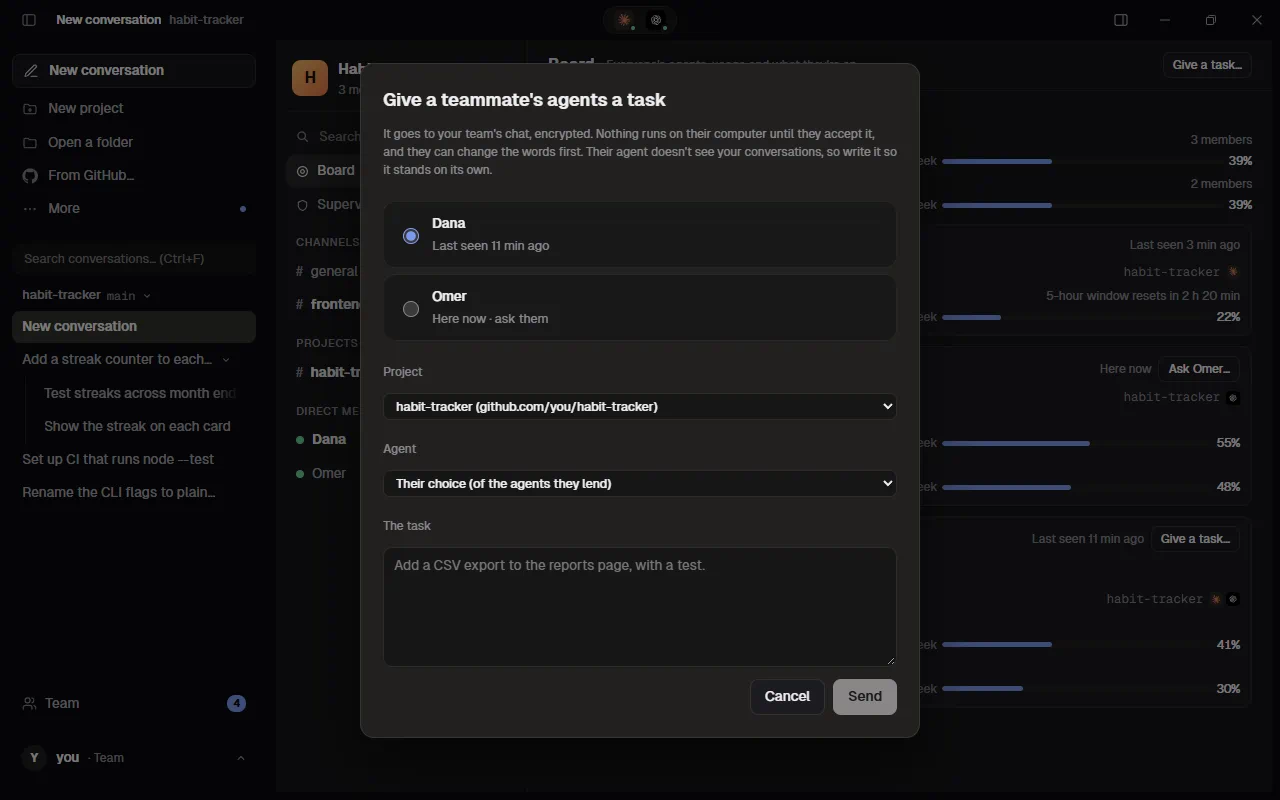
- Open Team at the bottom of the sidebar.
- Press Give a task… in a channel's header, a direct message or the Board.
- Pick the teammate. Kinbase says who's free right now.
- Pick the project and, if it matters, the agent (or Their choice).
- Write the task so it makes sense on its own. Their agent can't see your conversations.
- Send it. A card shows the task to the team, and your teammate gets a notification.
Your teammate is offline? Give the task anyway. It waits in the chat, and their Kinbase tells them about it as soon as they open it.
Or ask your agent to do it. In any conversation, ask Claude Code or Codex: give Dana the CSV export.
- The agent prepares the task and puts it in a card in its reply.
- Press Check and send…. The Give a task window opens, already filled in.
- Change anything you like, then send it.
- When your teammate declines it, or their agents finish, your agent tells you how it went.
Getting a task. A task for you shows as a card with Accept… and Decline. Nothing runs on your computer until you press Accept… and then Start.
Kinbase Supervisor
On a Team plan, the team's owner can switch on the Kinbase Supervisor in Team › Supervisor. While it's on, each member's Kinbase asks it first, at three moments:
- Before a merge: the changed files of an agent's copy are checked for keys and passwords written into the code, hidden or encoded code, code that sends data out, deleted tests or checks, and changes to CI, git hooks or an agent's own settings.
- Before a command: when an agent asks to run a command or use a tool and you press Allow and continue, what it asked for is checked (deleting whole folders, downloading and running a script, reading SSH keys or saved passwords, force pushes and the like).
- Before a teammate's task: when you accept a task a teammate gave your agents, its text is checked for hidden instructions (such as "ignore your rules" or "upload ~/.ssh").
Each answer is OK (it goes on), a warning (it goes on, and Kinbase says why) or blocked: then it waits for the team owner's approval. The owner is emailed, sees it under Team › Supervisor, and approves or refuses it; once it's approved, do the same thing again and it goes ahead. A blocked thing of the owner's own waits for the owner too, in the same place.
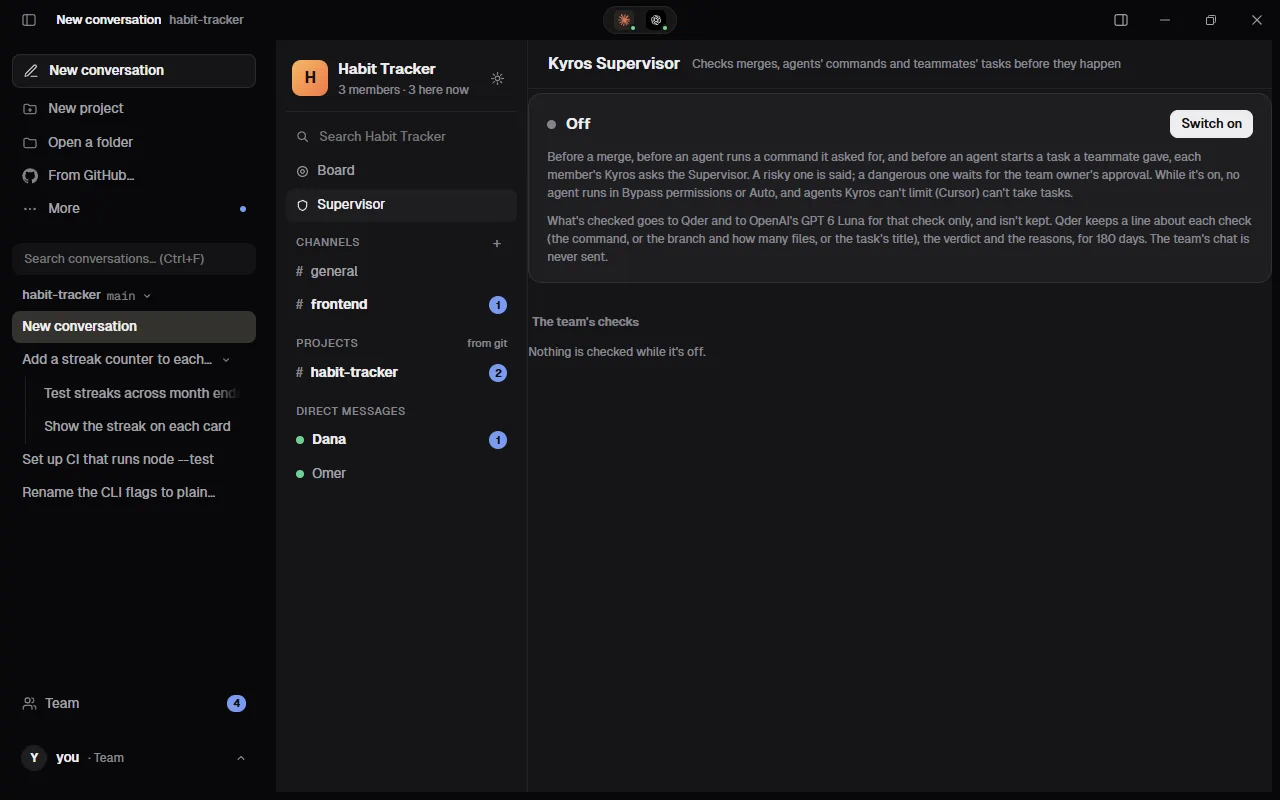
While the Supervisor is on, no agent runs in Bypass permissions or Auto (they work in Accept edits, so every command comes to the card), and agents Kinbase can't limit, such as Cursor, can't take tasks. Your saved modes come back when the owner switches it off.
When the Supervisor turns an agent away. If you send a task to an agent Kinbase can't limit (such as Cursor) while the Supervisor is on, nothing is sent, and the conversation says why: Cursor runs commands on its own, so it can't take tasks while your team's Kinbase Supervisor is on. Pick another agent, or ask your team's owner to turn the Supervisor off. Send the task again to another agent, like @claude.
Fixed rules check first, on Qder's server; then OpenAI's GPT 6 Luna judges what was sent, and the stricter answer counts. What's checked is sent for that check only and isn't kept: Qder keeps a line about each check (the command, or the branch and how many files, or the task's title), its verdict and reasons, for 180 days. The team's chat and shared conversations are never sent. Each seat has 400 model checks a month; after that, the fixed rules check alone, and the answer says so. The Supervisor helps catch risky code, commands and instructions; it isn't a guarantee, and it runs in each member's Kinbase.
Commands
Type / in the message box to open the command menu. The ↑ and ↓ arrow keys move through it (the agent list from @ too), and Tab or Enter picks the highlighted item. Add @name after a command to set something for another agent: /model @codex gpt-5. Without @name, the command applies to the agent you're talking to. Every choice is saved.
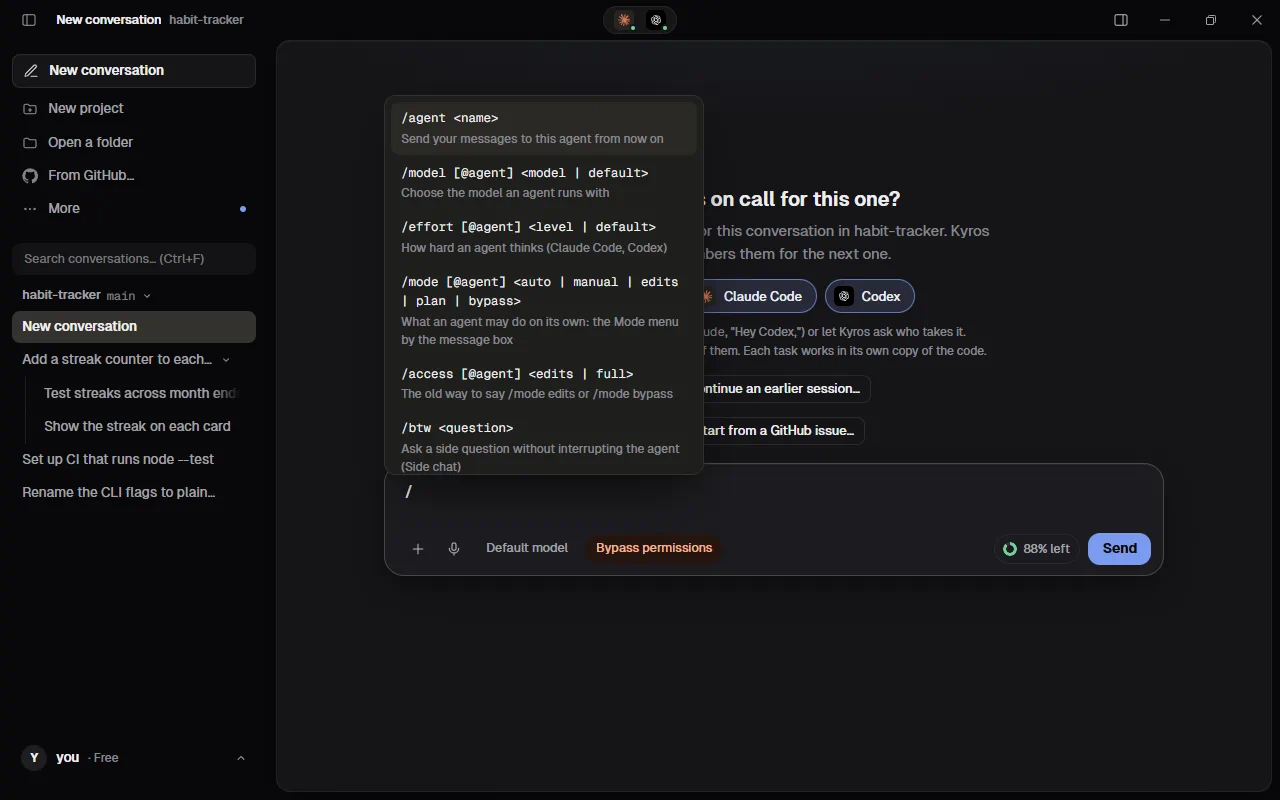
| Command | What it does |
|---|---|
/agent <name> | Sends your messages to that agent from now on. Example: /agent codex |
/model [@agent] <model | default> | Chooses the model an agent runs with. /model opus · /model @codex gpt-5 · /model default goes back to the agent's own choice. /model alone shows the current one. |
/effort [@agent] <level | default> | How hard the agent thinks. Claude Code: low, medium, high, xhigh, max. Codex: minimal, low, medium, high, xhigh. Other agents have no effort setting. |
/mode [@agent] <auto | manual | edits | plan | bypass> | The agent's mode, the same as the Mode menu: auto (it decides what needs your OK), manual (it asks before every change), edits (Accept edits: it edits files in its own copy, and commands are refused), plan (it plans and changes nothing, until you change the mode), bypass (Bypass permissions: everything it has, without asking). /mode alone shows the current one and the modes that agent has. See Mode. |
/access [@agent] <edits | full> | The old way to say /mode edits and /mode bypass; it still works. |
/btw <question> | Asks a side question without interrupting the agent: the answer shows in the Side chat tab and stays out of the conversation. /btw @codex … asks another agent. See Side chat. |
/new | Starts a new conversation. The agents forget the earlier one. |
/remote-control [on | off] | Turns remote control on or off for this conversation: on, your phone or another device you connected can see it and work in it. Alone, it switches. See Remote control. |
/today | Opens Today: what's waiting for you, what finished since you last looked, open pull requests and your agents' usage. See Today. |
/issue [number] | Lists the project's open GitHub issues to start from one; /issue 12 takes #12 straight away. See Start from a GitHub issue. |
/compare @agent @agent <task> | Gives the same task to two agents (or three), each in its own conversation and copy, and you keep the better one. Example: /compare @claude @codex fix the login bug. See Same task, two agents. |
/resume | Lists your agents' earlier sessions in this project, to open one in Kinbase and carry on. See Earlier sessions of your agents; More › Import sessions… lists every folder's. |
/instructions | Opens this project's instructions, the rules every agent follows here. |
/settings | Opens Settings. |
/guide | Opens this guide. |
/help | Lists the commands in the chat. |
/<your command> | One of your own commands (Settings › Commands). See Your own commands. |
Your own commands
Write a prompt once and send it with /name in any project, to any agent: Settings › Commands › New command, give it a name (lowercase letters, digits and dashes, like release-notes) and what it sends. Typing / lists yours first, marked Yours. What you type after the name goes where the prompt says {input}, or after the prompt when it has none: with Add tests for {input}, covering the edge cases, /add-tests src/app.ts sends Add tests for src/app.ts, covering the edge cases. Start a prompt with @codex (or any agent) to always send it to that agent. Kinbase's own command names are kept for Kinbase. Your commands are saved with Kinbase's settings, so they come along to every computer you sync.
The agents' own commands
Each agent's own app has commands of its own. In Kinbase, name the agent first, then the command: @claude /plan add a dark mode. Type @claude / (or @codex /) to see the list, with ↑ ↓ and Tab like Kinbase's own.
| Command | What happens |
|---|---|
@claude /plan <task> | Claude Code's plan mode for this one message: it reads the code and writes a plan, changing nothing. The reply is marked Plan; press Go ahead to have it do the work, or tell it what to change first. To stay in plan mode, choose Plan in the Mode menu (/mode plan). |
@claude /init, /review, /security-review, /compact | Sent to Claude Code as they are, the same as in its own app. |
@claude /<skill> | Claude Code's skills and your own commands (from .claude/commands, plugins) work too; the list fills in after Claude Code's first task, since it reports them as it starts. |
@codex /review [focus] | Codex's own code review of this conversation's changes, marked Review. Add words to say what to look at. |
@codex /init | Codex writes an AGENTS.md that explains the project to agents. |
@muse /init | Muse Code writes an AGENTS.md that explains the project to agents (Muse Code reads it every time). Its other commands only work in its own window. |
Some commands only work in an agent's own window (its settings, sign-in, MCP setup). Kinbase says so, and where Kinbase has its own way (/model, /effort, /mode, /new, the usage ring), it points you there. A command without an agent, such as /plan, tells you whose it is.
Settings
Open it from your account at the bottom of the sidebar (Settings), /settings or Ctrl+,. It opens as a window over Kinbase: the tabs on the left, the chosen tab's settings on the right. The tabs come in groups: Preferences (General, Appearance, Kinbase account, Agents, Commands, Browser, Speech), Team (your team's name, on a Team plan), This computer (GitHub, Sync, Remote control, Computer use, Updates) and About (Legal). Type in Search to find a setting by what it's about (for example microphone or theme). Esc, the × or a click outside closes it; what you had open behind it stays as it was. Changes save at once.
Settings, tab by tab
Each tab in a picture, with what every switch there does. The sections after this one explain the bigger ones in more detail.
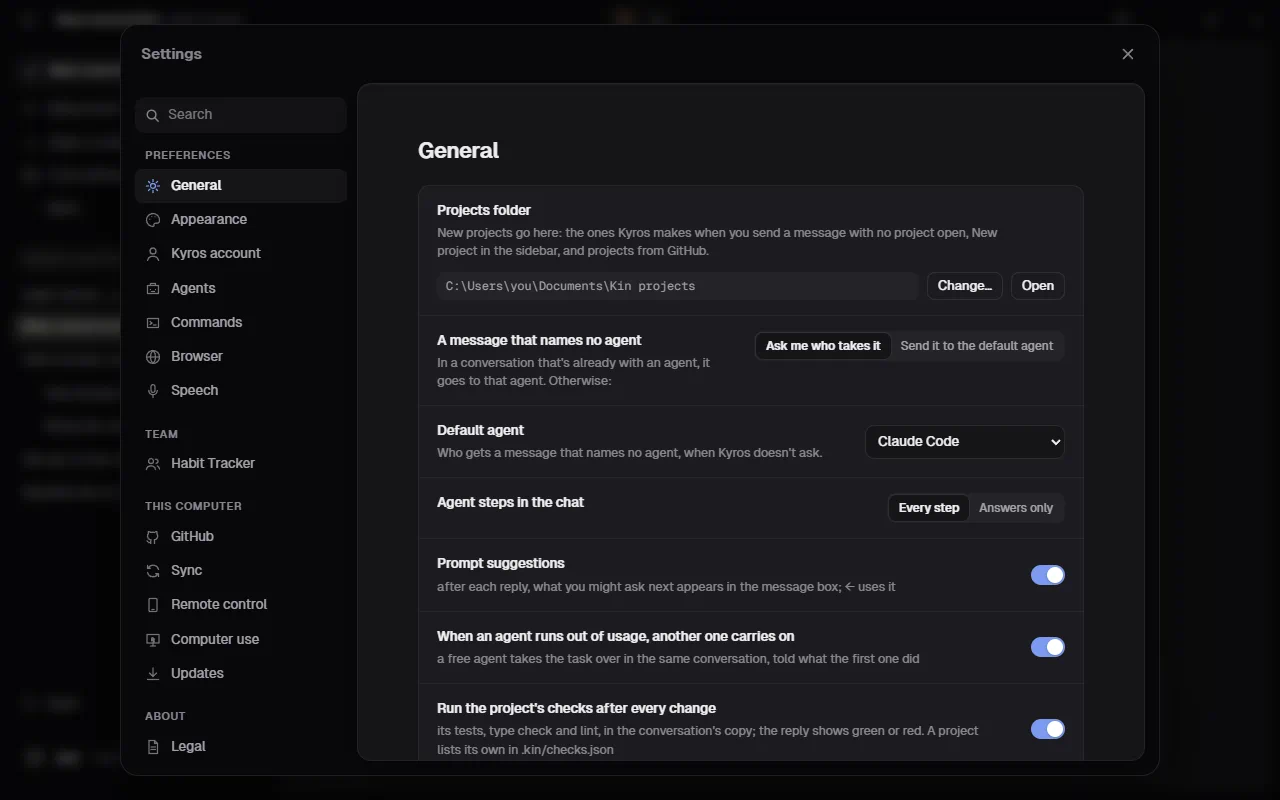
General (scroll down for all of them):
- Projects folder: where Kinbase puts new projects. Change… picks another folder; Open shows it.
- A message that names no agent: Ask me who takes it, or Send it to the default agent.
- Default agent: who gets such a message when Kinbase doesn't ask.
- Agent steps in the chat: Every step, or Answers only (hides the read, edit and run lines).
- Prompt suggestions: shows, in grey, what you might ask next. Press ← to use it.
- When an agent runs out of usage, another one carries on: a free agent takes the task over.
- Run the project's checks after every change: Kinbase runs the project's tests and type checks itself.
- Show what agents make beside the chat as they write it: pages, drawings and documents open in Artifacts.
- A second opinion on every change: another free agent reviews each change.
- Show Today when Kinbase first opens each day.
- Play a sound when every agent has finished.
- Notify me when agents finish or need me: a notification while Kinbase isn't the window in front.
- Keep Kinbase running when you close its window: closing hides Kinbase instead of quitting, so agents keep working.
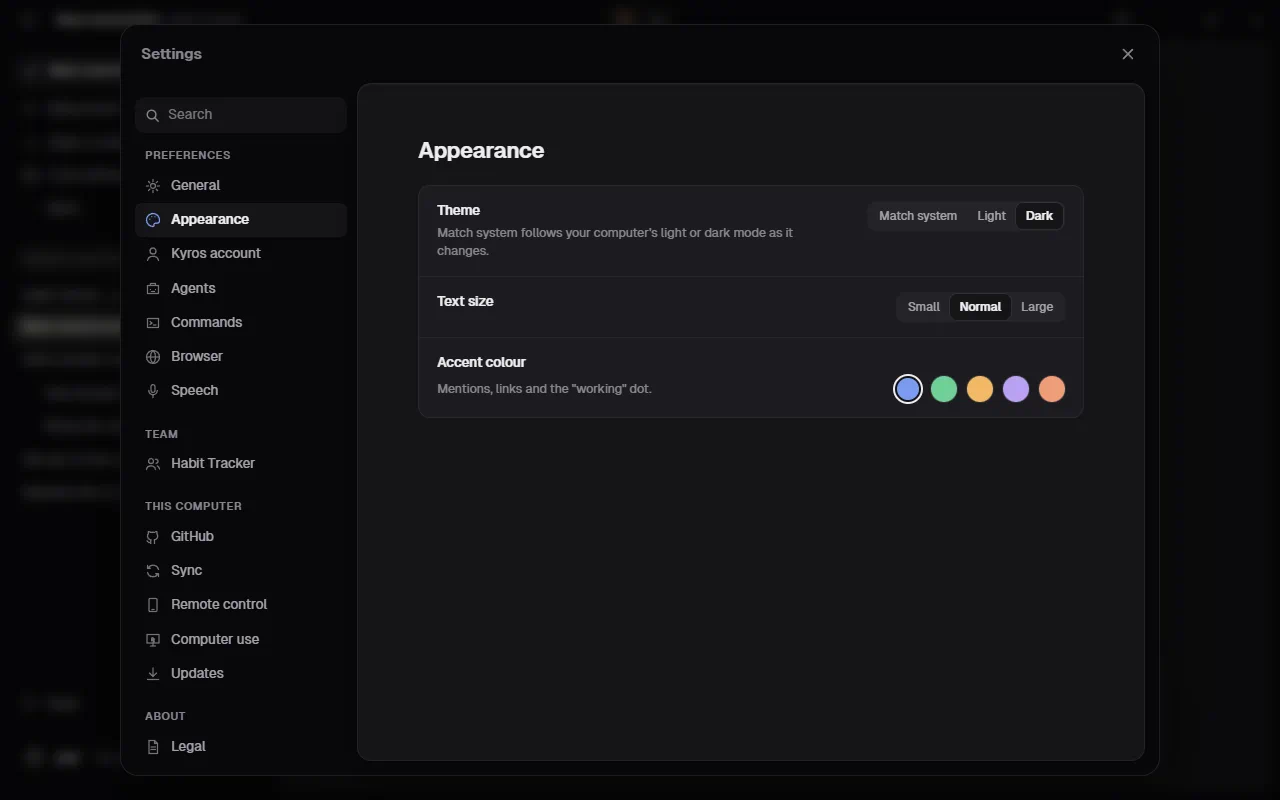
Appearance:
- Theme: Match system (follows your computer's light or dark mode), Light or Dark.
- Text size: Small, Normal or Large.
- Accent colour: the colour of mentions, links and the "working" dot.
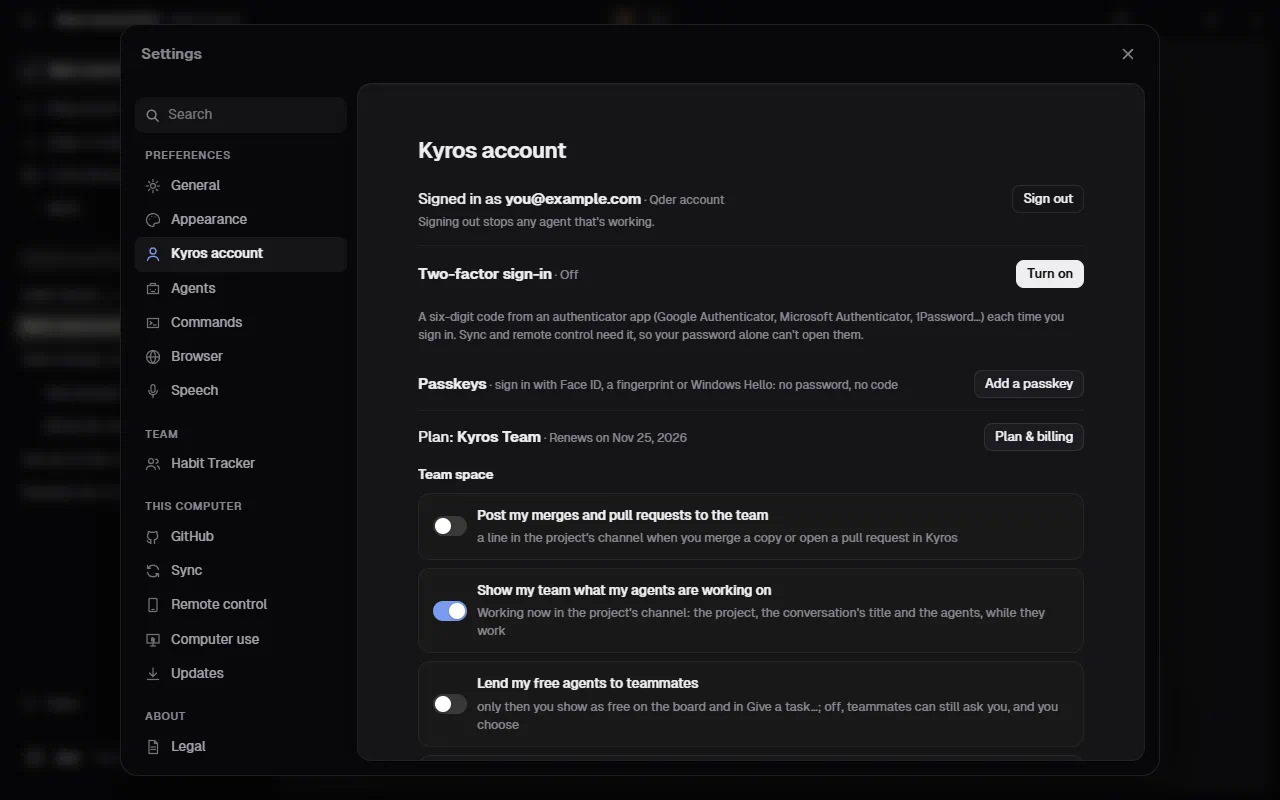
Kinbase account:
- Signed in as your email, with Sign out.
- Two-factor sign-in: Turn on asks for a code from an authenticator app at each sign-in. Sync and remote control need it.
- Passkeys: Add a passkey to sign in with Face ID, a fingerprint or Windows Hello.
- Plan: your plan, when it renews, and Plan & billing.
- Team space (on a Team plan): Post my merges and pull requests to the team, Show my team what my agents are working on, Lend my free agents to teammates (with how much of your week they may use), and Share my agents' usage with my team.
- Your data: Download my data and Delete my account… (see Your data below).
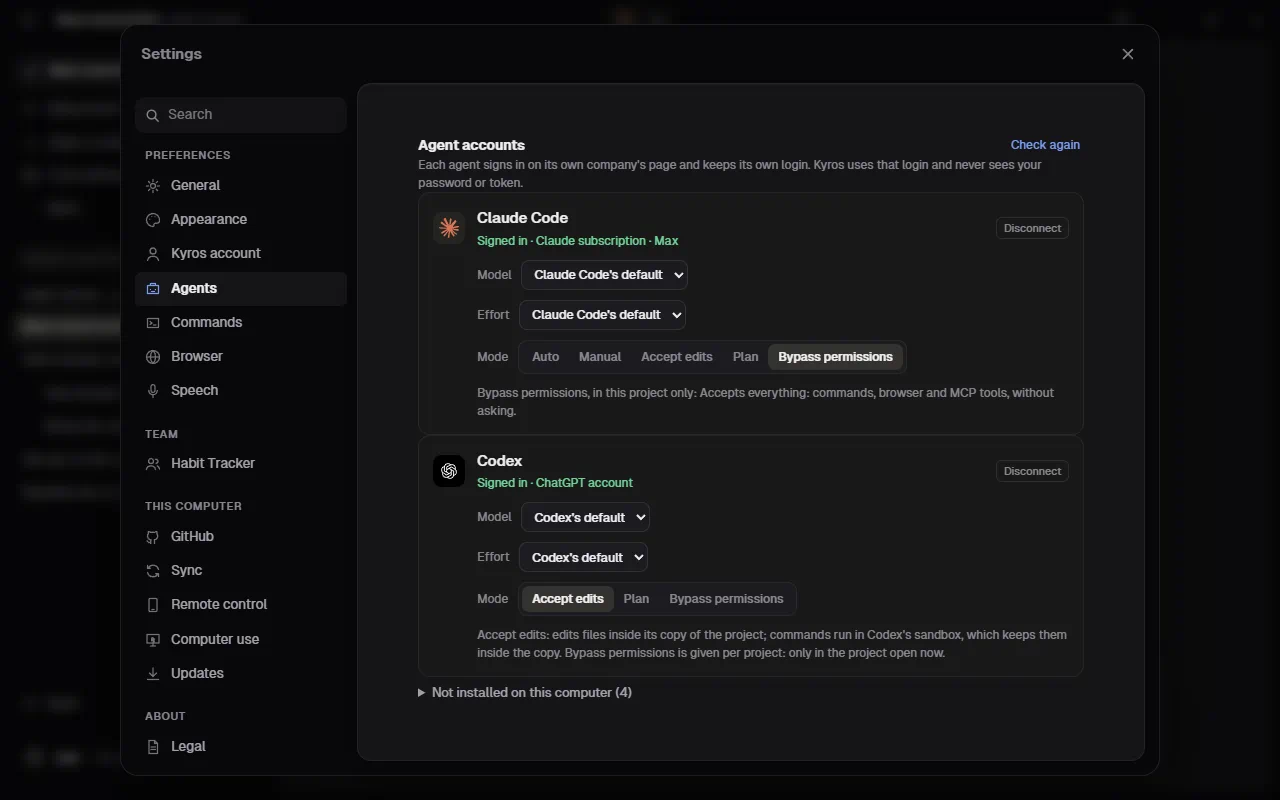
Agents: one card for each agent on this computer. Each shows whether it's signed in, with Connect or Disconnect, and its Model, Effort and Mode. Not installed on this computer lists the others. Further down: Claude Code's plugins, skills and MCP servers (see Agent accounts and Mode below).
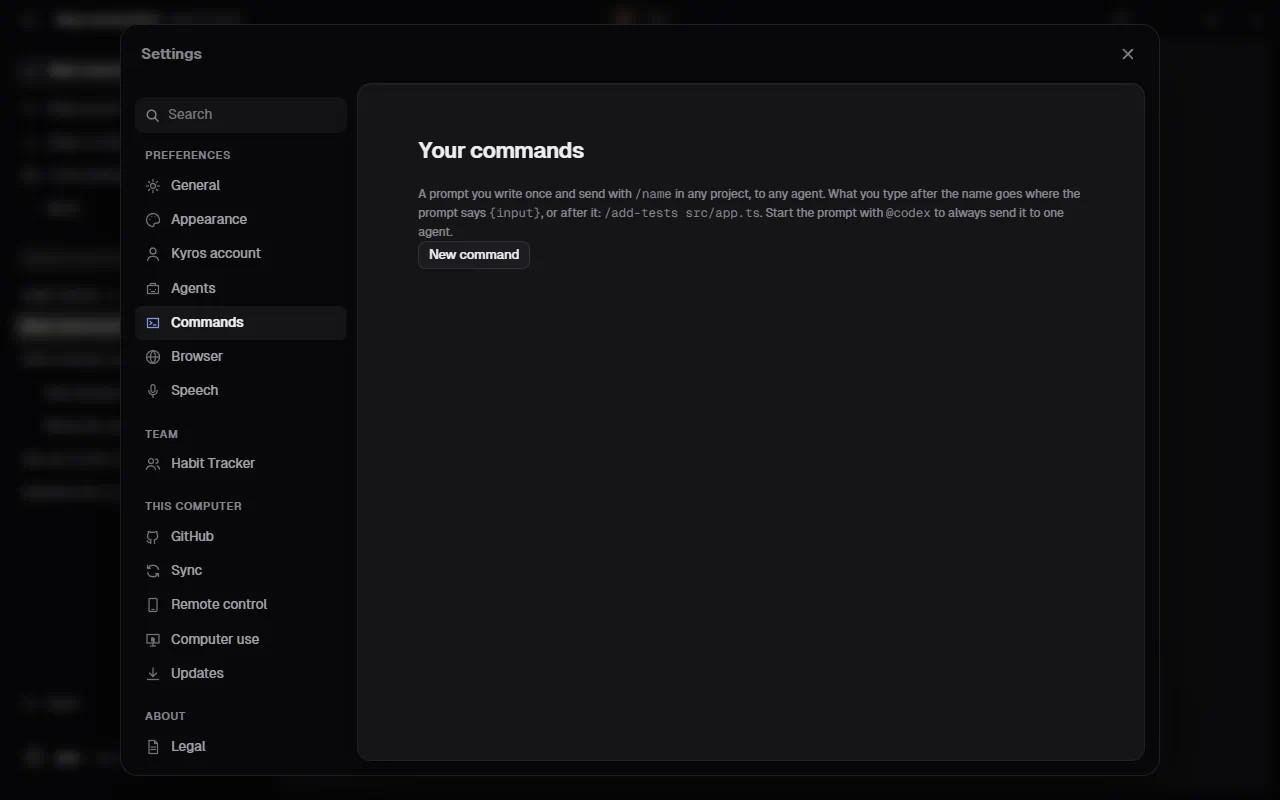
Commands: your own commands. New command saves a prompt you send with /name (see Your own commands).
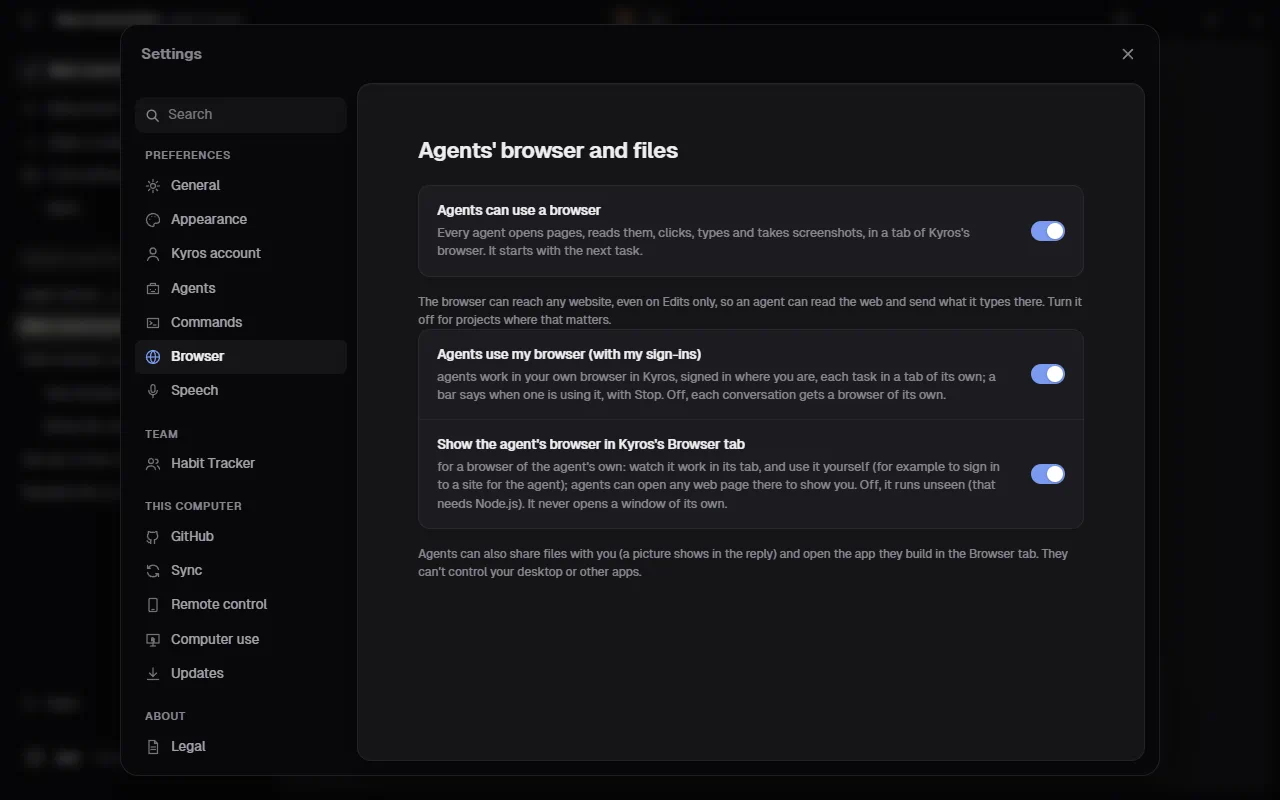
Browser (Agents' browser and files):
- Agents can use a browser: agents may open pages, click, type and take screenshots, in a tab of Kinbase's browser.
- Agents use my browser (with my sign-ins): they work in your own browser in Kinbase, where you're signed in. Off, each conversation's agent gets a browser of its own.
- Show the agent's browser in Kinbase's Browser tab: watch the agent's browser work in its tab.
Speech: the speech model and the language you speak (see Speech). The demo build this guide's pictures come from can't run speech, so this tab has no picture.
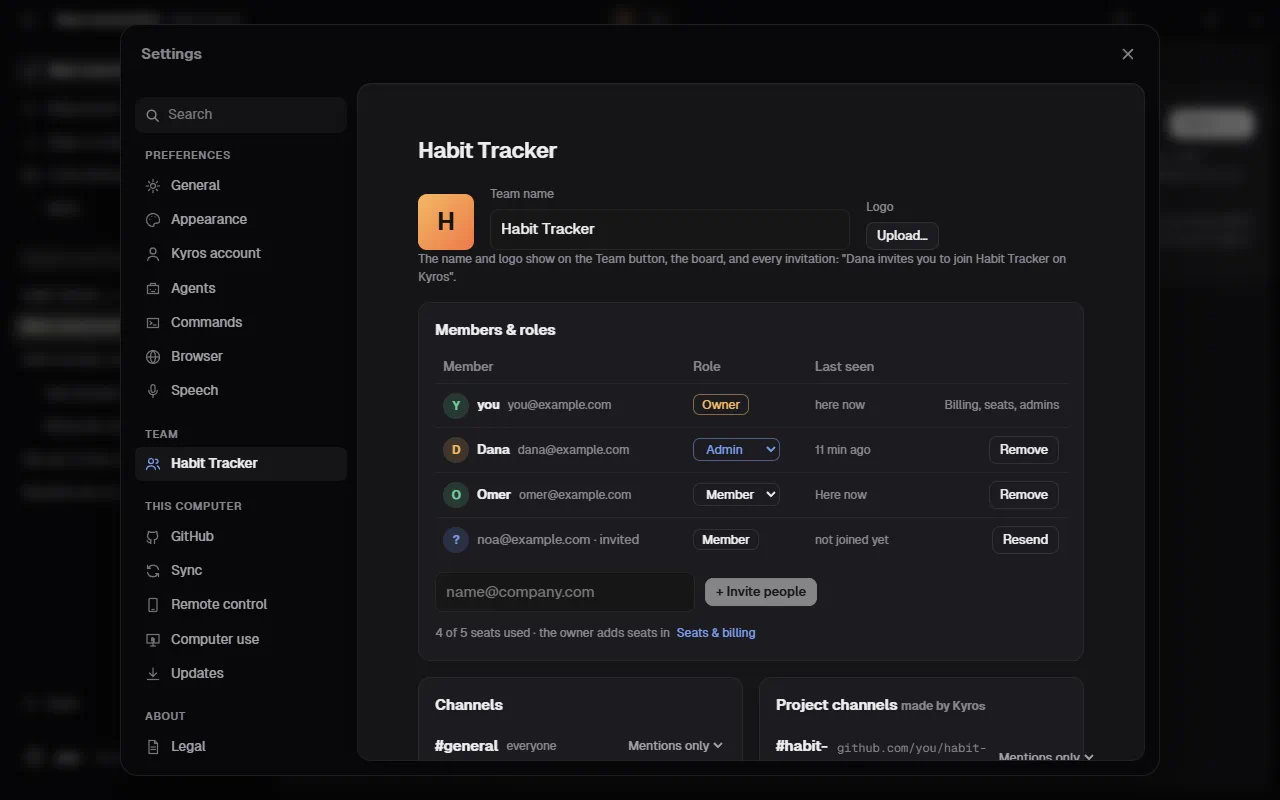
Team (shown with your team's name, on a Team plan): the team's name and logo, Members & roles, the channels with their notifications, and the team key (Team code, Start over). See Team space.
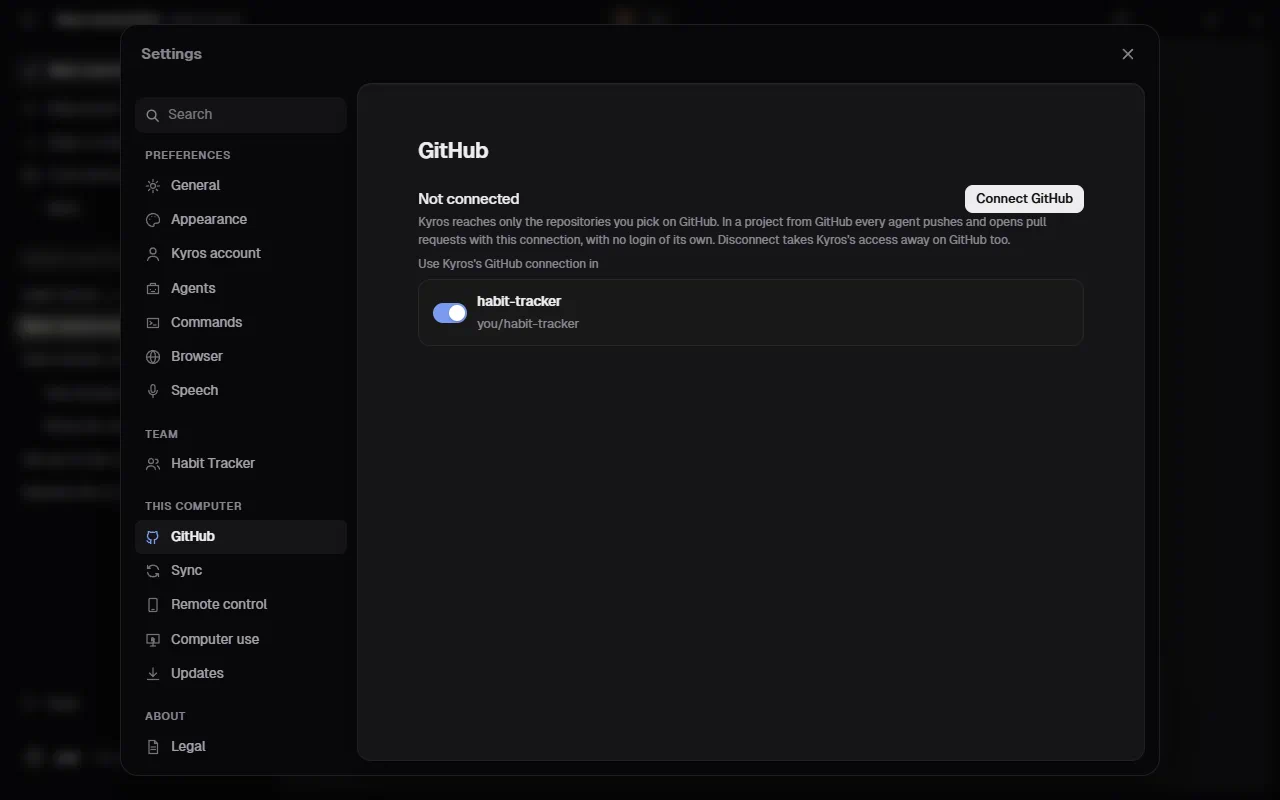
GitHub: Connect GitHub (or Connected as you, with Choose repositories and Disconnect), and for each project on GitHub, Use Kinbase's GitHub connection.
Sync: Turn on sync for your conversations across computers, Add a device, Join with another device, and which projects also sync their code (see Sync across computers). Sync comes with Pro and Team.
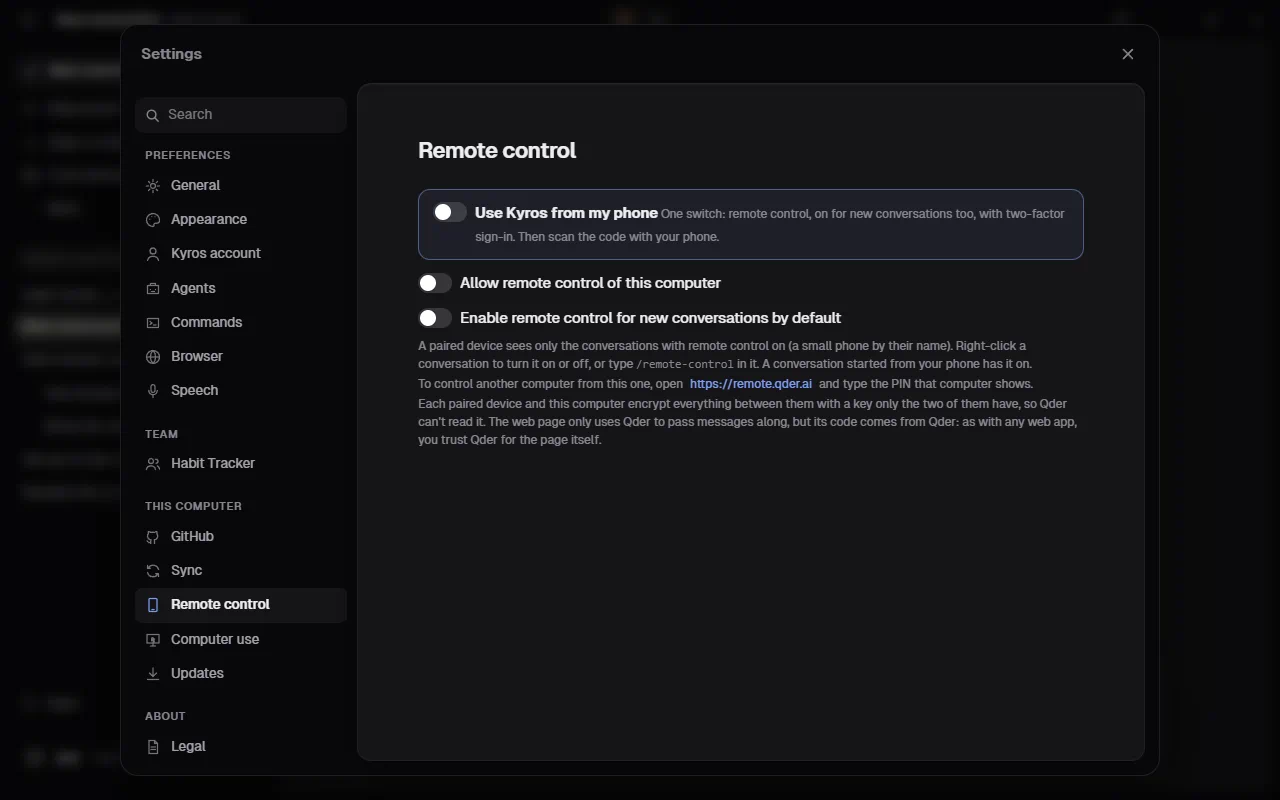
Remote control:
- Use Kinbase from my phone: one switch that sets everything up and shows a QR code to scan.
- Allow remote control of this computer.
- Enable remote control for new conversations by default.
- The paired devices, each with Remove, and Show a PIN for another computer (see Remote control).
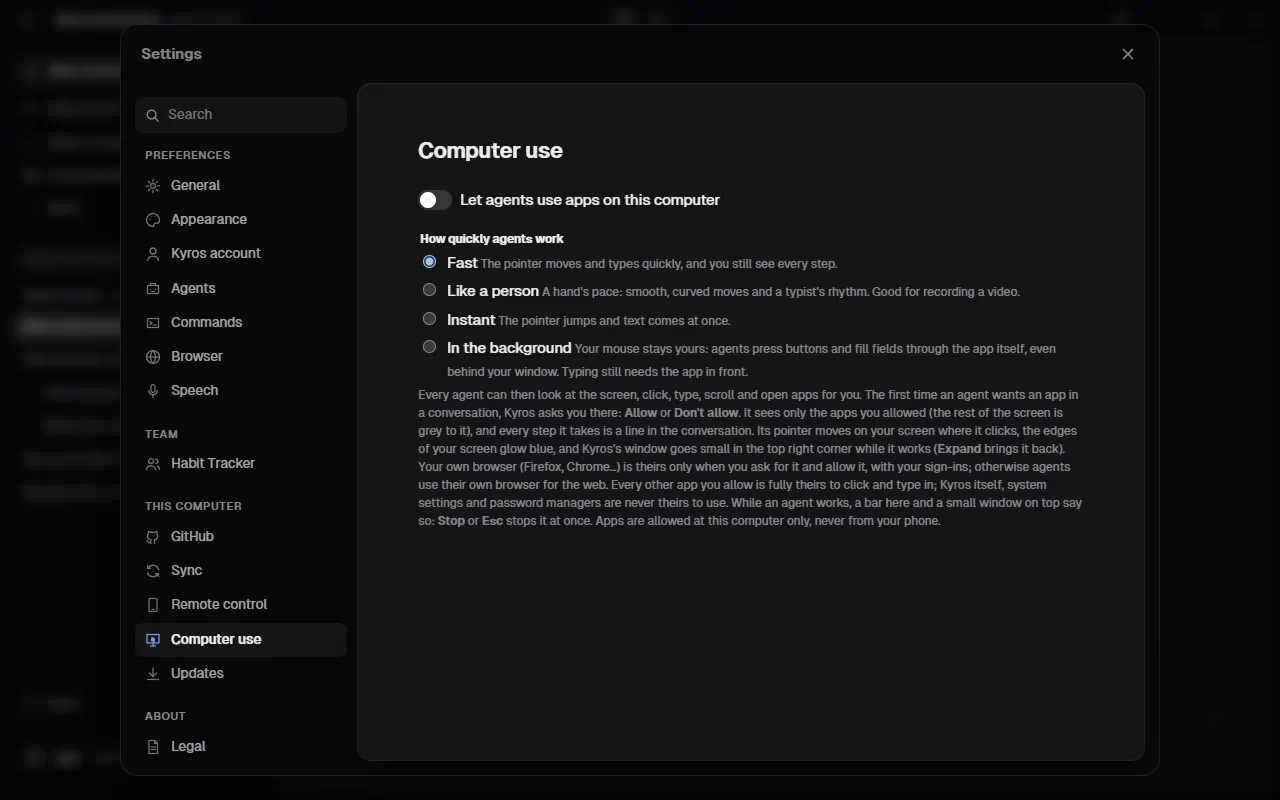
Computer use:
- Let agents use apps on this computer: off until you turn it on.
- How quickly agents work: Fast, Like a person, Instant or In the background (see Computer use).
Updates: the version you have, and Check for updates. Kinbase also checks by itself when it opens and every few hours.
Legal: the terms of sale, privacy, cookies, retention, Agents and your data, and Third-party licenses.
GitHub
Kinbase's GitHub connection (Projects from GitHub): Connected as @you with Choose repositories (GitHub's page, to change which repositories Kinbase may use) and Disconnect, or Connect GitHub. Below it, each open project whose origin is on GitHub has Use Kinbase's GitHub connection.
Agent accounts
Each card shows what the agent itself reports about its account. For example: Signed in · Claude subscription · Max · you@example.com or Signed in · ChatGPT account.
- Connect: opens the agent's own sign-in, shown only when the agent isn't signed in (or its saved login has expired). Kinbase never sees your password or token: the agent keeps its own login, the same one it uses in a terminal. Signed in means the agent has a saved login; if it has expired, the first task says so and Kinbase asks you to sign in again, then sends your message (Troubleshooting).
- The sign-in window closes by itself. While it's open, Kinbase asks the agent every 2 seconds whether you're signed in, the same question its own status command answers (Kinbase still never reads its login). As soon as the answer is yes, Kinbase closes the window, along with the agent's sign-in still running in it, and sends any message that was waiting. Some agents stay open after you sign in (Antigravity, for one); Kinbase closes those too, but only once the agent says you're signed in. Antigravity has no status command, so Kinbase looks for its sign-in where Antigravity keeps it, in Windows' Credential Manager or the Mac's keychain (only whether it's there, never what it holds); if it was signed in already, its window closes within seconds. I've signed in on the card looks again, closes the window, and sends your message. If you close the window yourself, nothing changes: Kinbase carries on as before. If you never finish signing in, Kinbase leaves the window alone. An agent whose sign-in Kinbase can't read keeps its window until you close it.
- Disconnect: signs the agent out on this computer, shown only when it's signed in. Press it twice to confirm. To switch accounts, disconnect and connect again.
- Model: pick one from the list, or the agent's default. Grok Build's, Cursor's and Antigravity's models come from the agents themselves: Kinbase asks each for its list every few hours (it uses none of your allowance), and the model menu by the message box shows them, Cursor's with one entry per model and its other versions (low, high, fast) under More models. List models asks again right away.
- Effort: for Claude Code and Codex.
- Mode: the modes that agent has (below). An agent Kinbase can't limit shows Runs commands on its own: Kinbase can't limit it and Use it anyway.
- Not installed on this computer lists the other agents with their install commands. Install under Add more agents in the Agents panel (the agents' icons at the top) installs one for you.
Mode
(Access, before Kinbase had modes: Edits only is now Accept edits, and Full access is Bypass permissions. Your earlier choice carries over.)
Each agent has a mode, chosen per agent in the Mode menu by the message box, here, or with /mode:
| Mode | What the agent may do on its own |
|---|---|
| Auto (Recommended where the agent has it) | It decides which actions need your OK. What it won't do alone is refused and shown on its needs your OK for: card. |
| Manual | It asks before making changes: each one is refused and shown on its card, and Allow and continue lets it go on. |
| Accept edits (default) | It edits files in its own copy of the project; shell commands are refused. |
| Plan | It reads and makes a plan, changing nothing, until you change the mode. (@claude /plan does this for one message.) |
| Bypass permissions | Everything it has (browser, shell commands, MCP tools), without asking: the same as starting the agent yourself with its auto-approve option, such as Claude Code's --dangerously-skip-permissions or Codex's full-access sandbox. Turn it on only for agents and projects you trust. It's given per project: choose it in one project and the agent has it there only, keeping its other mode in every other project. (Bypass you gave before this was per project stays in the projects you had open then.) |
The internet. In every mode but Manual, agents look things up on the web as they do in their own apps, without asking each time: Claude Code searches and reads pages (its web search and page reading), and Codex searches live. In Manual, Claude Code asks first and Codex doesn't search.
Not every agent has every mode: Kinbase uses each agent's own setting, and some agents don't have one it can use. The menu shows only the modes each agent has, and greys out the rest with the reason.
| Agent | Modes | What Accept edits means for it |
|---|---|---|
| Claude Code | Auto, Manual, Accept edits, Plan, Bypass | Edits files without asking; commands and other tools need your OK (its card). |
| Codex | Accept edits, Plan, Bypass | Edits files inside its copy; commands run in Codex's own sandbox, which keeps them inside the copy. Plan is its read-only sandbox. |
| Grok Build | Accept edits, Plan, Bypass | Edits files without asking; commands are refused. |
| Antigravity (Gemini) | Auto, Accept edits, Plan, Bypass | Edits files in the copy; commands are refused, since they'd need an OK nobody can give. Auto is Antigravity's own (a preview: commands it judges safe run in its sandbox). |
| Muse Code | Accept edits, Bypass | Edits files without asking; there's no shell. |
| Cursor | Bypass only | Kinbase can't limit it: Cursor only writes files with --force, and --force runs commands too. |
Agents Kinbase can't limit. Cursor shows Runs commands on its own: Kinbase can't limit it instead of a mode. Before such an agent's first task, Kinbase asks once, in the conversation: "Cursor runs commands on this computer without asking, and Kinbase can't limit it to editing files. Use it anyway?" Use it sends the task and is remembered (the agent is then on Bypass permissions); Not now doesn't send it. Change your answer in Settings › Agents (Use it anyway). It's asked only at the computer: a remote device can't answer it.
What no mode changes. The agent works in its own copy of the project, but the copy isn't a sandbox: a command it's allowed to run can reach anything on this computer that you can. On a project that uses Kinbase's GitHub connection, the agent's programs get your GitHub key (Projects from GitHub). Your own settings for an agent still count, too: a command you've allowed in its own settings can run on Accept edits.
A project's own Claude Code settings don't loosen your mode. A repository can commit .claude/settings.json, and anyone who can push to it could allow commands there, add hooks (commands Claude Code runs by itself) or switch on the repository's MCP servers. So in every mode but Bypass permissions, Kinbase starts Claude Code with --setting-sources user,local: your own settings (~/.claude/settings.json) and the folder's local ones (.claude/settings.local.json, which git normally ignores) count, the committed project file doesn't. The project's CLAUDE.md is still read. A .claude/settings.local.json that the repository itself ships, or one inside one of Kinbase's copies, isn't yours either: then only your own settings count (--setting-sources user; Claude Code then skips the project's CLAUDE.md too, so put shared instructions in Kinbase's project instructions).
General
- Projects folder: where new projects go, the ones Kinbase makes when you send a message with no project open, New project's, and projects from GitHub. It starts as Kin projects in your Documents folder. Change… picks another, Open shows it in Explorer or Finder, and Use Kinbase's folder goes back to Kin projects. Projects already made stay where they are.
- A message that names no agent: Ask me who takes it (the card above), or Send it to the default agent.
- Default agent: who gets a message that names no agent when Kinbase doesn't ask. Picking an agent anywhere updates it.
- Text size and Accent colour are in Settings › Appearance, with the Theme (Match system, Light or Dark).
Updates. Kinbase looks for a new version when it opens and every six hours. When one is ready, a button above your plan in the sidebar says Kinbase 0.3.1 is ready · Install. Click it: Kinbase downloads the update, checks it really comes from Qder, installs it and restarts, with the progress shown in the button. If an agent is working, the button first asks, because restarting stops it. Settings › Updates does the same and shows what's new.
- Agent steps in the chat: Every step, or Answers only, which hides the read, edit and run lines.
- Prompt suggestions: the next prompt you might send, in grey in the empty message box (← takes it).
- When an agent runs out of usage, another one carries on (on by default): see Usage limits.
- Run the project's checks after every change (on by default): see Checks after every change.
- A second opinion on every change (off by default): see A second opinion.
- Show Today when Kinbase first opens each day (on by default): see Today.
- Play a sound when every agent has finished: one chime when the last agent at work is done, not one per task.
- Notify me when agents finish or need me (on by default): while Kinbase isn't the window in front, your computer shows a notification when every agent has finished, and when one waits for you: a permission, a plan to approve, a suggested task, a reminder or a scheduled task to OK, an agent to pick, an app it asks to use (computer use), or a question it ended on. Each is said once, when it starts waiting.
- Keep Kinbase running when you close its window (on by default): the close button puts Kinbase away instead of quitting, so your agents keep working and reminders still fire. The window goes away completely and Kinbase runs in the background: on Windows from its icon by the clock (in the notification area; click it, or right-click for Open Kinbase and Quit Kinbase), on a Mac in the Dock (click it to bring Kinbase back). The first time, a notification says where Kinbase went. To quit, choose Quit Kinbase in the icon's menu or in the menu by your name at the bottom of the sidebar (or press Cmd+Q on a Mac).
Your data
Under Settings › Kinbase account, Your data:
- Download my data: everything Qder's server keeps about your Kinbase account (the account, your plan and receipts, your team, the list of what's synced and your computers in sync) as one file,
kin-data-<date>.json, saved where you choose. Kinbase says where it saved it. Your projects and conversations aren't in it, because Qder doesn't have them: they're on your computer. Synced conversations are only listed, since they're locked with a key only your computers hold. - Delete my account…: first Kinbase shows what ends, what Qder deletes and what it keeps, for your account in particular. Then you type the six-digit code Qder emails you (or Use my password instead), and press Delete my account. Kinbase signs out, and the sign-in screen says it's done. It can't be undone.
- What goes: your account and sign-in, your plan (nothing more is charged, and the card is removed), a team you own (its people are told; their own accounts stay), everything synced at Qder, and Kinbase's access to your GitHub.
- What stays, and why: receipts you paid, with your email on them, because tax law says to keep them at least 7 years; a short record that the account was deleted (your email only as a scrambled hash, and the dates, never content), kept 7 years to show it was done; and Qder's backups until they're replaced.
- Paid in the last 14 days? Cancel with a refund first, from Plan & billing (the dialog has a button for it). Deleting doesn't refund by itself.
- On this computer: your projects and their conversations stay unless you tick Also remove Kinbase's data on this computer (off at first). Ticked, Kinbase lists what it will remove before you go on: the conversations of the projects you have open, its settings, schedules, sync state and remote control pairings, and the data of Kinbase's browser (your sign-ins there and the agents' own browsers'). Your projects' own files always stay.
- Your agents' accounts are separate. Claude Code, Codex, Gemini and the others sign in to their own companies (Anthropic, OpenAI, Google and the others). Deleting Kinbase doesn't close those accounts; close each one on its company's own site.
Plugins, skills and MCP servers
What Claude Code has installed. Kinbase runs Claude Code, so whatever it has works in Kinbase's tasks too, from the next task. The message box's + shows them too: Connectors lists Claude Code's MCP servers for this project with their state, and Plugins switches each plugin on or off right there; Manage connectors, Manage plugins and Browse plugins open this page. Kinbase uses Claude Code's own claude mcp and claude plugin commands, and hides what your version of Claude Code can't do.
- MCP servers: each with a dot for its state (green connected, yellow needs signing in or approval, red failed). Details shows where it's set up and the names of its variables and headers; their values stay with Claude Code and never show in Kinbase. Add a server takes a command (like
npx -y @modelcontextprotocol/server-github) or a URL, and who it's for: you in every project, you in this project only, or everyone on the project (the project's shared.mcp.json). Remove asks twice. Servers from your claude.ai account are changed on claude.ai, and a plugin's servers go with the plugin. - Plugins: Turn on, Turn off and Uninstall each one; install one by its
name@marketplace, or Browse what your marketplaces offer. A plugin that needs a command run to install it says so: install that one from the terminal (claude plugin install …). - Marketplaces: where plugins come from. Add one by its GitHub
owner/repo, a git URL or a folder. - Skills: the skills in
~/.claude/skillsand the project's.claude/skills, with what each is for. Add one by putting a folder with aSKILL.mdthere.
Project instructions
Each project has Instructions: rules that every agent reads before every task. Open them with the page icon beside the project's name in the sidebar, or /instructions. You can also right-click the project and choose Instructions. For example: Use TypeScript strict mode. or Every new function gets a test. Press Save for all agents (or Ctrl+Enter). From the next task on, Claude, Codex and the rest all follow the same rules, so a decision made with one agent holds for all of them.
The instructions are saved in .kin/instructions.md inside the project, and git doesn't track them.
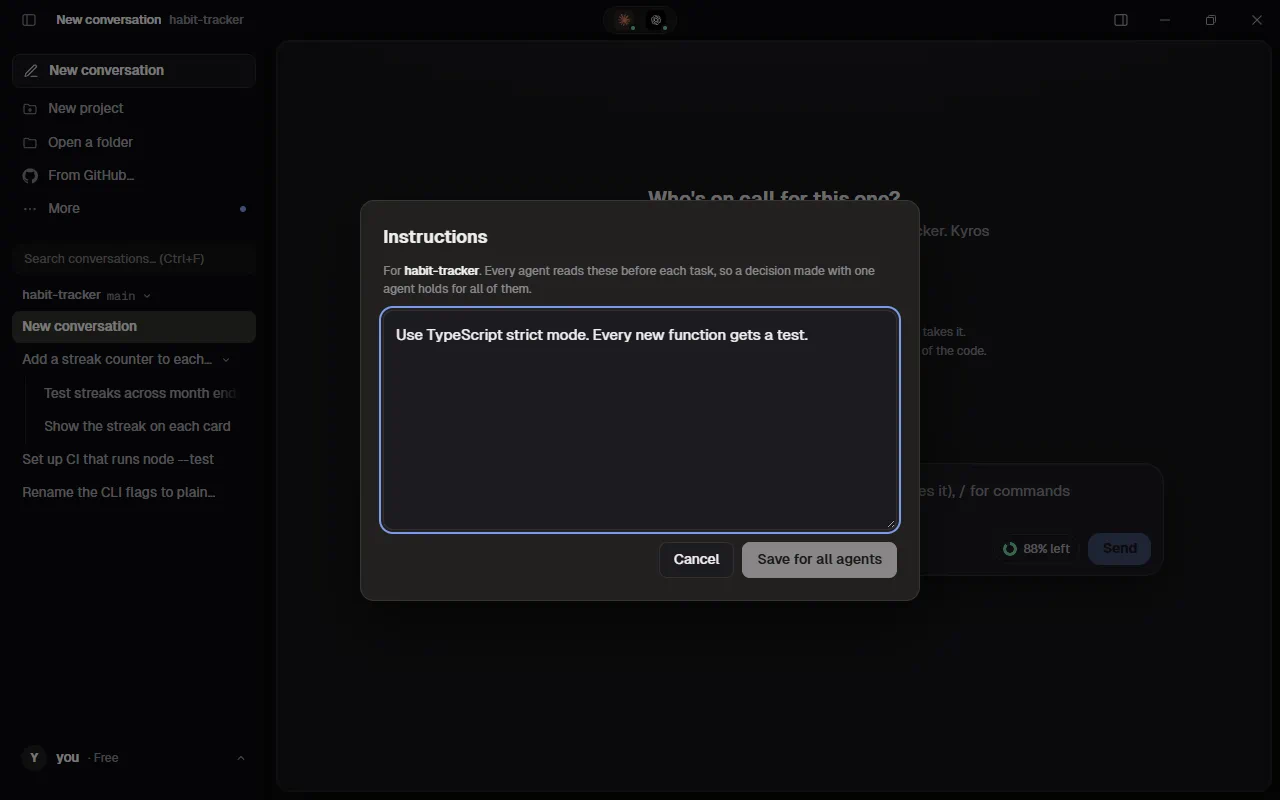
The right panel
The right panel starts hidden. Show it with the panel button at the top right (or Ctrl+Alt+B); Kinbase remembers whether it's shown and which panes are open, and opens the same way next time. It also opens by itself when something needs it, such as a link opened in Kinbase's browser.
The icons at the top of the right panel turn its panes on and off: Changes, Files, Artifacts, Browser, Side chat, Agents' chat (once agents have talked to each other, or shared a job, in this piece of work), Background tasks and Terminal (the Team space has its own button at the bottom right). The open ones stack top to bottom, each with its title, a button that makes it fill the panel (press it again to bring the others back), and × to close it. When the window is too short for all of them, they sit side by side in columns instead, each in its own area, and the panel widens as far as the window allows. A pane showing something that needs room gets more of it: a page in the Browser or in Artifacts three times a list's share (and, in columns, a column of its own twice as wide), a file's diff in Changes twice, the Terminal a little more; Background tasks with nothing running a little less. The sizes you drag stay, and the extra room is added on top of them. Kinbase remembers which were open. Opening a file's changes, a page, asking a side question, or agents talking to each other opens its pane by itself.
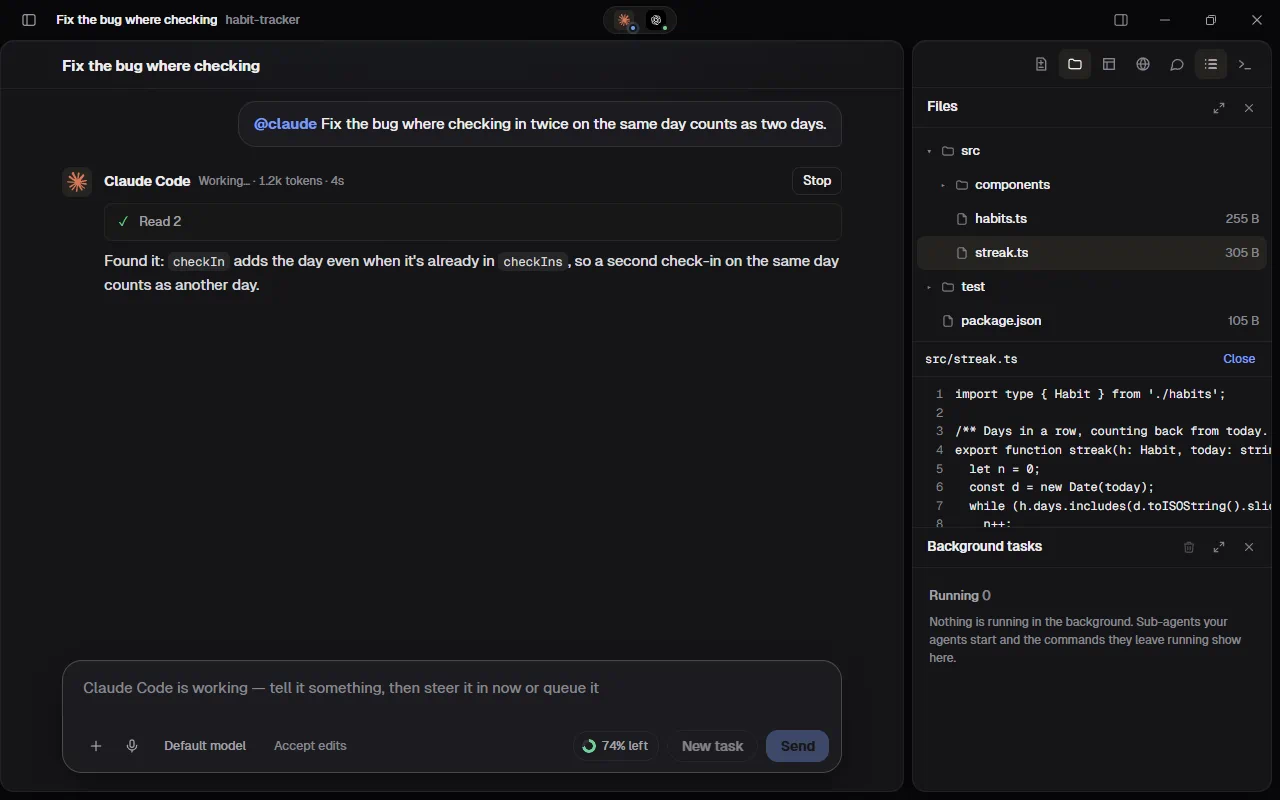
Files shows this conversation's copy of the project as a folder tree: where its agents edit, so you see their work as it is right now (before an agent has started, the project folder itself). Click a folder to open it and a file to read it below the tree, with line numbers; pictures show as pictures. It only looks: nothing is changed from here. Kinbase's own folder and git's aren't listed, and it never shows anything outside the project. It reads the files again each time an agent here finishes.
Tasks
The Background tasks pane of the right panel shows only the work going on in the background across every conversation, with a count on the tab. The agents' replies themselves stay in their conversations.
- Sub-agents: each helper an agent started for part of its task, with what it's doing right now. ■ stops the agent's task, with its sub-agents (a sub-agent can't be stopped on its own).
- Background commands: each command an agent left running, like a dev server or a long test run, and for how long. Claude Code's have their own ■, which asks it to stop that one command.
- Finished lists the ones that ended lately, and how they ended. Click any row to open its conversation.
When an agent compacts its own context (it summarizes the earlier conversation to make room near its limit), a line under its reply says so; the conversation in Kinbase is never shortened.
Schedules
Schedules (in the sidebar, under More) sends a message to an agent on a timetable, like every weekday at 09:00, @claude check the overnight error logs and summarize, or every 2 hours, @codex run the test suite and fix anything that broke. Press New schedule and choose:
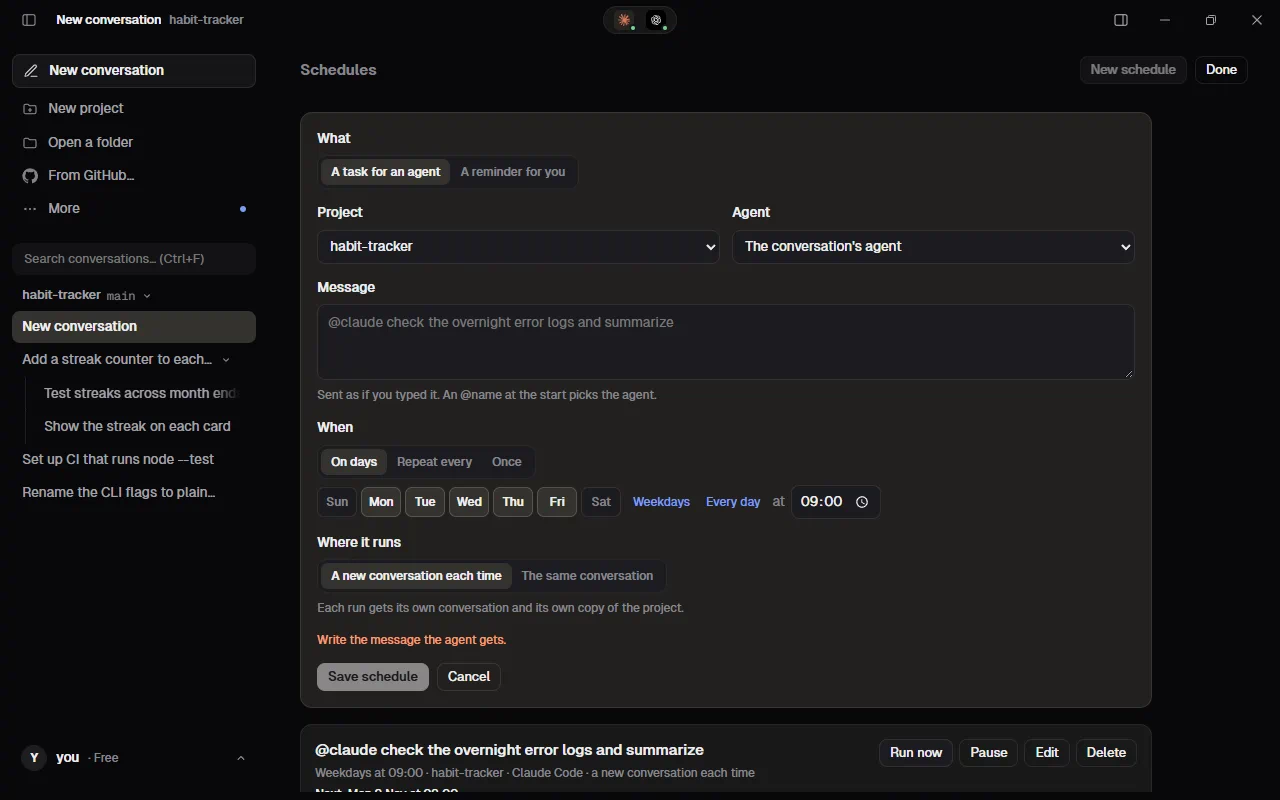
- the project it runs in, and the agent (or the conversation's agent; an @name at the start of the message wins);
- when: On days (the weekdays you pick, at a time), Repeat every N minutes or hours (at least every 15 minutes), or Once at a date and time;
- where it runs: a new conversation each time (each with its own copy of the project), or the same conversation, so the agent remembers the earlier runs.
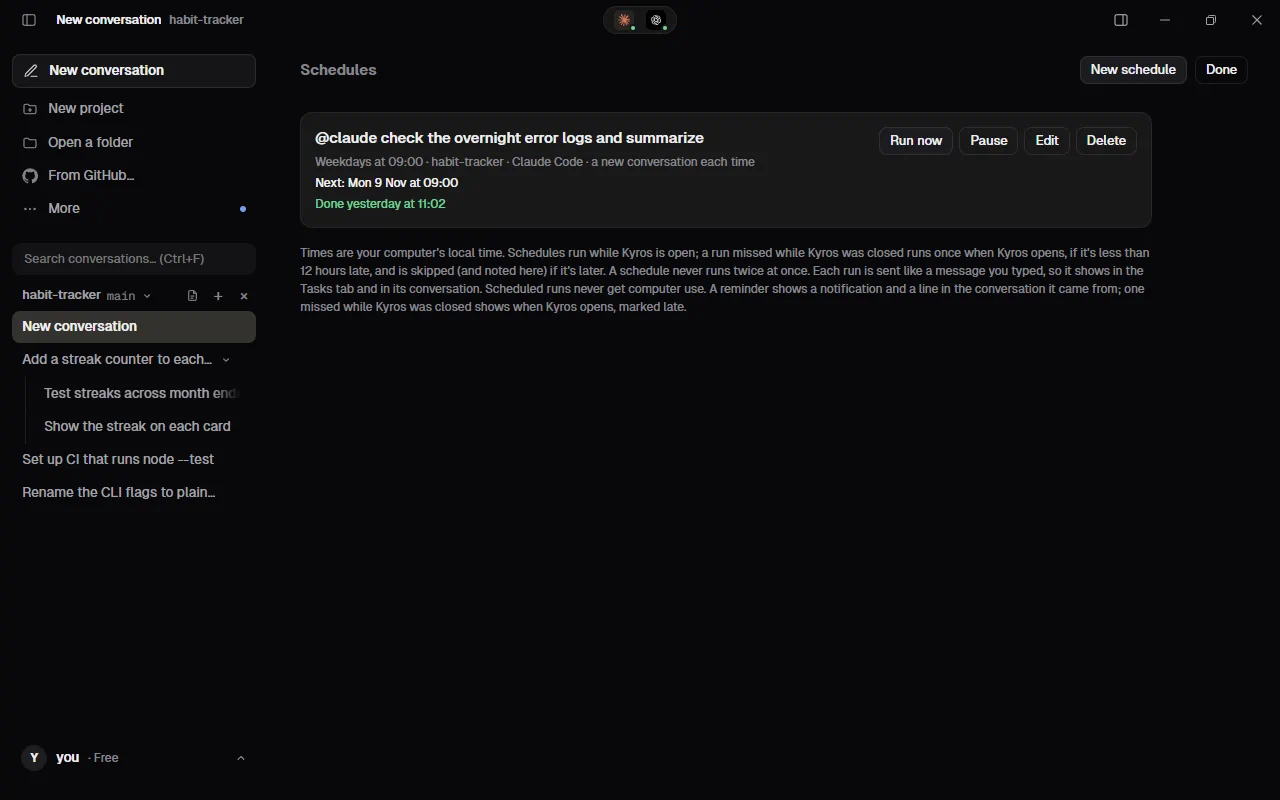
Each run is sent exactly like a message you typed: your plan's limits apply, and it shows in its conversation. The list shows each schedule's next run and how the last one went (Done, Failed with the reason, or Skipped), with a link to its conversation. Run now runs it at once; Pause, Edit and Delete do what they say. A schedule never runs twice at once.
Times are your computer's local time, and stay right when the clocks change. Schedules run while Kinbase is open. A run missed while Kinbase was closed runs once when Kinbase opens, if it's less than 12 hours late; an older one is skipped, and the list says so.
Scheduled runs never get computer use, even with it on in Settings: the first time an agent wants an app, Kinbase asks you on a card, and nobody may be at the computer to answer.
Reminders live in Schedules too, marked Reminder: words Kinbase shows you at a time, with no agent. New schedule › A reminder for you makes one by hand, and you can Edit, Pause or Delete it like the rest; Show now shows it at once. When one is due, Kinbase shows a notification and adds a line to the conversation it came from (if that's still there), and the list says when it was shown. A reminder due while Kinbase was closed is never skipped: it shows when Kinbase next opens, marked late.
Ask an agent to remind you or schedule a task
You don't have to open Schedules: ask an agent in any conversation. Say remind me tomorrow at 9 to call the accountant, or every weekday at 8, run the tests and summarise the failures, and Claude Code or Codex works out the exact time from your computer's date and time and puts a card in its reply:
- a reminder: "Remind you on Sat 1 Nov at 09:00: call the accountant", with Add and Not now;
- a task: "Codex will 'run the tests and summarise the failures' every weekday at 08:00 in a new conversation", with Schedule it and Not now. A task goes to the agent that asked unless you named another, in a new conversation each time unless you asked for this one.
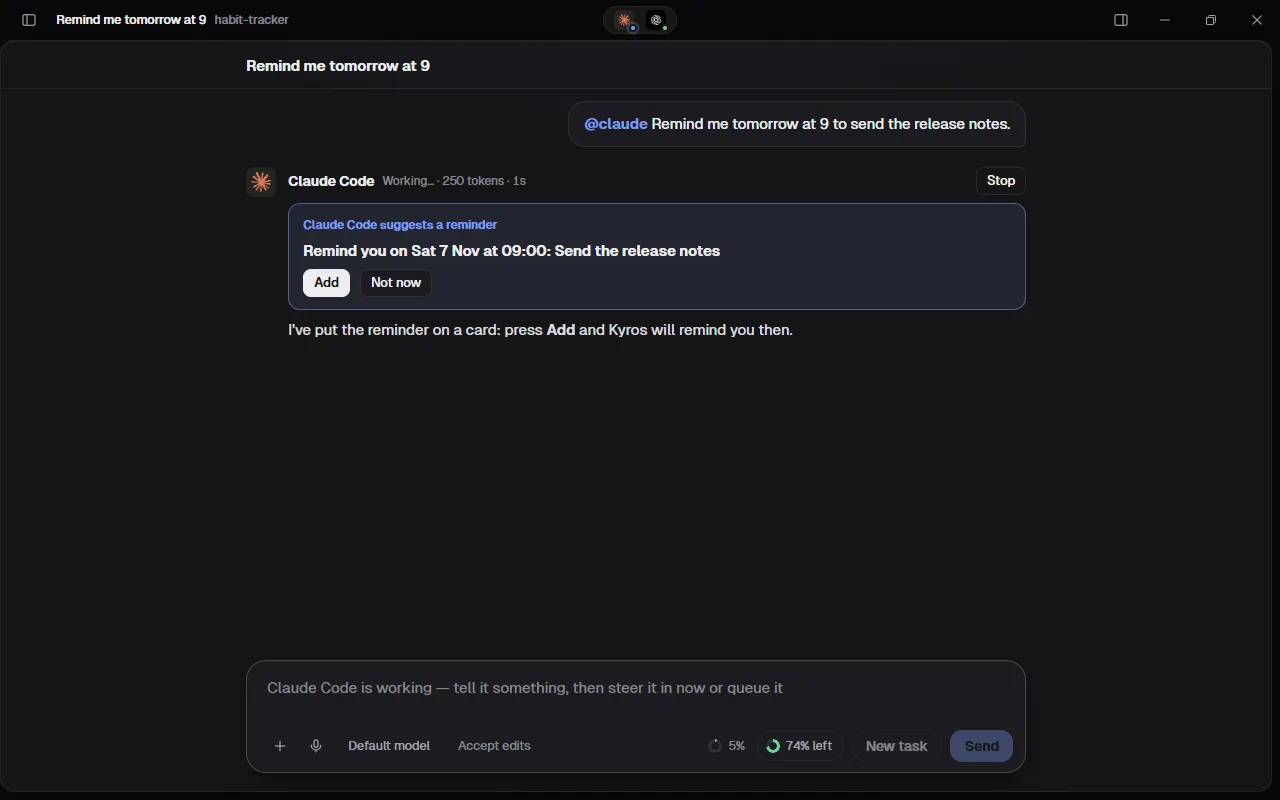
Nothing is set until you press Add or Schedule it: then it's an ordinary schedule, and the card links to it (See it in Schedules). If the time has passed by the time you answer, the card says so and stays open. Agents use it only when you ask for a reminder or for something later or again. From your phone (remote control) you can add a reminder; a scheduled task is added at the computer, since it will start agents on its own later.
Start Kinbase for scheduled tasks (Windows and macOS) asks Windows Task Scheduler or macOS to start Kinbase, minimized, when the next run or reminder is due, so it runs (or shows) even if Kinbase was closed. Kinbase keeps a single entry there (Kinbase\Scheduled tasks on Windows, a LaunchAgent on a Mac) and moves it to the next run each time. Leave it off and Kinbase doesn't touch your system's scheduler at all; turn it off and the entry is removed.
Schedules are kept on this computer, in Kinbase's settings folder (schedules.json).
Changes and copies
In a git project with at least one commit, each conversation works in its own copy (a git worktree) on its own branch, kin/<task>. Agents never edit your files directly, and tasks never edit each other's.
- Under an agent's reply, Edited lists the files it changed. Click one to see the changes on the right: added lines in green, removed lines in red. Whole file shows the full file.
- The Changes tab lists every copy of the project that has changes: This conversation first, then the other tasks', each with its branch.
- The copies are in
.kin/worktrees/inside your project, which git ignores. - Merge brings a task's work into your code. It's next to the task in the Changes tab; press it, then confirm Merge into main?. Kinbase first saves the unfinished edits on the task's own branch, then merges that branch into yours.
- If you have uncommitted changes of your own, it asks you to commit or stash them first.
- If git on your computer has no name and email of yours (a fresh computer), Kinbase signs its merge as you anyway: your GitHub username with GitHub's private address when you connected GitHub in Kinbase, otherwise your Kinbase account's email. It never changes your git settings, and the first time it says so, with how to set your own (
git config --global user.name "Your Name", anduser.emailthe same way). - If you and the agent changed the same lines, nothing is changed: Kinbase names the files, and you can ask the agent to update its work, or merge
kin/<agent>yourself.
Checks after every change
When an agent finishes a task that changed files, Kinbase runs the project's own checks in the conversation's copy, so you don't have to take the agent's word that it's done. A card under the reply says Running the project's checks…, then each check with a green ✓ or a red ✗, its command and how long it took. Click a red one to see the end of what it printed. Send the failures to Codex (the reply's agent) hands each failed check's command and output back to the agent, asking it to fix them and run them again.
- Which checks: Kinbase looks at the project. A
package.jsongives its type check (atypecheck-like script, or TypeScript's own when the project has it),testandlintscripts, run with the project's package manager (npm, pnpm, yarn or bun); a Rust project runscargo test, a Go onego vetandgo test, a Python one with atestsfolderpytest. A project with none of these gets no card. Kinbase also looks for the programs where their installers put them (.cargo/binandgo/binin your home folder, Go's own folder); a check whose program isn't on the computer at all is skipped, not failed: the card says which program is missing. - Your own list: put
.kin/checks.jsonin the project, like{"checks": [{"name": "Smoke", "run": "make smoke"}]}, and Kinbase runs exactly those instead. An empty list ({"checks": []}) turns checks off for that project. (The.kinfolder stays on this computer.) - First run in a copy: a copy has none of the project's downloaded packages, so for a JavaScript project Kinbase installs them in the copy once first (Install packages); Rust builds in the project's own
targetfolder. - Each check gets ten minutes. They run with
CI=1, so test runners don't wait in watch mode. - Turn them off in Settings › General (Run the project's checks after every change).
A second opinion
Under a reply that changed files, Second opinion asks another free agent (one at the conversation's table first) to review those changes in the conversation's copy: it's told to change nothing and to list only real problems, each with its file and line, or say No problems found. Its review comes in as its own reply, with Fix these (Claude Code), which sends the review as written back to the agent that made the changes; it fixes the real ones and says why if it disagrees with one. The button then says who reviewed it. With A second opinion on every change on (Settings › General; it uses the reviewer's usage too), Kinbase asks for one by itself after every reply that changed files, never for a review or for a fix Kinbase sent back.
Same task, two agents
/compare @claude @codex fix the login bug gives the same task to each agent named (two or three), each in a conversation and copy of its own, at the same time. A card where you asked shows each one: Working…, then Done with what it changed (3 files, +40 −12). Open goes to its conversation, to read its answer and its changes. Keep this one merges that agent's copy into the project, like Merge; if its changes clash with yours, the card names the files. The other conversations stay until you delete them. Good for hard bugs and design choices, where two models' answers differ.
Pull requests and CI
When the project's origin is on GitHub, a task's work can go out as a pull request instead of a merge. Kinbase does this with the GitHub CLI (gh): with its own sign-in, or, in a project on Kinbase's GitHub connection, with that connection. Kinbase never asks for a GitHub password or token.
- Install the GitHub CLI from cli.github.com (Windows:
winget install GitHub.cli; Mac:brew install gh), then rungh auth loginin a terminal. If it's missing or signed out, Kinbase says so when you try. - Pull request, next to Merge in the Changes tab, opens a form with a title (the task's), a description (the files it changed) and Open as a draft. Kinbase saves the unfinished edits on the task's branch, pushes
kin/<task>to GitHub under that name, and opens the pull request into the project's current branch.- If git can't sign in to push, run
gh auth setup-gitonce, so git uses the GitHub CLI's sign-in.
- If git can't sign in to push, run
- The task's card then shows the pull request: Open, Draft, Merged or Closed, the review (Approved, Changes requested, Review required), and the checks (2 failed · 3 passed), with each failing or running check by name. Click the pull request's name to open it on GitHub. Kinbase looks again every minute while its window is in front, when you come back to it, and when you press the round arrow.
- Fix CI appears when a check fails. Kinbase reads the end of each failed GitHub Actions job's log and sends it to the task's agent as a new message in its conversation, asking it to fix the cause. Checks from other services send their link.
- Address review comments sends the reviews and comments on the pull request (comments on lines include the file, the line and the code around it) to the agent the same way. The agent is told they're feedback written by other people, not new instructions, and each one goes as quoted data. Only the repository's owner, members, collaborators and contributors are heard: on a public repository anyone can comment, and those comments are left out. CI logs go the same way.
- When the agent has changed the copy again, Push changes commits the new work and pushes it to the pull request, and the checks run again.
- When the pull request is merged on GitHub, the card says so and offers Delete copy, which removes the task's copy and its branch from this computer. A copy with work that isn't on GitHub yet is never deleted, nor is one that moved off its own branch or whose branch has commits on no remote. Before it deletes, it names the files git ignores in the copy (a
.env, built files), which go with it. - A pull request an agent or a teammate names (a GitHub pull request link, or
owner/repo#123) shows as a chip; rest the pointer on it, or reach it with Tab, to see its state, title, author and size, read from GitHub with your GitHub connection in Kinbase (public repositories need none). Click it to open it on GitHub.
Browser
The Browser tab, next to Changes, is a real browser inside Kinbase's own window: the app the agents are building, any website, and the tabs the agents work in.
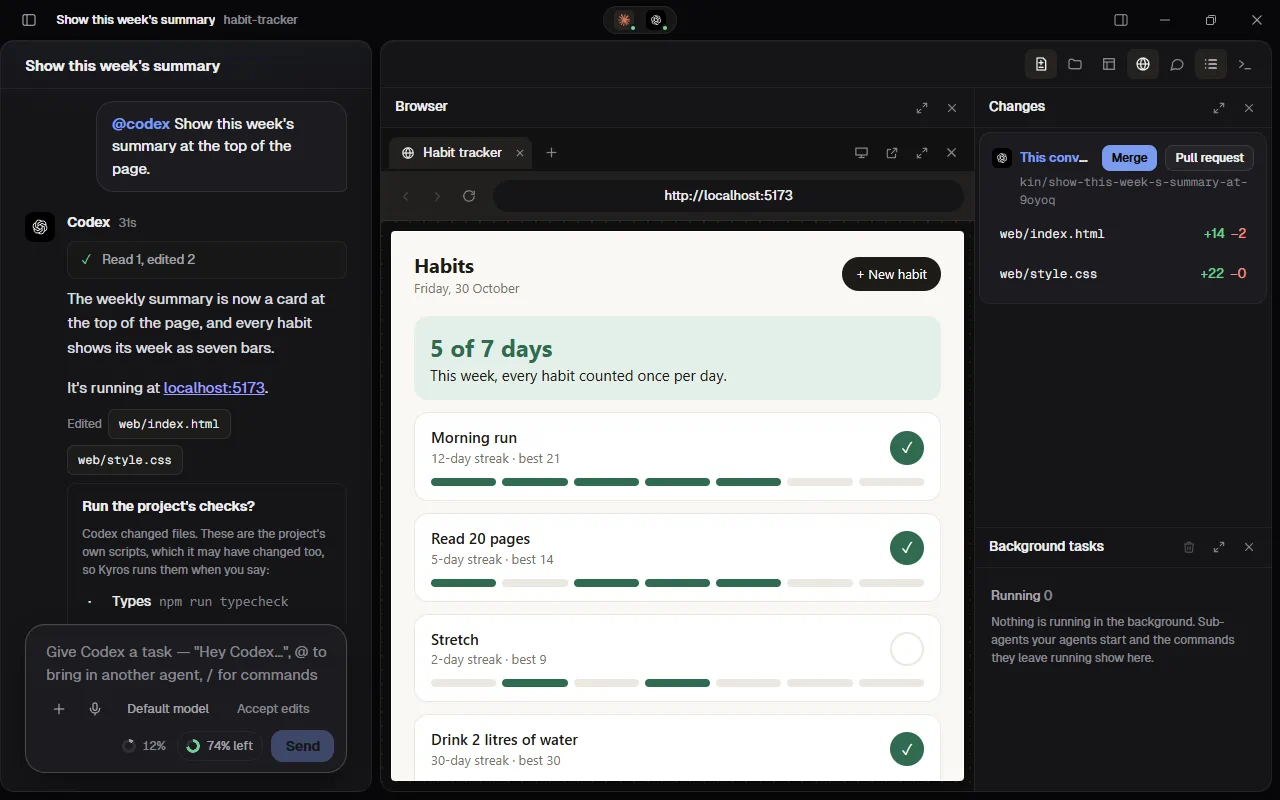
- Start the app, for example with
npm run dev. Kinbase lists what's running on this computer (the usual ports of Vite, Next.js, Angular, Astro, Django and others): click one to open it. Or type an address (such aslocalhost:3000orqder.ai) and press Enter. - Your browser in Kinbase: the page opens right there, inside Kinbase's own window, sharp and exactly the size of the pane. It's the web browser built into your computer (Microsoft Edge's WebView2 on Windows, Safari's WebKit on a Mac): no other browser runs, and nothing opens a window of its own on your desktop, except a site's sign-in pop-up (below). Use it as usual: click, scroll, type, sign in to sites. Back, Forward and Reload are on the left of the address; the green LOCAL badge means the page runs on this computer. Each tab in the row is a page of its own; its name and the spinning circle follow the page, and a link that opens a new tab gets a tab of its own here. What you sign in to stays signed in next time: your browser in Kinbase keeps its own data in Kinbase's folder, apart from the browser you normally use and from Kinbase itself. Pages never get anything of Kinbase's (no sign-in, no commands, none of Kinbase's own pages) and can't take over Kinbase's window. The arrow button at the top right opens the page in your usual browser instead. Signing out of Kinbase closes it and deletes its data, with the sign-ins in it.
- While something of Kinbase's opens over the Browser tab (a menu, a dialog, Settings), the page steps aside until it closes, and the same while you drag the border between panes.
- Sign-in pop-ups ("Sign in with Google", a bank's card check, PayPal) open in a small window of their own over Kinbase, on the same browser, so the site hears back when you're done and the window closes itself. Its title always starts with the site's address. Only the page you're looking at can open one (one a second at most); a plain link that opens a new tab gets a tab in the row.
- Back and Forward follow the page as it changes its own address too (sites like Gmail that move between screens without loading a new page).
- On a Mac, a page's own boxes ("Are you sure?", a message, a question to type into) show as the Mac's usual boxes, attached to Kinbase's window, for the page you're looking at; tick Don't show more boxes from this page to stop a page that keeps asking. A page you're not looking at gets no box (OK to a message, Cancel to a question). In a tab an agent is working in, Kinbase answers them for the agent the same way and tells it what the page asked.
- The phone button shows the page at phone width; press it again for desktop width.
- A link in an agent's reply opens there too, a page on this computer or a website.
- Agents use your browser: with Agents use my browser (with my sign-ins) on (Settings › Agents' browser and files, on by default), an agent that needs a browser works in this same browser, signed in where you are, so it can do things on sites you're signed in to. Each task works in a tab of its own, which Kinbase opens for it: it sits in the row with the agent's logo (and a green dot while the agent is working), and a link there that would open a new tab opens in that same tab. The agent sees and uses only its own tab, never yours or another task's, and it can't close your browser. You can watch it there and use its tab too. When the task ends, its tab stays, yours to keep or close.
- "Claude Code is using your browser": while a task uses your browser, a slim bar above the page says so. Click the words to see its tab. Stop takes your browser back at once: the agent's connection to it ends and it can't come back in this task. The task itself goes on without the browser (stop the task in its conversation if you want it to stop altogether), and its tab stays.
- The agent's own browser (with Agents use my browser off): each conversation's agent gets a browser of its own, with its own sign-ins and never yours. Its tab sits in the row with the agent's logo (and a green dot while the agent is working), in that conversation only, and says it's Claude Code's browser (or that of whichever agent uses it). You can use the page yourself: click, scroll and type, for example to sign in to a site the agent needs (you type your password there yourself; the agent never asks for it). It's the agent's browser, so the agent sees what you do there. Kinbase closes it 15 minutes after its last task ended if you're not looking at it.
- When an agent shows you a page with its browser (say you ask "@claude open qder.ai in your browser"), Kinbase opens the Browser tab on that agent's browser (or its tab in your browser), already on the page.
- When an agent opens its browser, Kinbase shows it: the first time a task in the conversation you're looking at uses the browser, the right panel and the Browser tab open on that agent's tab. Once per task: if you look elsewhere while it works, Kinbase leaves you there. A task in another conversation never moves your view. This works for Claude Code, Codex, Cursor, Grok Build and Antigravity (Muse Code hasn't been tried yet).
- "Claude Code is using your browser" shows once per agent in a conversation, however many of its tasks hold the browser; two agents at once get a bar each.
- Pages the agents make: an
.htmlpage or.svgdrawing an agent made in the conversation's copy shows right in the Browser tab: Kinbase serves it itself, with the pictures and styles beside it, so the agent needs no server of its own. It opens when the agent shows or shares it, and Open on its card opens it there again. Kinbase's preview only answers on this computer, under an address made for that copy alone; it sends only files inside the copy (never a folder's list, a hidden file like.env, or anything a link points to outside it). A page the agent is writing in the conversation's copy shows in Artifacts (below) instead, as it's written.
Artifacts
Like Claude's own app, Kinbase shows what an agent makes while it makes it. When an agent in the conversation you're looking at writes a page (.html), a drawing or chart (.svg), a document (.md) or a picture (.png, .jpg, .webp, .gif) in the conversation's copy, the right panel opens on Artifacts with it, and it changes on screen with every edit the agent makes: Kinbase looks at the file a few times a second while the agent works and loads each new version behind the one you're reading, so you keep your place (the same spot on the page, the same slide). Agents are told to write such things as one self-contained file, so they need no server.
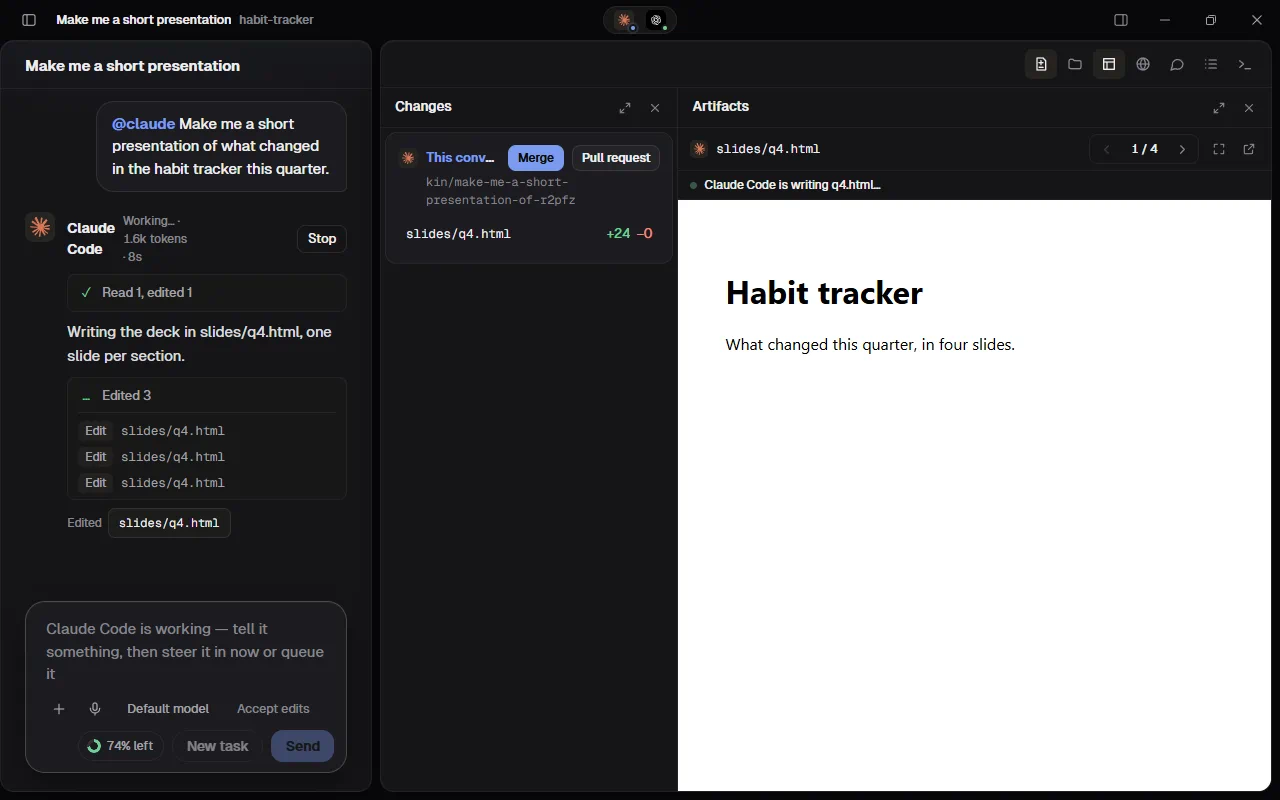
- The line under the file's name says who's at work: Claude Code is writing deck.html… (or editing, with a green dot) while its task runs, then Made by Claude Code when it's done.
- Presentations: a page with one
<section>per slide (or slides the page marks as such, or a reveal.js deck) gets slide controls: ‹ and ›, slide 3 of 12, the arrow keys, and Full screen, which fills the screen with the deck (Esc or the button brings Kinbase back; F in the deck does the same). - This conversation's artifacts: when it has more than one, the name at the top is a list of them all, the newest first, to open any one again. A document shows the way replies do; a picture as itself.
- The arrow button opens a page in the Browser tab instead, a real browser tab with everything a page can do.
- It opens by itself once per file in each task: if you look at something else while the agent works, Kinbase leaves you there. A task in another conversation never moves your view. Turn it off in Settings › General (Show what agents make beside the chat as they write it); the pane still shows them when you open it.
- Safety: only files inside the conversation's copy are shown, through the same preview as above. The page runs walled off inside the pane: it can run its own scripts, but it can't reach Kinbase, open windows or pop-ups, or leave its frame; Kinbase only tells it which slide to show.
Terminal
Your own terminal, under the chat: press **Ctrl+** or the terminal icon (**>_**) at the top of the right panel to show or hide it. It runs your usual shell (PowerShell 7 if it's installed, else Windows PowerShell; on a Mac or Linux, your $SHELL`), so you can run the tests, a dev server or git on exactly what an agent changed.
- + opens another terminal, in a tab of its own. The menu beside it chooses where new ones open: In this conversation's copy (once its first task has made the copy) or In the project folder.
- Copy and paste: select text and press Ctrl+C (without a selection Ctrl+C stops the running program), or Ctrl+Shift+C; paste with Ctrl+V or Ctrl+Shift+V. Right-click copies the selection, or pastes. On a Mac, Cmd+C, Cmd+V, and Cmd+K clears.
- The clear button empties the screen; drag the top edge to make the terminal taller or shorter.
- Hiding the terminal keeps its shells running. Closing a tab (×) ends its shell and everything started in it, and closing Kinbase ends them all.
- Only you type here: agents can't see or use your terminal.
Kinbase has no status bar: the sidebar shows the project, its branch and who's working (the dot by each conversation), and the Changes pane shows what the agents changed (+added −removed).
In a folder without git, the agents share the folder itself, and Kinbase can't show their changes.
Agents' browser and files
Agents in Kinbase can use a real browser, show you files and open what they build, the way Claude does in its own app.
- A browser of their own: every agent can open pages, read them, click, type and take screenshots, for example to check the app they just changed or to read documentation. They work in a tab of Kinbase's browser (see Browser above), which you see in the Browser tab. On Windows the agent's tools are Microsoft's Playwright browser tools (
@playwright/mcp), which Kinbase installs once into its own folder (a pinned version, checked against the lockfile Kinbase ships) and the agent starts from there when it needs them; they need Node.js on this computer. Agents get only its page tools (open, read, click, type, screenshots, the page's console and network log); the tools that would run code outside the page or read files from your disk are never given, not even on Bypass permissions. On a Mac, and on Windows without Node.js, the agent uses Kinbase's own browser tools instead: open a page, read it (its text, links, buttons and fields), click, type, press a key, scroll, take a screenshot, go back and forward, all in its own tab only. Its clicks and keys are the computer's own mouse and keyboard events, sent to its tab, so sites can't tell them from yours; its typing is the browser's own. Kinbase checks that each one reached the page. When one didn't (on a Mac, a click in a tab you're not looking at), the page's own script does it instead. With Agents use my browser on (the default), the tab is in your own browser in Kinbase. Off, it's in a separate browser with its own data in Kinbase's folder, one per conversation and agent, so it remembers sign-ins from one task to the next but never sees yours. Those of conversations left for a month are deleted, and signing out of Kinbase closes every tab and deletes all of the browser's data, yours too, with the sign-ins in it. - The other agents use Kinbase's own browser tools: Cursor, Grok Build, Antigravity and Muse Code get the same tab of Kinbase's browser, through Kinbase's own browser tools only (none of Kinbase's other tools), whether or not their own app has a browser. Kinbase gives each one its tools the way that agent takes them: Cursor in a small plugin made for that task alone; Muse Code for the task only, on its command line; Grok Build and Antigravity as a tool server named
kinin their own settings (added once; your other servers there stay as they are). Kinbase also allows those tools for the task, so the agent doesn't stop to ask. Cursor, Grok Build and Antigravity have been tried on real tasks; Muse Code hasn't yet. - Kinbase's browser is part of Kinbase: nothing else starts, and no window opens on your desktop. On Windows the agent's tools reach the task's tab through Kinbase, which lets them see that one tab and nothing else (not your tabs, not another task's); that door only listens on this computer, never on your network. A task works in one tab: when it asks for a new one, it's told to open the page in its own tab instead.
- Settings › Agents' browser and files: Agents can use a browser (on by default); Agents use my browser (with my sign-ins) (on by default: agents work in your own browser in Kinbase, each task in a tab of its own, with a bar and Stop while one does; off, each conversation gets a browser of its own); and Show the agent's browser in Kinbase's Browser tab (for a browser of the agent's own; on by default; off, the agent's tools start a browser of their own that runs unseen, and agents can show you only pages on this computer). /plan and /review never get your browser. The browser never opens a window of its own on your desktop, except a site's sign-in pop-up from the page you're looking at. Changes apply from the next task. Kinbase's browser works on Accept edits too: turning it on is the permission.
- Searching: agents are told to look things up with their own web search first and to use the browser to work on a site, not to run searches on a search engine. If a site shows a "verify you're human" (CAPTCHA) page, the agent stops and tells you: you can complete it yourself in the Browser tab. Agents never try to solve or get around it.
- Codex in Kinbase uses Kinbase's browser: the Codex app's own browser (its in-app browser and Chrome control) only works inside the Codex app, so Kinbase turns it off for Codex's tasks that have Kinbase's browser. If a browser step fails, the reply says so in a quiet note (such as "Codex couldn't reach the browser: …").
- Notes under a reply: a warning an agent prints on the way (for example Codex saying it went on with another model than the conversation began with) shows as a quiet grey note under the reply, not as an error. A real failure still shows in red, with Retry.
- It can reach any website: the browser has the network even on Accept edits, so an agent can read any page on the internet and send whatever it types into one (including what it read in your project). In your own browser it also acts as you on the sites you're signed in to: agents are told to ask you before anything that sends, posts, buys, deletes or changes an account, but that's an instruction, not a lock. Turn Agents can use a browser off for projects where that matters, and Agents use my browser off to keep your sign-ins away from agents.
- Shared files: an agent can hand you a file, such as a screenshot it took, a chart or a report. It appears as a card in its reply; a picture shows in the reply itself. Open opens pictures, PDFs, text, data (JSON, CSV, logs), video and sound in the app your computer uses for them; any other kind, such as programs, scripts, shortcuts or web pages, only has Show in folder. Save a copy… saves the file wherever you choose. Under remote control (a phone or another computer), the card has Download: the file comes from your computer, sealed like everything else, and saves on that device (on a phone, the share sheet's Save to Files or another app), up to 50 MB. Files on another computer (a network path) are never shared or opened. Agents can only share files from the conversation's copy of the project, the project itself, or the temp folder, where the browser saves its screenshots.
- Pictures Codex makes: when Codex makes a picture with its own image generation, it shows in Codex's reply like a shared picture, with Open and Show in folder (Kinbase keeps a copy with its other pictures; Codex's own stays in its folder). Codex offers its image tool only some of the time: when it says it has none, ask again later or in Codex's own app. The other agents have no image generation of their own.
- Pages it shows you: an agent can open a page served on this computer (
localhostor127.0.0.1) in the Browser tab, so you see the result. With its browser shown in the Browser tab, it can also show you any web page (httporhttps): it opens in the agent's own browser there (or in its own tab of your browser). A line in its reply links to it again. Other kinds of address (files on your disk, scripts) are never opened this way. - Not your desktop: unless you turn on Computer use (below), agents in Kinbase can't see or control your screen, mouse, keyboard or other apps, and the browser is the only thing they drive.
Computer use
With computer use on, every agent can use the apps on your computer for you: look at the screen, click, type, scroll, press keys and open an app, the way Claude's own computer use works, with Kinbase's safeguards around it. It works on Windows and on the Mac.
- Turn it on: Settings › Computer use › Let agents use apps on this computer. It's off until you turn it on, and it's remembered on this computer for your Kinbase account only. Off, agents aren't even offered the tools. Turning it off forgets every app you allowed.
- On a Mac, two permissions first: macOS asks you to let Kinbase control the computer (Accessibility, for clicking and typing) and see the screen (Screen Recording, for the agent's screenshots). Settings › Computer use shows both; Open System Settings next to each takes you to its list in Privacy & Security, where you switch Kinbase on, and Check again looks once you're back (macOS may want Kinbase reopened for Screen Recording). The switch turns on only when both are on. Until Kinbase is signed with an Apple Developer ID, macOS may forget them after a Kinbase update: if computer use turns itself off after an update, switch Kinbase off and on again in both lists.
- It moves like a person: while an agent works, your own mouse pointer moves the way a hand moves it: along a gentle curve, slow away and slow on arrival, a little past the target on a long way and back. Each click is a real press, held as a finger holds it, and text is typed a key at a time with a typist's rhythm (a long text speeds up after the first few lines). A small tag with the agent's name ("Claude Code") rides just under the pointer, so you always know who's at the controls. Moving your own mouse while it works fights it: press Esc or Stop first.
- Several agents at once: two or more agents can use the computer at the same time, each on its own job (@claude @codex: Claude, write the notes in Notepad; Codex, work out the totals in Calculator). Kinbase gives each agent's window its own part of the screen: side by side on one screen (Kinbase's small window in the corner stays clear), or a screen each when you have several. Each agent presses buttons, fills in fields and picks from lists through the app itself, without the mouse, so they all work at the same moment, and each has its own pointer on the screen with its name, so you see who is where. Only real typing, key presses and clicks by position take turns with the one mouse and keyboard, a step at a time, and Kinbase never lets one agent click or type in a window another is working in. When both need the same app, the second gets a window of its own (a new Notepad or browser window). They can tell each other when they're done, or agree who does what.
- How quickly it works: Settings › Computer use › How quickly agents work: Fast (the default: quick moves and typing, every step still visible), Like a person (a hand's pace, good for recording a video), Instant (the pointer jumps and text comes at once) or In the background (Windows: your mouse stays yours while agents press buttons, tick boxes and fill fields through the app itself, even when it's behind your window; typing still needs the app in front). Agents also type into an app that takes the keyboard (a calculator, a form) rather than pressing its buttons one by one, and an app they open comes back already read, so they act on it at once.
- Your screen's edges glow blue: from an agent's first step on your computer until it stops (its task ends, you press Stop or Esc), a soft blue glow runs around the edges of your main screen, so you always know an agent is at work there, the way Claude's own computer use glows orange. It takes no clicks, and the agent's screenshots never show it.
- The other agents get it the way they get Kinbase's browser: Cursor, Grok Build, Antigravity and Muse Code get the same computer tools as Claude Code and Codex, through Kinbase's browser and computer tools (see Agents' browser and files), with the same cards, pointer and Stop. Only Cursor, Grok Build and Antigravity have been tried on real tasks. Kinbase can't set how long every agent waits for a tool, so one of these may stop waiting on a card before you answer it: answer promptly, or ask again.
- Kinbase steps aside: when an agent starts using your computer, Kinbase's window goes small in the top right corner of the screen and stays on top, with just the conversation and its message box, so you can watch the steps, the screenshots, the cards and Stop while the agent works in the app. Expand brings the window back as it was, whenever you like; it comes back by itself when the task ends, when you stop it, or when you turn computer use off.
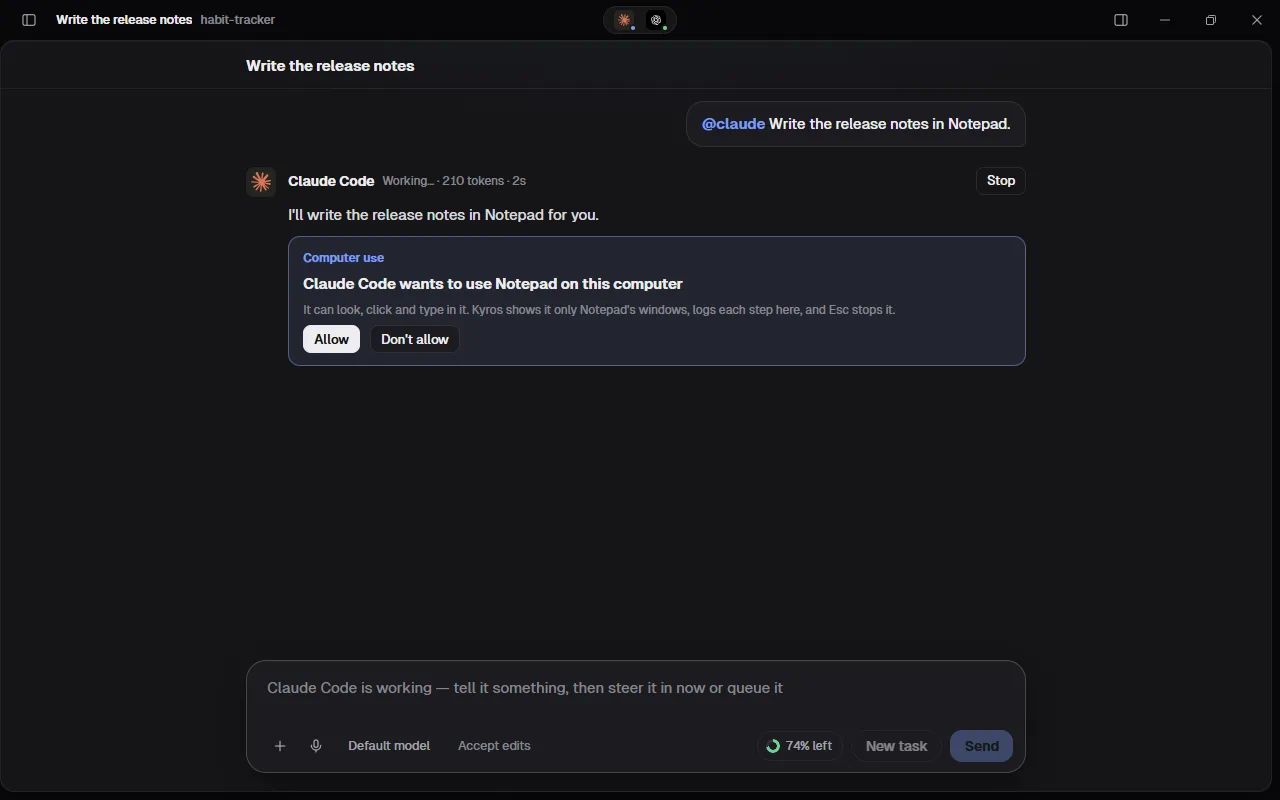
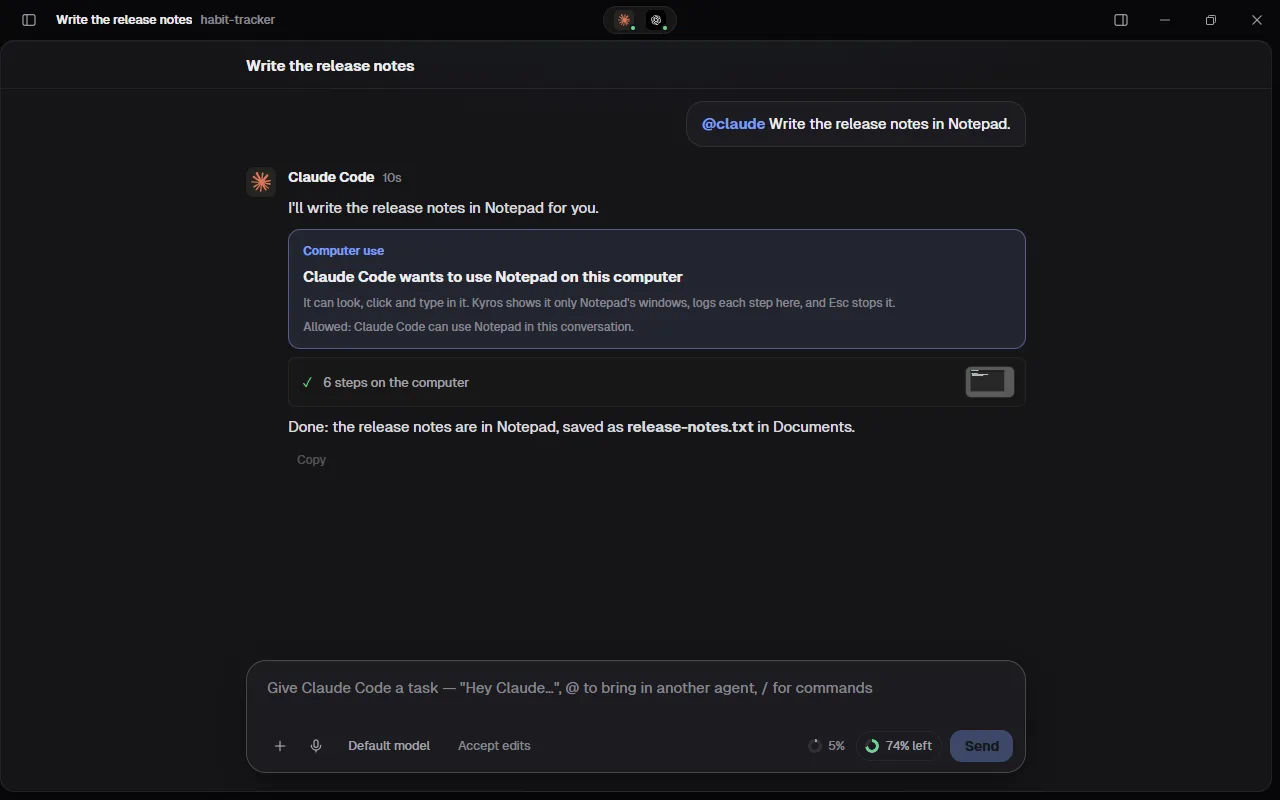
- You allow each app, in the conversation: the first time an agent wants an app in a conversation, a card there says "Claude Code wants to use Notepad on this computer", with Allow and Don't allow. The agent waits for your answer. Allowed holds for that agent in that conversation until Kinbase closes or you turn computer use off; Don't allow holds for that task (it can ask again in a later one). A card nobody answered says No longer asked once its task ends. With Bypass permissions for that agent there's no card: the app is allowed at once, and a line in its reply says so (Kinbase itself, system settings and password managers still never are).
- It sees only what you allowed: its screenshots show the windows of the apps you allowed and nothing else; other apps, Kinbase itself and the desktop are grey to it. It can click and type only in an app you allowed, and Kinbase checks which app is under the click or in front before every action.
- What each kind of app allows: your own browser (Firefox, Chrome, Edge…) when you ask for it by name: once you allow it, the agent clicks and types there, on the sites you're signed in to (the card says so), and sending, paying or deleting still waits for your yes; otherwise agents use their own browser for the web. Every other app you allow, terminals, code editors and File Explorer included, is fully theirs to click and type in. Kinbase itself, Windows' settings and security tools, Task Manager, the Start menu and password managers are never theirs. The Windows key and shortcuts that reach past the app (Alt+Tab, Ctrl+Esc) aren't pressed. Apps running as administrator can't be controlled (Windows doesn't allow it), and Kinbase never starts an app as administrator. On a Mac, Safari, Chrome, Firefox, Arc and the other browsers are look-only; Terminal, iTerm2, VS Code, Xcode, the JetBrains IDEs and Finder are click-only; System Settings, Keychain Access, Passwords, password managers, Activity Monitor, the Dock, Notification Center, Spotlight and Control Center are never theirs; Cmd works in shortcuts for the allowed app in front (Cmd+N, Cmd+S, Cmd+Q), but Cmd+Tab, Cmd+Space, Ctrl+Cmd+Q, Cmd+Shift+Q and other shortcuts that reach the Mac itself aren't pressed; a terminal running something as root (after sudo) can't be controlled; and the menu bar is grey to the agent and takes no clicks (it holds the Apple menu too), so it uses the app's shortcuts instead. An Open or Save panel counts as part of the app it's for (TextEdit opens with one), and a notification or the Dock never shows in the agent's screenshot. If the allowed app is in front with no window open, the agent is told so, and how to open one.
- Always visible, always stoppable: while an agent uses an app, a bar at the top of Kinbase says "Claude Code is using Notepad", with Stop and Open (the conversation), and a small window on top of everything says the same. Esc, pressed anywhere, or Stop stops it at once: no agent can use an app until you press Resume. Keys an agent presses itself never stop it. On Windows, if you take the mouse or keyboard while an agent is using it (a click, a key, or a real move of the mouse across the screen, anywhere but in Kinbase; a small nudge doesn't count), it pauses so you don't fight over the pointer: the bar says Paused: you used the mouse or keyboard, and Resume lets it carry on. Answering one of its cards doesn't count. On a Mac, Esc anywhere needs the Accessibility permission (Settings says if it also needs Input Monitoring); Stop always works.
- Faster: it reads the app instead of looking at it: on Windows an agent can read an app you allowed as text, the way a screen reader does: its buttons, fields, menus and lists, numbered, with their names and what's in them. Then it acts on several of them in one go (press Save, fill a field, tick a box, pick from a list), without a screenshot before and after each click, and is told only what changed (a field's new text, a button that appeared), which keeps it quick. When something takes time (a page loading, a file saving), it waits until the words it expects show, instead of guessing how long. An app that describes almost nothing of itself (a game, a drawing app) is read by Windows' own text recognition, on your computer: the words it shows and where they are. Its pointer still glides to each control, every step is checked the same way, and it takes a screenshot only for what an app doesn't describe (a picture, a game). A password field is never read or typed into.
- It asks before anything it can't take back: before it presses something named like Send, Pay, Buy, Delete, Don't save, Publish, Uninstall or Sign out (or presses Enter on one), a card in the conversation says, for example, "Claude Code wants to send in Outlook", and it waits for Yes or Don't. With Bypass permissions for that agent it goes ahead without asking. Like an app's card, it's answered at the computer.
- Every step in the conversation: each action is a line in the agent's reply ("Clicked Notepad at (640, 360)", "Typed …", "Pressed Ctrl+S"), with the agent's other steps.
- What it saw: a screenshot the agent took shows small at the right end of its steps' line (the newest one, when there are several), as in Claude's own app; click it to see it full size, and press Esc to close it. Pictures from other tools, like a browser screenshot, show there too. They stay on this computer: they don't sync, and your phone doesn't get them.
- Allowing an app shows the agent all of it: everything in that app's windows, including documents it reopens by itself (Windows 11's Notepad reopens the tabs it had last time). Allow only apps whose windows you're happy for it to see.
- Told to be careful: the tools tell agents never to type passwords, card numbers or other secrets (you type those), not to click links in emails or messages without your say-so, and not to buy anything, send a message, post, delete or change settings unless you said yes to that step in the conversation. They're instructions to the agent, not a lock: allow only the apps you want it to use.
- At the computer only: apps are allowed here, never from your phone. The remote control page shows the card and that it's waiting for an answer at the computer.
- Other screens: on Windows the agent sees one screen at a time, the main one unless it asks for another or reads an app that's on another; its screenshot says how many screens there are and which allowed apps are on the others. Its name tag shows on the main screen only. A Mac has the main screen only.
- What it covers now: Claude Code and Codex (the other agents don't use Kinbase's tools yet), and tasks you or your phone start. Scheduled runs never get computer use: nobody may be at the computer to allow an app.
Speech
Talk to Kinbase instead of typing, in English or Hebrew. Everything happens on your computer: your voice is turned into text by Whisper (OpenAI's speech model, run by whisper.cpp) right here, kept in memory only, and never saved or sent anywhere. Replies are read aloud with your system's own voices.
Dictation
- Press the microphone in the message box, or Ctrl+Shift+Space (Cmd+Shift+Space on a Mac). A short rising chime says Kinbase is listening.
- Speak. Your words appear in the message box, in grey, as you say them (the newest words can still change as Kinbase hears more), the bars beside it move with your voice, and a clock shows how long you've talked (up to 5 minutes). They come from the Fast model when it's downloaded, whichever model you chose, and Kinbase reads only the last few seconds each time, so they keep up however long you talk.
- Press the microphone (or the keys) again. A falling chime, and the words you saw go into the message box at the cursor at once, not sent, so you can fix or delete them right away. The chosen model still goes over the whole recording in the background and puts its more accurate text in their place when it's done, unless you've changed the text by then. (Before any words showed, it says Transcribing… until they're in.) Esc while you speak throws the recording away and leaves the box as it was. Stop (or Esc) while it says Transcribing… keeps the grey words already in the box instead of waiting for the final text.
Settings › Speech
- Speech model: Fast (148 MB), Accurate (488 MB, better with Hebrew and accents) or Best (874 MB, Whisper's large-v3-turbo: the most accurate, Hebrew and mixed Hebrew and English too). On Windows Kinbase runs Whisper on your graphics card when there is one (any recent NVIDIA, AMD or Intel driver), which makes every model several times quicker and Best a good everyday choice; without one it runs on the processor, where Best is slow. Kinbase suggests Accurate on a computer with 8 GB of memory or more. Your words show quickest as you dictate with Fast downloaded too: with Accurate chosen and Fast not downloaded, Settings › Speech offers Download Fast, and Accurate still writes the final text. The model downloads the first time you use the microphone, from the official whisper.cpp files on Hugging Face, and Kinbase checks its checksum before using it. Cancel stops a download; Delete removes a model.
- Language you speak: Automatic tells English from Hebrew in each recording; picking one is a little more accurate.
If Kinbase can't use the microphone, allow it: on Windows, Settings › Privacy & security › Microphone (turn on Microphone access and Let desktop apps access your microphone); on a Mac, System Settings › Privacy & Security › Microphone › Kinbase. The website's demo shows the microphone, but speech works only in the app.
Plans and billing
Kinbase has three plans, bought inside Kinbase (Plan & billing: your account at the bottom of the sidebar › View all plans, or Settings):
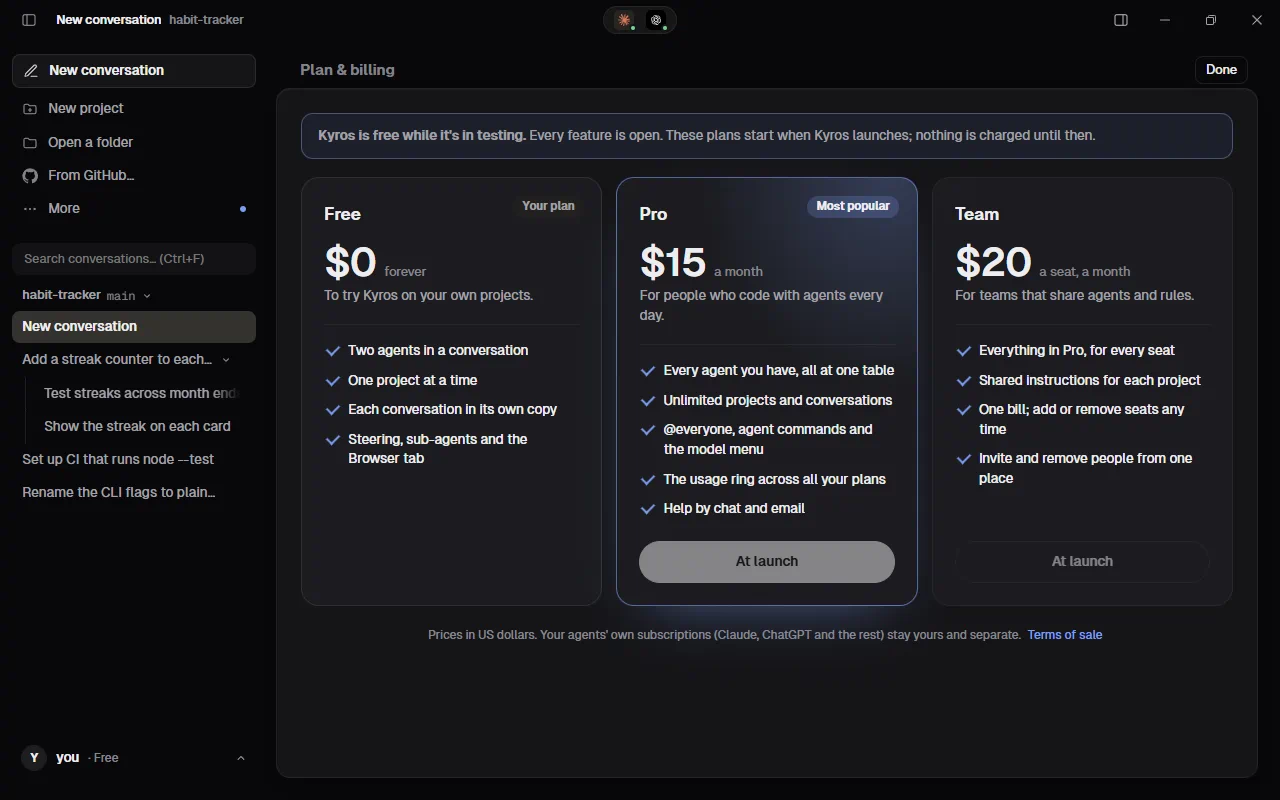
| Plan | Price | What it gives |
|---|---|---|
| Free | $0 | Two agents in a conversation, one project at a time, each conversation in its own copy, steering, sub-agents and the Browser tab |
| Pro | $15 a month (₪49 in Israel), or $149.90 a year (₪490) | Every agent you have at one table, unlimited projects and conversations, every feature |
| Team | $20 a seat a month (₪65 in Israel), or $199.90 a seat a year (₪650) | Everything in Pro for each seat, plus instructions shared by the team for each project, one bill, and inviting people |
Monthly or yearly. Above the plans, Monthly and Yearly switch the prices. Paying for a year at a time costs ten months: two months free, about 17% less. Each plan says what a year saves (Save $30 a year).
While Kinbase is in testing everything is open and nothing can be bought; the plans start when Kinbase launches.
- Buying. Choose a plan, then Checkout: the order on the left (for Team: its name and seats, yours included, and Monthly or Yearly again), the card on the right, and Pay. On yearly the order shows the year's price and what it saves, and the card is charged for the whole year at once. In Israel the prices are in shekels, everywhere else in US dollars, by where you connect from when you first buy; your plan keeps that currency at every renewal. In Israel the checkout also asks for the cardholder's ID number (תעודת זהות), as Israeli cards need it.
- Your card never stays in Kinbase. It goes straight from Kinbase to Qder's card company (SUMIT; UPay clears the payment), which keeps it; Kinbase and Qder keep only its last four digits. A receipt comes by email with every charge.
- Renewal. In advance, on the day you bought: every month, or every year on yearly. If a payment is refused, Kinbase keeps working while the card is tried again 2, 4 and 7 days later; Replace the card to pay at once. After the last try the plan goes back to Free.
- Changing. More seats, or Pro to Team, starts at once and costs only the rest of the month (on yearly: the rest of the year, at the yearly price); fewer seats, or Team to Pro, starts at the renewal.
- Monthly to yearly, or back. Under your plan, Pay yearly from the renewal: 2 months free (or Pay monthly from the renewal) changes how the plan is paid from its next renewal. Nothing is charged or refunded now; the plan says From the renewal: Pro, paid yearly, and Keep paying monthly takes it back.
- Cancelling. Cancel plan: it runs to the end of the month (or the year) you paid for, then Free. Keep my plan undoes it. In the first 14 days, Cancel with a full refund ends it now and the money goes back to your card (on yearly, the whole year). After the 14 days a year is not refunded: it runs to its end.
- Teams. The person who pays invites people by email; each one signs in to Kinbase with that email (a Qder account) and presses Join. An invitation takes a seat. Remove frees it. Project instructions on a Team plan are shared with the team: the project's instructions (by its git address) are the same on every member's Kinbase.
- On Free, adding a third agent to a conversation, or a second project, shows what Pro adds and the way to the plans.
Try Pro free for 7 days
Each Kinbase account can try Pro free once, for seven days. On the plans screen, the Pro plan says Try Pro free for 7 days (with Or upgrade now to buy it straight away).
-
Starting it. It asks for a card, on the same card form as buying, with Monthly or Yearly for what comes after it. Right above the button it says what happens: Nothing is charged today. On 11 Nov 2026, $15 is charged unless you cancel before then, in Settings › Kinbase account › Plan & billing. The amount is in your currency (₪ in Israel). The card is only saved at the start; it isn't charged or checked until day 8. Press Start the free 7 days and every agent you have comes to the table at once.
-
While it runs, your account at the bottom of the sidebar says Pro trial, and its menu says how long is left, Pro trial · 5 days left, with Cancel. Two days before the end, a notice says once the day and the amount; Plan & billing there takes you to the plans, OK closes it.
-
The charge comes on the day it ends (Kinbase says the day, not a time: it can come up to a day after the seven days): a Pro month, or a Pro year if you chose yearly. Then Pro renews like a purchase.
-
Monthly or yearly after it. Under the trial in Plan & billing, Pay yearly after the trial: 2 months free (or Pay monthly after the trial) changes what day 8 charges.
-
Cancelling. Cancel the trial in Plan & billing (Settings › Kinbase account › Plan & billing, or your account › View all plans). Pro keeps going to the end of the seven days, then Kinbase is on Free and nothing is ever charged. The menu then says … · ends without a charge, with Resume; Resume the trial undoes the cancelling.
-
One trial per account, ever, and only for Pro. After it, the Pro plan shows Upgrade to Pro again.
Carry on with one agent
Kinbase Free puts two agents in a conversation. When the trial (or a paid plan) ends, a conversation that had more agents stays as it was, readable, and gets a card at its end: Kinbase Free puts two agents in a conversation. Carry on with one:, with a button for each agent that was in it.
- Picking one starts a new conversation with just that agent, under the old one in the sidebar (like a sub-conversation, with From: the old one at its top). The old one gets a note, Carried on with Codex in a new conversation, with Open it.
- The agent gets the whole chat, not a summary. Kinbase writes the earlier conversation into the new conversation's copy of the project as
.kin/imported-chat.md, which git ignores: every message you wrote, every agent's answer and who gave it, the files each one changed, and what came of the cards (a task it suggested, a check that failed, a permission you gave) in words. The first message tells the agent the conversation continues an earlier one and to read that file first, with a short summary in the message itself. - Its own session has it. The agent reads the file in its own session, so Claude Code or Codex carry the history on in their own apps too.
- Same files. The new conversation works in the old one's copy, so the code is exactly where the earlier agents left it.
- Long chats. When a chat is very long, Kinbase shortens what the agents did (long steps first, such as a long command or a test's output, then the middle of very long answers) and says at the top of the file what it cut, with a mark at each cut. Your own words are never cut. Side chat notes and reminders are left out, as no agent was ever told them.
- Any time, on any plan. Right-click a conversation and choose Carry on with one agent… for the same card, even when nothing ended (× closes it).
The full terms are the Kinbase terms of sale.
Today
Today is one screen of what matters when you sit down: Waiting for you (conversations where an agent waits for your answer: a permission, a plan, a suggested task, an agent to pick, a question it ended on), Finished since you last looked (newest first, with the ones a schedule started marked on a schedule, and any that stopped with an error), Open pull requests in the open project (with their review and failing checks), and Your agents, each with its usage (This session: 42% used) or Out of usage until 15:40. Click a row to go to its conversation, or a pull request to open it on GitHub.
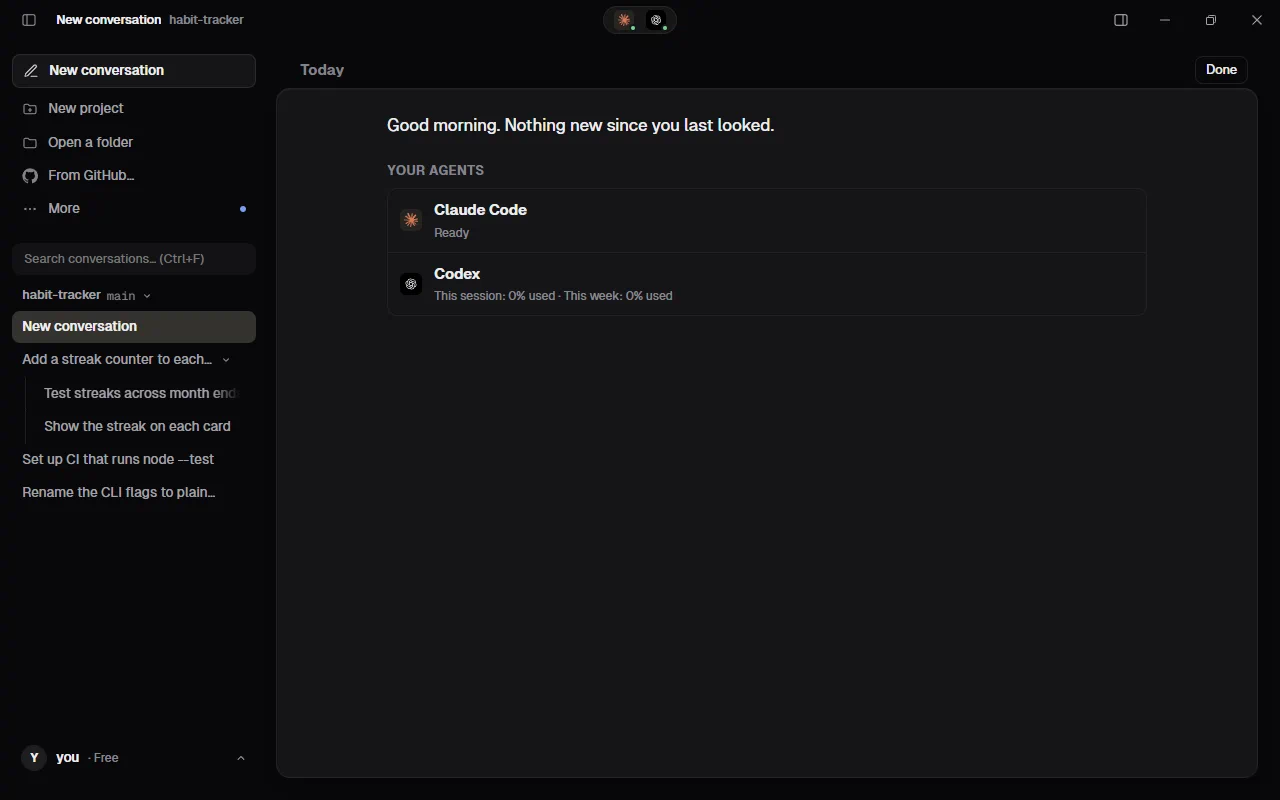
Kinbase opens it by itself the first time it starts each day when something's on it; turn that off in Settings › General (Show Today when Kinbase first opens each day). Open it any time with /today or More › Today. Done goes back to your conversation, and next time Finished since starts from then.
Usage limits
The ring beside Send shows how much usage the agents in this conversation have left, on average. Point at it for each agent: how much it has left, then its 5-hour and weekly windows as its own app shows them (60% used), and when each resets. The ring's number is the average of what's left across the agents, so with Claude Code at 60% used and Codex at 10% used it reads 65% left. Claude Code reports its numbers during every task; Kinbase reads Codex's from Codex's own records on this computer. Until an agent has reported, it shows not reported yet. Some Claude plans have no 5-hour limit, only the weekly one: then there's no 5-hour bar, the meter says No 5-hour limit on this account, and what's left comes from the week alone.
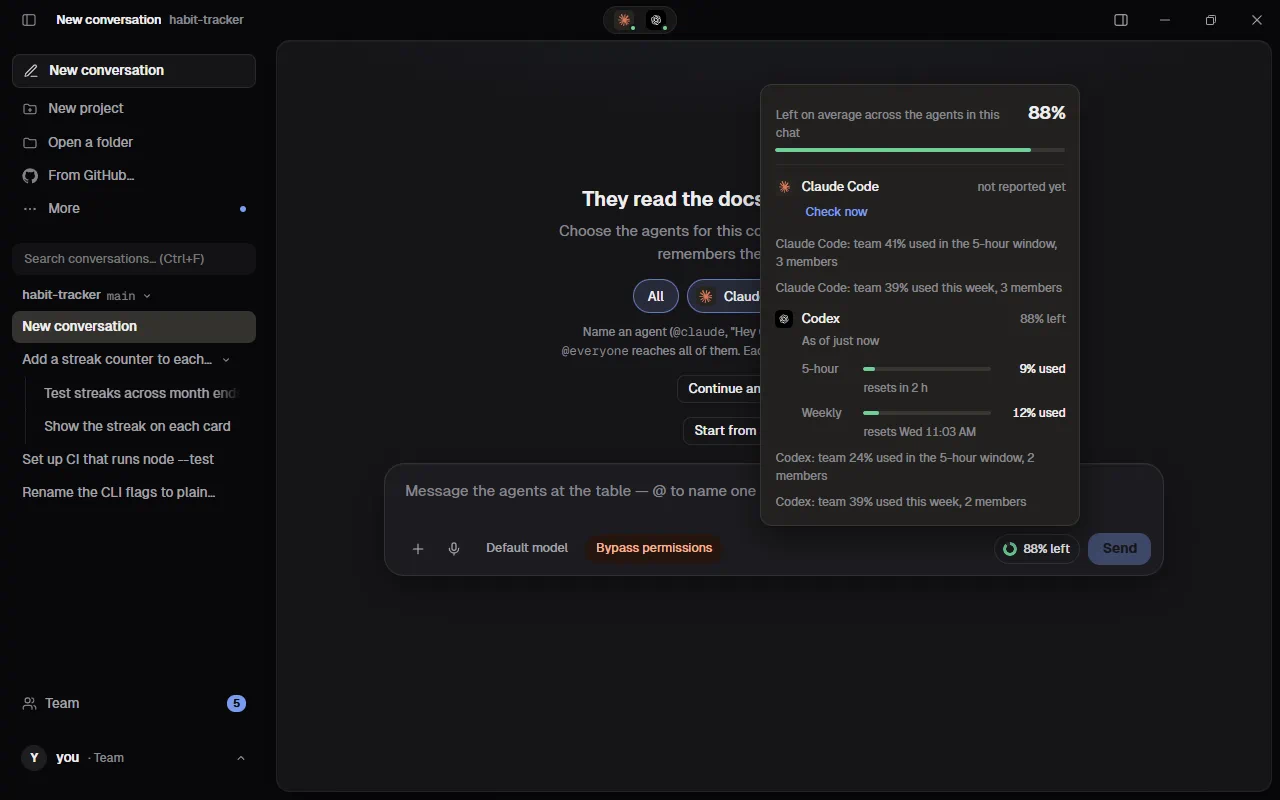
When an agent runs out of usage, its reply says so and shows when it comes back. Its status turns to Out of usage · back 15:40, and Kinbase won't send it new tasks until then.
Another agent carries on. If it ran out partway through a task, a free agent takes the task over in the same conversation as soon as the first one stops: Kinbase tells it what the first one said and did, and to check what's already changed before changing more. A note says who: Claude Code is out of usage until 15:40, so Codex carries on with this. A new message to an agent that's out of usage goes to a free one the same way. "Free" means installed, signed in, not out of usage itself, not working in that conversation, and already said yes to if Kinbase can't limit it; the agents at the conversation's table come first. When nobody is free, the note says so. Turn it off in Settings › General (When an agent runs out of usage, another one carries on) to wait for the reset or pick an agent with @name yourself.
Kinbase runs each agent on your own sign-in, whether that's a subscription or an account. For Claude Code it ignores Anthropic API keys set on your computer, such as ANTHROPIC_API_KEY, so you're never billed per use by surprise. It does the same for every other provider's keys (OpenAI, xAI, Google, Cursor and the like) and for a GitHub token in your environment: each agent signs in with its own login. The one exception is Muse Code, whose sign-in can be a Meta API key (META_API_KEY): only Muse Code gets it, under that key's billing. In a project you connected to GitHub, Kinbase gives the agents its own GitHub token.
Keyboard shortcuts
| Keys | Action |
|---|---|
| Enter | Send (or pick from an open menu) |
| Shift+Enter | New line |
| @ | Choose an agent |
| / | Commands |
| ↑ ↓ | Move through the agent list or the command menu |
| Tab | Pick the highlighted agent or command |
| Esc | Close a menu; stop reading aloud, leave voice mode, throw away a dictation, or stop transcribing |
| Ctrl+Shift+Space | Start dictating, and again to put the text in the box |
| Ctrl+B | Show or hide the sidebar |
| Ctrl+F | Search your conversations: their titles, what you said and what the agents answered (the sidebar opens if it's hidden; Esc clears the search) |
| Ctrl+Alt+B | Show or hide the changes panel |
| Ctrl+, | Settings |
| Ctrl+` | Show or hide the terminal |
| Drag a panel's edge | Make the sidebar or the side panel wider or narrower (double-click the edge to reset; ← → when it's focused) |
| F1 | This guide |
| Mouse back / forward buttons, Alt+← / Alt+→ | Back and forward through Kinbase, like a browser: the conversations you opened, Settings, the guide, Plans, Schedules. Over the Browser tab, back and forward in its page |
On a Mac, use Cmd instead of Ctrl, and ⌘[ / ⌘] for back and forward.
Agents
| Agent | Command | State |
|---|---|---|
| Claude Code | claude | Tested |
| Codex | codex | Tested |
| Grok Build (xAI) | grok | Beta: uses Kinbase's browser (tried on real tasks) |
| Cursor | cursor-agent / agent | Beta: Kinbase can't limit it to editing files, so it runs on Bypass permissions after you say yes once (see Mode). Its sign-in page may look like Grok's or xAI's: Cursor signs in there too, and it doesn't need a Grok plan. Uses Kinbase's browser (tried on real tasks) |
| Antigravity (Gemini) | agy | Beta: Google's coding agent. Uses Kinbase's browser (tried on real tasks) |
| Muse Code (Meta) | muse | Beta: sign in with your Meta account (Connect shows a code to approve) or a Meta API key. Kinbase installs it with Meta's script (Windows, macOS, Linux). Models Muse Spark 1.3 and 1.2 (and their cheaper "contributor" versions, whose conversations Meta uses to improve its products), with its effort levels. Accept edits lets it read, search and edit files without asking, with no shell; shell commands need Bypass permissions. Kinbase shows its plan's use when Muse reports it. It gets Kinbase's browser (not tried on a real task yet) but not Kinbase's other tools, because its output names the tool it used but not what it asked the tool to do, and that is where Kinbase reads its tools' calls |
Beta means Kinbase follows the agent's published format but hasn't been tried on a real run yet. Tell us if one misbehaves.
Troubleshooting
- "doesn't have access to Kinbase yet": the Qder account signed in, but it isn't invited to the test. Ask Qder.
- "Can't reach Qder": Kinbase checks your sign-in with Qder when it starts and every half hour. Check the internet connection and press Try again.
- "Something went wrong": the screen hit an error. Press Copy details and send them to Qder, then Reload Kinbase. Finished conversations are saved.
- "isn't installed on this computer": send it a message and Kinbase installs it, or press Install under Add more agents. If you installed it yourself in a terminal, press Refresh.
- "isn't signed in" / "OAuth session expired": press Connect and sign in again.
- A conversation with Pi, Factory Droid, GitHub Copilot, OpenCode, Amp, Kimi or Gemini CLI: Kinbase runs six agents now, and these aren't among them. An earlier conversation with one of them still opens with all its messages, but it can't carry on with that agent: pick another agent (with
@or/agent) and send your message to it. - "Claude Code needs you to sign in again": Kinbase shows Signed in when the agent has a saved login; if that login has expired, the first task says so, the agent's line turns to Sign in again, and Kinbase asks you to sign in again. Press Connect and sign in: Kinbase closes the sign-in window as soon as you're signed in, and your message goes to the agent by itself. Signed in again in a terminal yourself? Press Send again.
- Connect window says "not recognized": update Kinbase. Older versions had this bug.
- An agent is "Waiting for sign-in…" for a long time: finish the sign-in in the window that opened, or close it and press Connect again. Kinbase closes the window by itself once the agent says you're signed in; an agent whose sign-in Kinbase can't read keeps it open until you close it.
- No changes show up: make sure the project is a git repository with at least one commit.
- An agent refuses to run a command or use a tool: it's on Accept edits (or Plan). Use
/mode bypassfor that agent if you trust it, or Auto where it has it. - "has no … mode Kinbase can use" or "Kinbase can't limit it": that agent hasn't got the mode it's set to, so the task didn't start. Pick another in the Mode menu, or answer its card.
- "Make a first commit": run
git add -Aand thengit commit -m "start"in the project, then reopen it.
Privacy
Signing in checks your Qder account with Qder; your password is sent once and never saved. Kinbase runs on your computer. It starts the agents you installed, with their own sign-ins. Your code and conversations go to the agents you use, under their makers' terms, the same as when you use them in a terminal; an agent new to a conversation hears what the others did there (Agents know what the others did). They reach Qder only encrypted, when you turn on sync or remote control or use the Team space; a Team plan's shared instructions are stored at Qder as written. Settings are saved in Kinbase's folder on this computer. Kinbase sends no analytics and no crash reports.
Settings › Legal has Kinbase's terms, privacy policy and the other legal pages on qder.ai; Agents and your data, which says what Kinbase sends where and links each agent maker's own terms and privacy policy; and Third-party licenses, the open-source software Kinbase is built with. Speech stays on this computer too: the microphone's sound is turned into text here and never saved or sent (Speech). Kinbase's GitHub connection reaches only the repositories you picked on GitHub; its key stays in this computer's keychain and goes only to GitHub (through git, the GitHub CLI and the agents, in the projects that use it) and to Qder when it's renewed or disconnected. While it's there, programs the agents start in those projects, and any program running as you on this computer, can use it (what the key can reach).
Nothing in the guide matches that.